SnapRoamer.com – To capture professional wide scenery with a smartphone, you must switch from automatic to manual control. Prioritize shooting in RAW format, lock your ISO at 100 for maximum clarity, and use the dedicated ultra-wide lens (0.5x) rather than digital zoom to prevent image destruction and quality loss.
Tim Shields warns that the largest mistake you can make is taking JPEG images, which prevents you from adjusting white balance, tones, and color calibration in post-processing.
Mastering Mobile Manual Mode: The Pro Settings Checklist
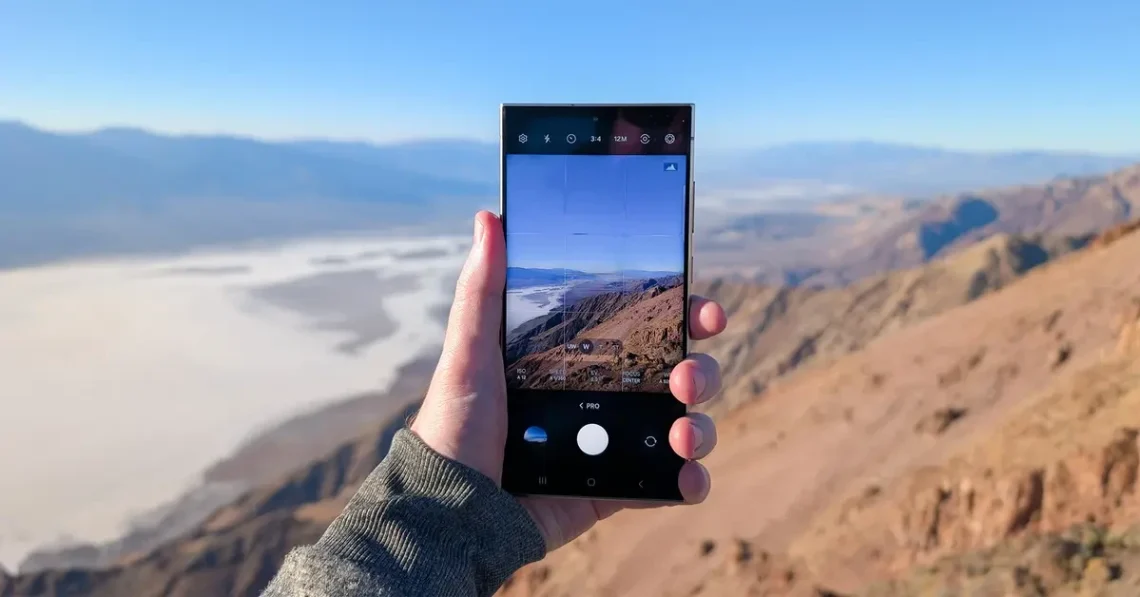
Use the 0.5x ultra-wide lens to maximize your field of view and set your ISO to 100 to ensure the cleanest possible pixels. Shooting in RAW or ProRAW format is essential, as this provides more data to work with during the editing process.
Relying on full auto can lead to technical errors in exposure and color temperature. For more precise control, photographers utilize manual settings to avoid the washed-out skies or muddy shadows often produced by automated decisions.
ISO and Shutter Speed calibration
To maintain maximum sensor cleanliness, aim for an ISO of 100. Higher ISO values introduce digital noise that becomes particularly visible in the large, flat areas of a sky or a calm body of water. If the light is dimming, it is better to increase your shutter speed duration—such as using a 1/60th second setting—rather than spiking the ISO to high levels. If you find the image too dark at ISO 100, consider using a tripod to allow for longer shutter speeds instead of sacrificing grain-free clarity.
The RAW vs JPEG necessity
The choice between file formats is the difference between a flexible professional file and a locked, processed image. Tim Shields notes that JPEG images do not allow you to change the white balance or affect the individual colors, tones, and calibration of the image. By selecting RAW or ProRAW in your camera settings, you preserve the raw sensor data. This is critical when you need to recover details from a bright sunset or a dark foreground.
- ISO: Set to 100 for cleanest pixels.
- Format: Select RAW or ProRAW to retain color data.
- Shutter Speed: Adjust to balance light without raising ISO.
- Focus: Use manual focus or Tap to Focus to ensure sharpness.
Avoiding the ‘Digital Zoom’ Trap and Edge Distortion
Using the pinch-to-zoom gesture on a smartphone screen is often a recipe for failure in landscape photography. While it feels intuitive, most smartphones use digital cropping to simulate zoom, which effectively throws away sensor data and leaves you with a pixelated, low-resolution mess.
To capture a wider view, you must physically switch to the ultra-wide lens, often labeled as 0.5x in the camera interface. As noted by environment.sa.gov.au, “Avoid zooming in when you’re taking your image, it destroys the image quality.” If you need a different perspective, it is better to move your body closer to the subject or use the dedicated wide-angle hardware rather than relying on software magnification.
Warning: Digital zoom is not optical. It crops your existing image, leading to severe loss of detail and increased noise in wide scenery.
Ultra-wide lenses, which often cover a 14-24mm focal length range, can introduce “spaghettification” or corner stretching. This occurs when the edges of the frame appear pulled or distorted. To minimize this, keep your horizon level and avoid placing critical subjects at the very edges of the 0.5x frame.
Optimizing Depth of Field and Focus for Wide Vistas
With ultra-wide lenses, focusing slightly into the scene rather than on the distant horizon often keeps both the foreground and background acceptably sharp. This technique helps leverage the natural depth of field inherent in smartphone hardware.
Smartphone lenses have fixed apertures, so you cannot manually dial in an f/8 or f/16 setting like a DSLR. However, the principle of depth of field still applies to how you interact with the software. If you focus strictly on a mountain in the far distance, a flower in the immediate foreground may appear blurry. By using the Tap to Focus method on an object roughly one-third of the way into the scene, you maximize the area of acceptable sharpness across the entire vista.
A common failure mode is the “hunting” autofocus, where the lens shifts focus right as you tap the shutter. To prevent this, tap your subject to set the focus point, wait for the confirmation, and then execute the shot. If the camera continues to struggle, switching to a manual focus slider in Pro Mode can provide the stability needed for complex foregrounds.
Compositional Techniques for Expansive Scenery
To move beyond random snapshots, implement intentional frameworks. Using structured composition ensures that expansive landscapes remain engaging to the viewer.
Using the Grid for Rule of Thirds
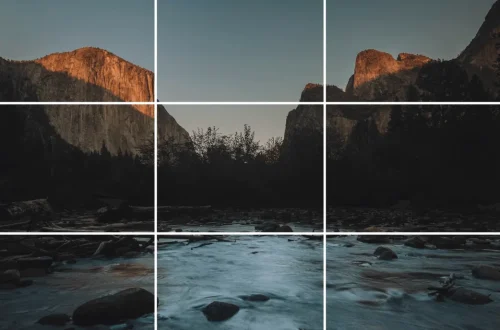
Most smartphone camera apps include a Grid feature in the settings menu. Activating this divides your screen into a 3×3 matrix. Instead of placing the horizon in the dead center, place it on the upper or lower third line. This creates a more balanced and professional aesthetic, guiding the viewer’s eye through the expansive scene.
The Inversion Perspective
For those seeking a unique angle, camera inversion can transform a standard landscape. By rotating your phone 180 degrees so the lens is at the bottom, you can position the sensor closer to the ground. This perspective can make small foreground elements appear more heroic and provide a sense of scale that a standard eye-level shot lacks.
- rule of thirds: Align horizons with grid lines.
- leading lines: Use paths or rivers to pull the eye into the frame.
- Foreground Interest: Place a rock or plant in the lower third to add depth.
Stability and Computational Photography Pitfalls
Computational photography can present challenges in wide landscapes. While software attempts to optimize the image, certain automated features may produce unintended results in complex environments.
HDR mode is designed to capture more details in both the shadows and highlights, which is particularly useful for high-contrast scenes. However, movement in the frame can cause issues. If clouds or water are moving, the multiple exposures required for HDR may result in “ghosting” or blurring.
Pitfall: Tilting the phone upward or downward while using an ultra-wide lens causes perspective distortion, making vertical trees or buildings appear to lean inward.
To combat instability, use a tripod. As Tim Shields notes, using a tripod allows for computational photography techniques like HDR, Panoramas, and Focus Stacking to create higher-quality images with less noise. A stable base allows the software to align multiple frames more accurately, reducing the digital artifacts often seen in handheld wide shots.
| Setting/Mode | Best Use Case | Impact on Quality |
|---|---|---|
| RAW / ProRAW | Post-processing and color grading | Maximum data retention; prevents color banding. |
| JPEG | Quick sharing and social media | High compression; limits editing flexibility. |
| 0.5x Ultra-wide | Expansive vistas and landscapes | True wide field of view; avoids digital noise. |
| Digital Zoom | Tightening a subject slightly | Destroys resolution; introduces heavy noise. |
| Low ISO | Bright daylight landscapes | Highest clarity; minimal digital grain. |
| High ISO | Dim or nighttime scenery | Increases brightness but adds significant noise. |
Compare the settings in the table to understand how specific choices impact image fidelity.
Post-Processing: Refining the Wide Shot
Transfer your RAW files into a dedicated editing environment to utilize the full breadth of captured sensor data. This step allows for adjustments that are impossible with compressed files.
For mobile-first users, Snapseed offers powerful selective adjustment tools that allow you to brighten only the shadows without overexposing the sky. If you require more professional-grade control over color grading and light curves, Lightroom is the industry standard for mobile landscape photographers. For quick, automated fixes and social-ready filters, Photoshop Express provides a streamlined alternative.
Apply these specific adjustments during your edit:
- White Balance: Correct any color casts from the sun or clouds.
- Shadow/Highlight Recovery: Bring detail back into the dark areas and the bright sky.
- Dehaze/Clarity: Add definition to distant mountains, but use sparingly to avoid over-sharpening artifacts.
Always remember that the goal of post-processing is to enhance what you captured, not to fix a fundamentally broken exposure. A well-set ISO and a RAW file will always yield a better result than a heavily filtered JPEG.
FAQ
Why should I avoid digital zoom for landscapes?
Digital zoom crops the sensor data rather than using optical glass, which destroys image resolution and introduces significant noise, especially in wide scenery. It is always better to use the 0.5x ultra-wide lens or move your physical position.
Can I use HDR for wide landscapes?
Yes, HDR mode helps capture details in both shadows and highlights in high-contrast scenes, but be careful of “ghosting” artifacts in moving clouds or water caused by the multiple exposures required for the effect.
How do I prevent vertical lines from leaning in wide shots?
Avoid tilting the phone upward or downward when using ultra-wide lenses, as this causes perspective distortion and leaning vertical lines. Keep the phone as level as possible to maintain straight architectural or natural vertical elements.