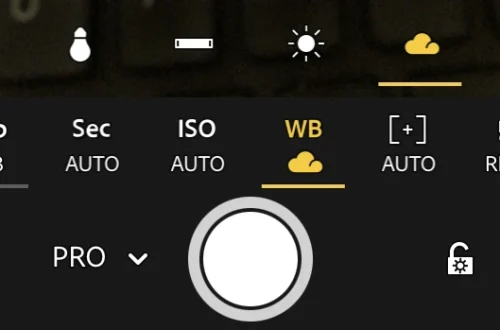
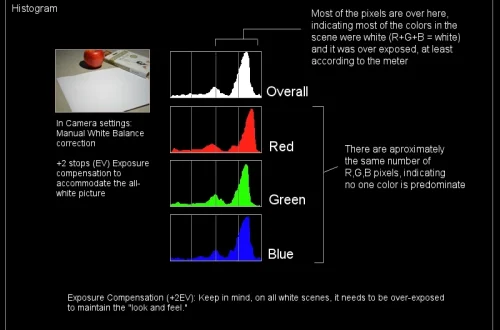
SnapRoamer.com – white balance adjustment on a smartphone camera is essential for producing images with accurate and natural colors under varying lighting conditions. This tutorial guides you through understanding white balance, locating and manipulating white balance settings on your smartphone, and employing manual techniques and apps to optimize color temperature control for diverse shooting environments. By following these steps, you will enhance your smartphone photography with improved color accuracy and consistency.
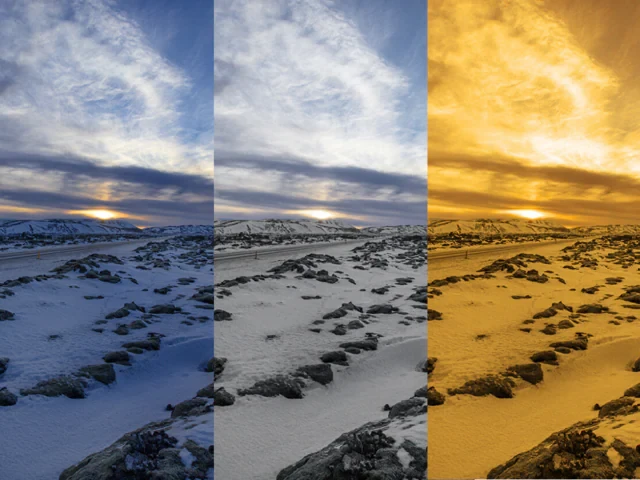
White balance compensates for different light sources by adjusting the color temperature, measured in Kelvin (K), to maintain true-to-life colors. Common light types such as daylight (around 5500K), incandescent (2700-3200K), and fluorescent (varies widely) cast distinct color hues that auto white balance (AWB) may misinterpret, leading to images appearing too warm (yellow/orange) or too cool (blue). Manual white balance settings allow precise control over these shifts, especially in challenging lighting scenarios where AWB struggles.
Understanding White Balance and Color Temperature
White balance is a camera setting that calibrates the color temperature of the light source illuminating your subject, ensuring that whites appear white and other colors remain accurate in photos. Color temperature is defined in Kelvin and ranges from warm (lower K values, e.g., 2500K) to cool (higher K values, e.g., 7500K). Incorrect white balance causes color casts that distort the true colors of your scene.
Smartphone cameras typically feature automatic white balance designed to detect lighting conditions and adjust color temperature dynamically. However, AWB can be fooled by mixed lighting or unusual color tones, resulting in inconsistent color reproduction. manual white balance adjustment, available through “Pro” or “Manual” camera modes, allows photographers to override automatic settings and specify the exact color temperature or select from presets tailored to common lighting types.
Accessing White Balance Settings on Your Smartphone
Finding and adjusting white balance on a smartphone varies by manufacturer, operating system, and camera app. Most modern smartphones offer white balance controls within their native camera app or third-party apps supporting manual mode.
If your native app lacks manual white balance, consider downloading apps like Adobe Lightroom or Filmic Pro, which offer expanded white balance controls along with other professional camera settings.
Manual White Balance Adjustment Techniques
Manual white balance adjustment can be approached through presets, sliders, or custom calibration with a reference object.
Using Presets:
Most cameras provide white balance presets for common lighting conditions:
Select the preset matching your lighting to quickly correct color casts.
Using Sliders or Kelvin Scale:
For finer control, adjust white balance using a slider that corresponds to a Kelvin scale:
Custom White Balance Calibration:
Using a neutral reference object such as a white or gray card, a white plate, or even the back of a smartphone can help calibrate white balance precisely:
This method is particularly effective under mixed lighting or when shooting in RAW format.
Adjusting White Balance for Different Lighting Conditions
Lighting conditions significantly influence the white balance setting needed for accurate color reproduction. Here’s how to approach common scenarios:
Indoor Lighting:
Outdoor Lighting:
Troubleshooting Common Color Casts:
Using Third-Party Apps for Enhanced White Balance Control
Third-party camera apps offer advanced manual controls often absent in native smartphone apps, enabling professional-level white balance management.
These apps support shooting in RAW format, allowing maximum flexibility for white balance correction during post-processing.
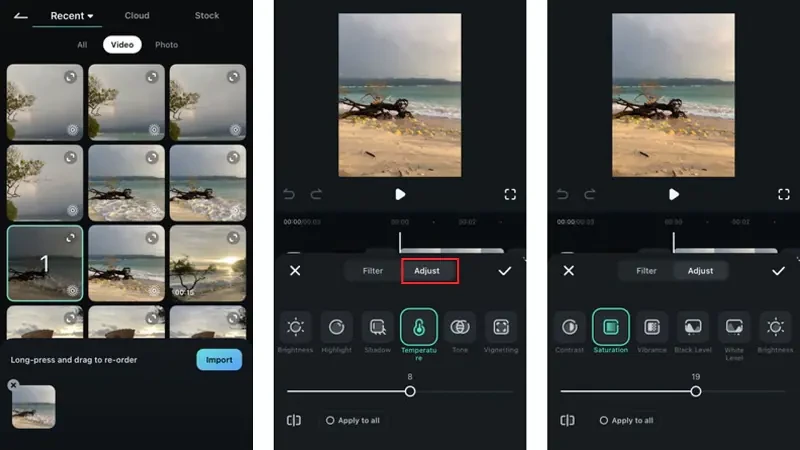
Post-Processing White Balance Correction
Shooting in RAW format preserves full image data, including unprocessed color information, making white balance adjustments in post far more effective than JPEG.
If you only have JPEG files, white balance adjustments are still possible but with limited latitude, potentially causing image degradation.
Common Challenges and Solutions in Smartphone White Balance
Auto White Balance Limitations:
Permanent White Balance Correction:
Balancing Accuracy and Artistic Choices:
Common Mistakes to Avoid When Adjusting White Balance
Alternative Methods for White Balance Adjustment
Frequently Asked Questions
How do I manually adjust white balance on my smartphone?
To manually adjust white balance, open your camera app, switch to “Pro” or “Manual” mode, locate the white balance setting (often labeled “WB”), and select a preset or adjust the Kelvin temperature slider to match your lighting conditions. Some apps allow custom calibration using a white or gray reference object.
What is the difference between auto white balance and manual white balance?
Auto white balance automatically detects and adjusts color temperature based on the scene’s lighting, which can be inaccurate under mixed or complex lighting. Manual white balance lets you set the exact color temperature or use presets, resulting in more consistent and true-to-life colors.
Can I fix white balance issues after taking a photo?
Yes, if you shoot in RAW format, you can adjust white balance non-destructively in post-processing apps like Adobe Lightroom or Snapseed. JPEG files allow white balance adjustment too but with limited flexibility and potential quality loss.
Which white balance preset should I use for indoor lighting?
Use the tungsten or incandescent preset to correct warm yellowish indoor lighting, and the fluorescent preset to counteract greenish hues from fluorescent bulbs. For mixed or unusual lighting, custom white balance calibration is recommended.
Are third-party camera apps better for white balance control?
Many third-party apps like FilMic Pro and Adobe Lightroom offer enhanced manual white balance controls, including Kelvin sliders and custom calibration, which may not be available in native camera apps. These apps also support RAW capture for superior post-processing flexibility.
By mastering white balance adjustment on your smartphone, you achieve more accurate color representation, reducing reliance on automatic corrections and enhancing your photographic control. Employ manual settings, experiment with presets and sliders, and use reliable apps to tailor white balance to your shooting environment and creative vision.
For further technical details and smartphone-specific guidance, refer to how to adjust white balance on your phone’s camera and smartphone photography white balance overview.