SnapRoamer.com – White balance fundamentally influences the accuracy and visual appeal of smartphone photographs by adjusting colors to reflect the lighting environment’s color temperature. This adjustment prevents images from displaying unnatural color casts—such as excessive warmth or coolness—that can distort the scene’s true colors. Smartphone cameras typically rely on auto white balance (AWB) to interpret lighting conditions, but this method often struggles with complex or mixed lighting, resulting in inconsistent color reproduction. manual white balance adjustments, either via in-camera settings or post-processing software, offer greater precision and control, enabling photographers to correct or enhance color fidelity in diverse shooting scenarios.
Color temperature, measured in Kelvin (K), is central to understanding white balance. Light sources vary widely in their temperature: tungsten bulbs emit warmer light around 2800K, daylight ranges between 5000K and 6500K, while fluorescent lamps can range from cool to neutral tones depending on their composition. These variations directly impact the color tones captured by smartphone cameras, which must compensate accordingly to maintain neutral whites and accurate hues. Incorrect white balance settings cause color distortions—too blue under tungsten lighting or overly yellow in daylight conditions—affecting overall image quality.
How White Balance Operates Through Color Temperature and the Kelvin Scale
color temperature defines the spectral characteristics of light, influencing how colors appear in photographs. The Kelvin scale quantifies this temperature, with lower values indicating warmer (yellow/orange) light and higher values denoting cooler (blue) light. For example, tungsten lighting typically registers around 2800K, producing warm tones, whereas midday sunlight approximates 5500K to 6500K, yielding a neutral or slightly cool appearance. Fluorescent lighting varies widely but often causes greenish or bluish color casts if not accurately compensated.
Smartphone cameras use internal sensors and algorithms to estimate ambient color temperature. The Auto White Balance function analyzes the scene’s dominant light source and attempts to neutralize color casts by adjusting the red, green, and blue (RGB) channels accordingly. However, AWB can misinterpret scenes with mixed lighting, such as interiors lit by both tungsten and daylight, resulting in inconsistent or unnatural color rendering.
The impact of lighting conditions on smartphone photographs is significant. Under tungsten light, for instance, auto white balance may fail to fully compensate for the warm orange glow, leaving photographs with an undesired yellow tint. Conversely, shooting in shaded daylight without appropriate white balance adjustment can produce images with a blue cast, making subjects appear unnaturally cold or desaturated.
Auto White Balance Versus Manual White Balance: Advantages and Limitations
Auto white balance simplifies photography by dynamically adjusting settings based on sensor feedback for most lighting scenarios. Smartphone models like the iPhone 6s and popular apps such as Procamera rely heavily on AWB to deliver acceptable results with minimal user intervention. Nonetheless, AWB is inherently limited by its heuristic nature—it assumes the scene contains neutral colors for reference, which isn’t always the case.
Manual white balance allows photographers to specify the color temperature or select predefined presets matching common lighting types (e.g., tungsten, daylight, fluorescent). This control is particularly useful in challenging conditions with mixed or unconventional lighting. For instance, when shooting under sodium vapor lighting, which emits an intense yellow-orange hue, manually setting the white balance to a cooler Kelvin value compensates for the color cast, restoring neutral tones.
Examples of color distortion resulting from improper white balance are evident in smartphone photography. Under fluorescent lighting, images often exhibit greenish tints if AWB cannot correctly identify the light spectrum. Manual adjustment or post-processing correction can eliminate this cast, enhancing color accuracy. Similarly, photos taken during the golden hour may appear overly warm if white balance is locked to daylight presets, which manual tuning can rectify.
Utilizing Smartphone White Balance Presets and Manual Controls
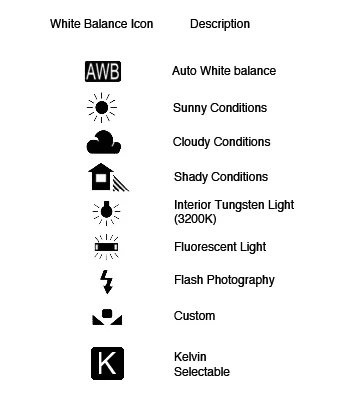
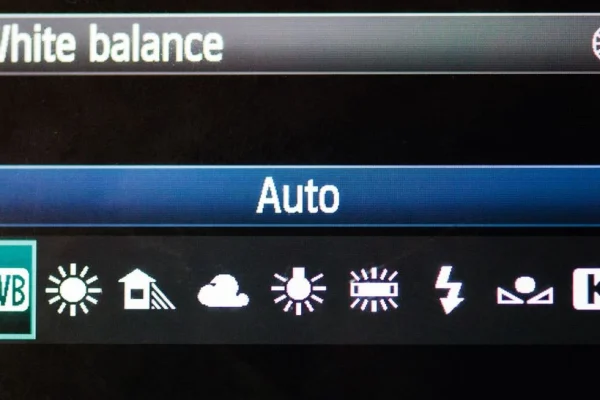
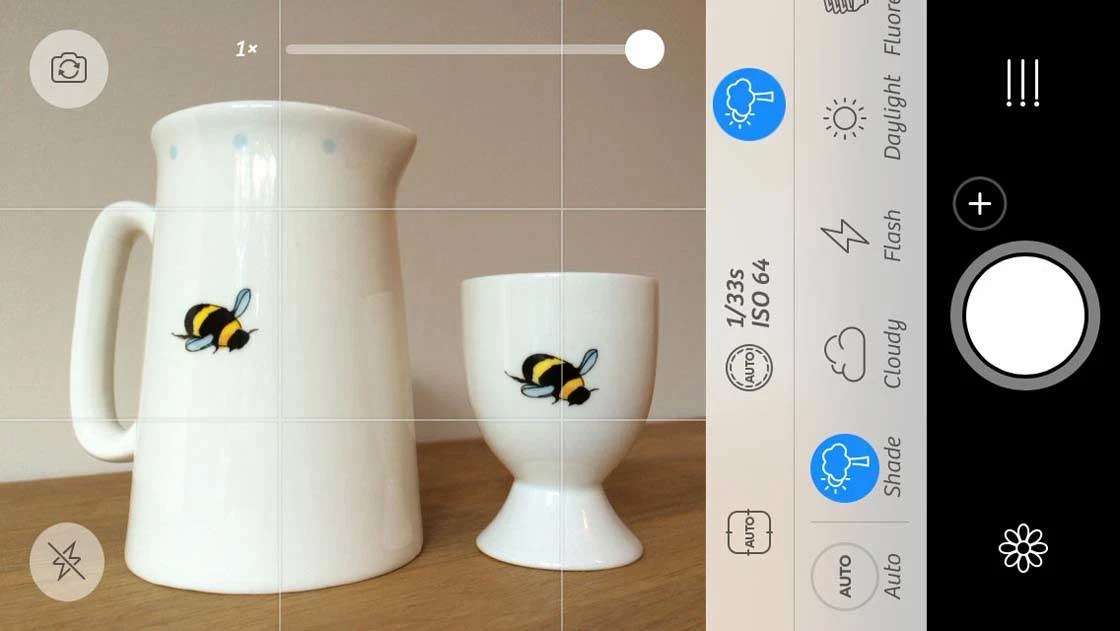
Most modern smartphones incorporate white balance presets tailored to typical lighting environments—options such as “Tungsten,” “Daylight,” “Cloudy,” “Fluorescent,” and “Shade” are standard. These presets correspond to fixed Kelvin values, simplifying color temperature adjustments for users without requiring detailed technical knowledge.
Third-party applications like Procamera and the Lightroom app extend these capabilities by allowing precise manual white balance adjustments. Users can set exact Kelvin values or use interactive sliders to fine-tune temperature and tint, enabling more nuanced control than default presets offer. This is especially beneficial for photographers aiming to maintain creative intent or correct problematic lighting conditions in real time.
A step-by-step approach to manual white balance adjustment on smartphones generally involves:
This process empowers photographers to adapt to varying lighting environments effectively, reducing reliance on post-processing corrections.
Post-Processing Techniques for White Balance Correction
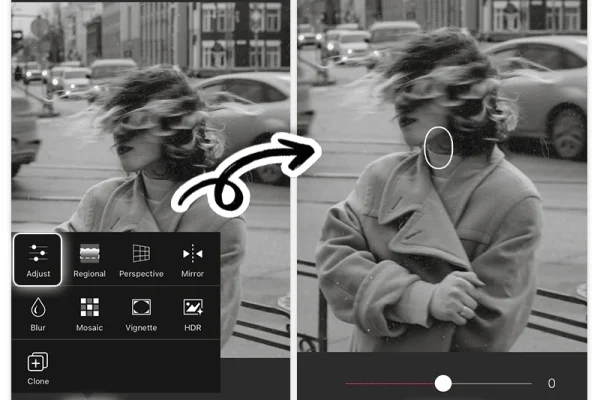
Post-processing software plays a vital role in refining white balance after capture, especially when shooting in RAW format. RAW files retain unprocessed sensor data, allowing extensive adjustments without degrading image quality. Adobe Lightroom Classic and mobile apps like VSCO provide robust white balance correction tools, including temperature sliders and local adjustment brushes.
Color cast removal techniques involve shifting the overall color temperature and tint to neutralize unwanted hues. Additionally, localized corrections can address uneven lighting, such as greenish patches from commercial fluorescent lights. The selective adjustment tools enable photographers to isolate and modify specific image areas, enhancing color consistency.
Shooting in RAW offers substantial advantages for white balance management. Unlike JPEGs, which apply white balance settings permanently at capture, RAW images allow white balance to be altered non-destructively during editing. This flexibility is crucial when dealing with unpredictable or mixed lighting, offering photographers significant latitude to achieve accurate colors post-capture.
Challenges Posed by Mixed Lighting and Practical Solutions
Mixed lighting presents one of the most complex challenges for white balance accuracy in smartphone photography. Scenes illuminated by multiple light sources—such as tungsten lamps combined with daylight through windows—create overlapping color temperatures that confuse auto white balance algorithms.
These conditions often produce uneven color casts, requiring targeted corrections. Practical strategies include:
For example, commercial environments lit with sodium vapor lighting can impart a strong greenish-yellow cast. Through case studies, it has been demonstrated that combining manual white balance presets with localized post-processing corrections effectively neutralizes these color imbalances, restoring natural skin tones and neutral whites.
Next Steps for Mastering White Balance in Smartphone Photography
Achieving accurate white balance is pivotal for elevating the quality of smartphone photos. Photographers are encouraged to experiment with both auto and manual white balance settings across diverse lighting conditions to understand their camera’s behavior and limitations. Leveraging third-party apps with granular controls and shooting in RAW format further enhances post-capture flexibility.
Emerging smartphone models and camera apps increasingly incorporate AI-driven white balance enhancements, but human oversight remains critical, especially in complex lighting. Integrating manual adjustments with sophisticated post-processing workflows will continue to provide the best results, ensuring that images reflect the true colors of the scene.
For deeper technical insights into white balance and practical advice on camera settings, authoritative resources such as Lenovo’s technology glossary provide detailed explanations, while expert photography blogs offer case studies and advanced techniques. These references support photographers in refining their approach to color management in smartphone photography.
Lenovo White Balance Glossary
Andrea Bianco on Exposure and White Balance
Frequently Asked Questions
What is the main purpose of white balance in smartphone photography?
White balance adjusts the colors in photos to match the lighting environment’s color temperature, ensuring that whites appear neutral and other colors are rendered accurately without unwanted warm or cool casts.
Why does auto white balance sometimes fail on smartphones?
Auto white balance relies on sensor data and assumptions about the scene’s dominant lighting, which may be incorrect in mixed or unusual lighting conditions, leading to inaccurate color reproduction.
How does shooting in RAW format help with white balance?
RAW format preserves unprocessed sensor data, allowing photographers to change white balance settings non-destructively during editing, offering greater flexibility and accuracy compared to JPEGs.
Can I manually set white balance on any smartphone camera?
While many smartphones provide white balance presets, manual adjustment capabilities vary; however, third-party camera apps often enable precise manual white balance control regardless of the native app limitations.
How do mixed lighting conditions affect white balance and photo quality?
Mixed lighting introduces multiple color temperatures into one scene, confusing auto white balance algorithms and causing uneven color casts that require manual or post-processing corrections for accurate color rendering.