SnapRoamer.com – To master your smartphone camera, you must move beyond Auto mode by manually balancing ISO, shutter speed, and aperture (via portrait mode) to control light and depth. Understanding the interplay between these settings allows you to transition from simple snapshots to intentional, professional-grade photography.
Increasing ISO allows for photography in dimmer light, but Samsung Galaxy technical documentation notes that higher ISO settings may introduce noise into your images.
The Computational vs. Manual Reality Check
Unlike DSLRs, smartphone photography relies heavily on computational photography. While manual settings like ISO and shutter speed offer control, the phone’s software often overrides these to balance exposure, meaning your ‘manual’ choice is often a request to an AI algorithm.
Why your ‘Manual’ mode isn’t quite manual
In Auto mode, the exposure settings change as one would recompose the image, according to Photography Life. This constant adjustment can lead to overexposed or underexposed images in a series if the lighting environment shifts slightly as you move the device. manual mode offers a significant advantage because the settings stay consistent and the same regardless of the particular subject you point the camera on.
When AI over-processes your shots
Modern devices from manufacturers like Google and Apple use heavy software processing to compensate for small physical sensors. While this helps in difficult lighting, it can result in an artificial look. Practitioners report that relying solely on Auto mode can lead to inconsistent results when the software attempts to “correct” shadows or highlights in ways that don’t match the natural scene.
Mastering the Exposure Triangle on Mobile
Mastering mobile exposure requires balancing three pillars: ISO (light sensitivity), shutter speed (duration of light), and Aperture (lens opening). For handheld shots, keep shutter speeds above 1/60s to avoid blur, and use lower ISO values (around 100) in bright light to minimize digital noise.
ISO: The light sensitivity trade-off
ISO determines how sensitive your camera sensor is to light. Higher ISO allows for photography in dimmer light, which is essential for night shots. However, Samsung Galaxy technical documentation notes that higher ISO settings may introduce noise into your images. To maintain maximum clarity, aim for a standard low sensitivity of 100 ISO in well-lit environments. If you must shoot in low light, try to stay below a common high sensitivity limit of 800 ISO to prevent excessive grain.
Shutter Speed: Freezing vs. Blurring motion
Shutter speed controls how long the sensor is exposed to light. A fast shutter speed, such as 1/500 of a second, can freeze rapid movement. Conversely, a slow shutter speed allows for light trails but requires stability. A critical rule of thumb for handheld shutter speed is 1/60 of a second; anything slower than this often results in blurry images due to natural hand tremors.
Aperture: Controlling light and depth
The relationship between light and depth is governed by the f-stop. According to Oklahoma State University, “The smaller the f stop number, the bigger the opening, meaning more light is allowed into the sensor yet the depth of field is shallow.”
| Setting | Effect on Light | Effect on Depth/Quality |
|---|---|---|
| Low f-stop (e.g., 1.8) | More light allowed in | Shallow depth of field |
| High f-stop (e.g., 8.0) | Less light allowed in | Deeper depth of field |
| Low ISO (e.g., 100) | Less sensitivity | Higher image clarity |
| High ISO (e.g., 800) | Higher sensitivity | Increased digital noise |
Adjusting these variables allows you to balance brightness and image texture.
Achieving Professional Depth and Focus
Aperture determines the depth of field in a photo. According to Oklahoma State University, “The bigger the f stop number, the smaller the opening, meaning less light is allowed into the sensor yet the depth of field is deeper.”
Using Portrait Mode for Bokeh
On most modern devices, you can access specialized depth effects by navigating to the camera app > tap portrait menu. This mode uses software to simulate a shallow depth of field. For the most effective bokeh, maintain a distance of approximately 2 metres from your subject. Being too close or too far can confuse the depth-mapping algorithms, resulting in edge errors around the hair or clothing.
The physics of focal length and distance
Physical distance and lens choice significantly impact how much of your background is blurred. According to Oklahoma State University, “The smaller the f stop number, the bigger the opening, meaning more light is allowed into the sensor yet the depth of field is shallow.” Furthermore, longer focal lengths result in shallower depth of field. If you want to increase the blur, move closer to your subject, as a closer distance to a subject decreases depth of field.
The Setting Conflict Matrix: Avoiding Quality Traps
Hardware limitations often dictate the final output of a mobile photograph.
Warning: Using digital zoom (pinching the screen to zoom in) instead of physically moving closer to your subject causes a significant loss of image quality, as the phone is simply cropping and enlarging pixels.
The Digital Zoom Trap
Most smartphones use multiple lenses to provide different zoom levels. To maintain the highest resolution, always try to use the dedicated optical zoom lenses rather than digital magnification. Using the main camera provides the best image quality because it uses the largest sensor, offering the highest resolution and best light-gathering abilities.
The HDR Over-processing Pitfall
High Dynamic Range (HDR) attempts to balance bright skies and dark shadows. However, overusing this feature can result in unnatural images that lack the organic contrast of the original scene.
Advanced Pro-Mode Workflow
For users who want total control, moving into “Pro” or “Manual” modes is necessary. This allows you to bypass the AI’s automatic decisions and set specific parameters for every shot.
- Accessing Manual Controls: On a Samsung Galaxy, you can tap ‘MANUAL’ or drag the adjustment bar to enter Pro mode.
- Exposure Fine-Tuning: In most apps, you can fine-tune brightness by dragging the sun icon up or down for exposure.
- Color Depth: To capture more nuanced gradients, go to camera app > tap settings > tap 10-Bit color. This provides 10 bits of color detail depth, which is essential for professional editing.
- white balance: Adjusting White Balance (WB) prevents color casts. If your photo looks too orange or blue, adjust the WB setting (measured in Kelvin) to match your light source.
Quick-Start Scenario Recipes
Apply these specific configurations to achieve desired results in common environments.
The Action/Sports Recipe
To capture movement without blur, prioritize speed over light sensitivity:
- Set Shutter Speed to at least 1/500 of a second.
- Increase ISO (up to 800) to compensate for the fast shutter.
- Use Burst Mode: Press and hold the shutter or volume button to capture rapid succession.
The Low-Light Landscape Recipe
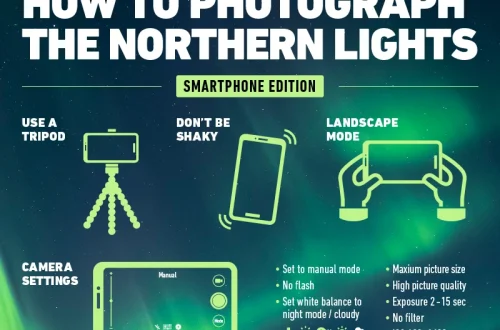
For stable, clean shots of the night sky or cityscapes:
- Set ISO to the lowest possible value (100 or 50).
- Use a slow Shutter Speed (several seconds), but use a tripod to prevent blur.
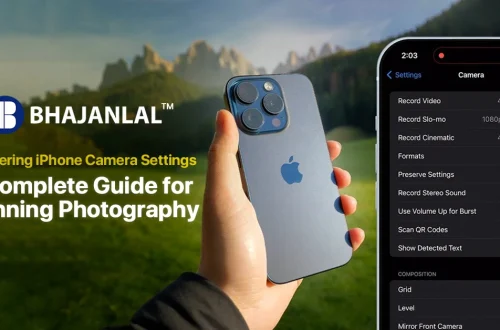
- Enable Gridlines (iPhone: Settings > Camera > Grid) to align the horizon using the rule of thirds.
Troubleshooting Common Mobile Errors
Review these technical factors if your images fail to meet quality standards:
- Blurry images: This is frequently caused by shutter speeds lower than 1/60s when shooting handheld.
- Color Casts: If your images have an orange or blue tint, your White Balance is likely set incorrectly for the ambient light.
- Inconsistent Exposure: If you are taking a series of photos and they vary in brightness, you are likely in Auto mode, which is re-adjusting exposure as you recompose the image.
FAQ
Why does my photo look grainy when shooting at night?
Graininess, or digital noise, occurs because your camera is using a high ISO setting to compensate for the lack of light. While higher ISO settings allow for photography in dimmer light, they inevitably introduce noise into the image pixels, reducing overall clarity.
Should I use the 50MP setting or the default 12MP?
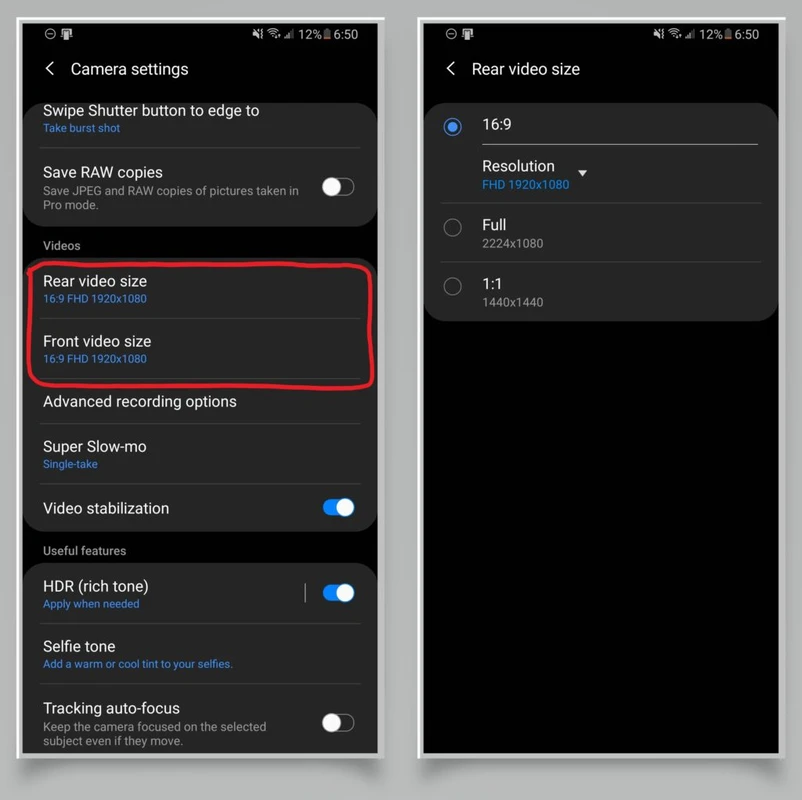
On devices like the Nothing Phone 3a, the 50MP setting provides much higher resolution for large prints. However, the default 12MP setting is often better for everyday use because it produces smaller file sizes and allows for faster processing and better light handling through pixel binning.
How do I prevent blurry photos when moving?
To prevent blur, ensure your shutter speed is at least 1/60s. Additionally, rely on hardware features like Optical Image Stabilization (OIS), which works by mechanically shifting the lens slightly to compensate for your phone’s movement.