SnapRoamer.com – Optimal smartphone exposure balances ISO, shutter speed, and exposure compensation for lighting and motion. For example, setting ISO between 50-100 with shutter speeds faster than 1/500 seconds suits bright daylight, while ISO 400-800 with 1/60 second shutter speed works well indoors. Using modes like HDR—which combines multiple exposures to balance highlights and shadows—or night mode for low-light conditions can improve image quality. Tap-to-focus features activate exposure sliders, giving precise control over brightness.
Exposure compensation adjusts brightness during auto or semi-auto shooting, allowing fine-tuning without switching to full manual. Most smartphone camera apps offer sliders controlling EV typically between -1.0 and +1.0 stops, letting you brighten or darken images easily, as explained by Android Authority.
How do computational photography features affect manual exposure settings on smartphones?
Smartphones from brands like Samsung and Google use AI-powered HDR and night mode to adjust exposure automatically based on scene recognition. For instance, HDR merges multiple frames to enhance dynamic range, while night mode captures detail in near-darkness with longer exposures. However, these modes can override manual ISO or shutter speed settings, forcing longer exposures in night mode that may cause blur if handheld. Understanding when to disable these features is essential for manual control.
Smartphone brands such as Samsung and Google integrate advanced AI algorithms that apply HDR (High Dynamic Range) and night mode automatically to enhance image quality. HDR combines multiple exposures to balance highlights and shadows, particularly useful in high-contrast scenes, as noted by The School of Photography who called HDR “a powerful tool in Smartphone Photography, especially for landscapes and bright skies.”
Night mode, described by PhotoWorkout as “arguably the biggest exposure breakthrough in smartphone photography,” activates in low-light conditions to capture usable images where traditional cameras fail. However, these computational features can conflict with manual ISO or shutter speed settings. For instance, enabling night mode may force a longer exposure regardless of manual input, potentially leading to motion blur if the phone is handheld.
Leaving HDR or night mode enabled while using manual exposure can prevent your settings from applying correctly. These modes often take priority to optimize the image automatically. For full manual control, disabling them is advised. For example, Samsung’s Pro Mode lets users toggle HDR and night mode off in the camera app’s settings to ensure ISO and shutter speed adjustments work as intended.
When to disable HDR or night mode
Disabling HDR is recommended when shooting static subjects with manual exposure, as HDR can cause ghosting artifacts if the subject moves between frames. Similarly, Night Mode should be turned off for handheld shots requiring faster shutter speeds to avoid blur. For example, the Samsung Galaxy S10 allows manual toggling of these modes in Pro Mode under the camera app’s settings menu.
AI scene recognition and exposure overrides
AI-based scene detection changes ISO and shutter speed dynamically to optimize photos, sometimes conflicting with manual input. For example, during sunset photography, the AI might increase exposure to preserve shadow details, overriding your chosen settings. Learning your smartphone’s AI behavior helps decide when to trust automation or switch to manual mode for precise exposure.
What are the common smartphone exposure problems and how can you troubleshoot them?
Common smartphone exposure issues include noise at high ISO, ghosting from HDR frame merging, and hot pixels in long exposures. To troubleshoot, keep ISO below 500 for clean images, use burst mode or disable HDR to reduce ghosting, and limit shutter speeds to under 2 seconds with tripod support to avoid hot pixels and blur.
- Noise from high ISO: Smartphone sensors produce grainy images above ISO 500, as noted by Android Authority cautioning users not to exceed this limit for clean photos.
- Ghosting in HDR: HDR merges multiple frames, which can cause ghosting with moving subjects. Turning off HDR or using burst mode can reduce this effect.
- Hot pixels in long exposures: Long shutter speeds, especially beyond one second, can reveal bright, stuck pixels. Using a tripod and limiting exposure time mitigates this issue.
- Exposure compensation errors: Incorrect EV settings may cause over- or under-exposed photos; adjusting EV between -1.0 and +1.0 f-stops helps correct brightness.
- Blur from hand shake: Long exposures require stable support since even the best stabilization fails with shutter times over 10 seconds.
Noise reduction techniques
Keeping ISO low between 50 and 500 reduces noise during longer exposures. Using manual mode to set ISO around 100-200 for indoor shots improves image clarity, as high ISO amplifies sensor noise. Android Authority emphasizes that “noise is barely noticeable below ISO 500.”
Avoiding ghosting and hot pixels
Using burst mode, which captures multiple frames rapidly, improves the chances of a sharp photo without ghosting, especially in HDR. Hot pixels appear more frequently in exposures longer than 2 seconds; stabilizing the phone on a tripod and limiting shutter speed to 1-2 seconds helps avoid this artifact.
How do exposure settings vary for different lighting scenarios in smartphone photography?
Optimal exposure settings depend on lighting: bright daylight favors low ISO (50-100) and fast shutter speed (1/500+), golden hour portraits use ISO 100 with 1/125s shutter, indoor scenes require ISO 400-800 at 1/60s, and night cityscapes need ISO 200-400 with 1-2 seconds shutter speed on tripod.
| Scenario | ISO Range | Shutter Speed | Exposure Compensation |
|---|---|---|---|
| Bright Daylight Landscape | ISO 50-100 | 1/500+ seconds | EV 0 |
| Golden Hour Portrait | ISO 100 | 1/125 seconds | EV 0 to +0.3 |
| Indoor Restaurant/Cafe | ISO 400-800 | 1/60 seconds | EV 0 |
| Night Cityscape (Tripod) | ISO 200-400 | 1-2 seconds | EV 0 |
| Snow or Beach Scene | ISO 50-100 | 1/500+ seconds | EV +1 to +1.5 |
This table compares recommended exposure settings for various lighting scenarios including daylight, golden hour, indoor, night cityscape, and snow/beach scenes. Adjustments should be made based on specific environmental conditions and smartphone model capabilities.
Daylight and landscape settings
In bright daylight, setting ISO between 50 and 100 and shutter speed above 1/500 seconds prevents overexposure and preserves details. The exposure compensation (EV) should typically be zero unless compensating for reflective surfaces like snow, which demands a boost of +1 to +1.5 EV to avoid underexposure.
Portrait and indoor settings
Portraits during golden hour benefit from ISO 100 and a shutter speed of 1/125 seconds, with subtle exposure compensation from 0 to +0.3 EV to brighten faces without blowing out highlights. Indoor scenes require higher ISO values between 400 and 800 paired with slower shutter speeds around 1/60 seconds to gather more light while minimizing blur.
Night and long exposure settings
Night photography demands ISO 200-400 and shutter speeds from 1 to 2 seconds when using a tripod. For creative effects like light trails or silky water, shutter speeds of 2-4 seconds or longer are used, but a tripod is critical to avoid motion blur. Night mode can assist but manual control yields better results.
What manual exposure controls are available on smartphones and how do you use them?
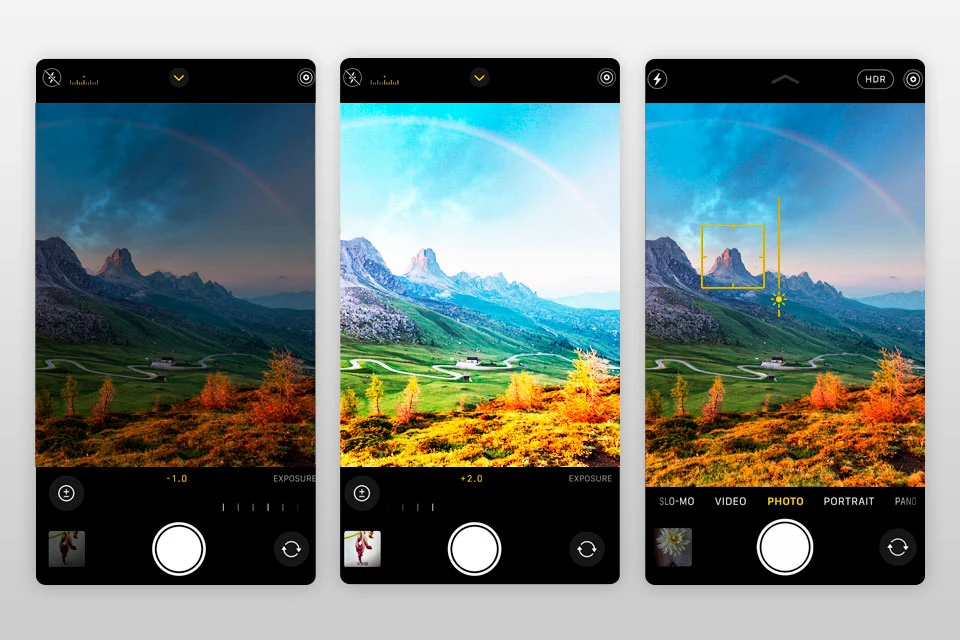
Smartphones provide manual control over ISO, shutter speed, white balance, and exposure compensation through pro or manual modes. For example, Samsung users can navigate to Camera app > More > Pro to adjust ISO between 50 and 500 and shutter speeds from 1/8000 to 10 seconds. Tap-to-focus activates a sun icon slider for quick exposure compensation adjustments, typically ranging from -1.0 to +1.0 EV.
- ISO adjustment: Controls sensor sensitivity; lower ISO (50-100) reduces noise, higher ISO (up to 500) helps in low light.
- Shutter speed: Controls duration of exposure; fast speeds (1/500s) freeze motion, slow speeds (1-2 seconds) enable long exposures.
- Exposure Compensation (EV): Allows fine brightness adjustment, typically from -1.0 to +1.0 f-stops, accessible via slider in most camera apps.
- White Balance: Adjusts color temperature to correct lighting tint.
- Tap to Focus: Manually selects focus point and activates an exposure slider, usually represented by a sun icon near the focus square.
In Samsung’s Pro Mode, users can navigate to Camera app > More > Pro to access ISO and shutter speed controls. IOS users can find similar controls in third-party apps like Lightroom Mobile. After tapping to focus, an exposure slider appears, allowing quick EV adjustments as described by Defastlink: “After tapping to focus, you may see a little sun icon; that’s your exposure slider.”
Adjusting shutter speed to slower values while keeping ISO low is ideal for night shots, but requires steady hands or a tripod. Android Authority advises not exceeding ISO 500 for clean images. Exposure compensation helps correct brightness without changing ISO or shutter speed.
Using exposure compensation (+/- EV)
Exposure compensation adjusts image brightness by adding or subtracting exposure value in f-stops. This is particularly useful in auto or semi-auto modes to fine-tune brightness without switching fully manual. Typical ranges are from -1.0 to +1.0 EV.
Adjusting ISO and shutter speed manually
Manual mode lets users select ISO and shutter speed independently. For example, setting ISO 100 with shutter speed 1/125 seconds suits golden hour portraits. Increasing shutter speed freezes motion, while slowing it captures motion blur.
Tap to focus and exposure slider usage
Tapping a subject area locks focus and triggers an exposure slider, usually displayed as a sun icon. Sliding up or down increases or decreases brightness. This control allows quick adjustments without entering full manual mode.
Which smartphone apps provide the best manual exposure controls?
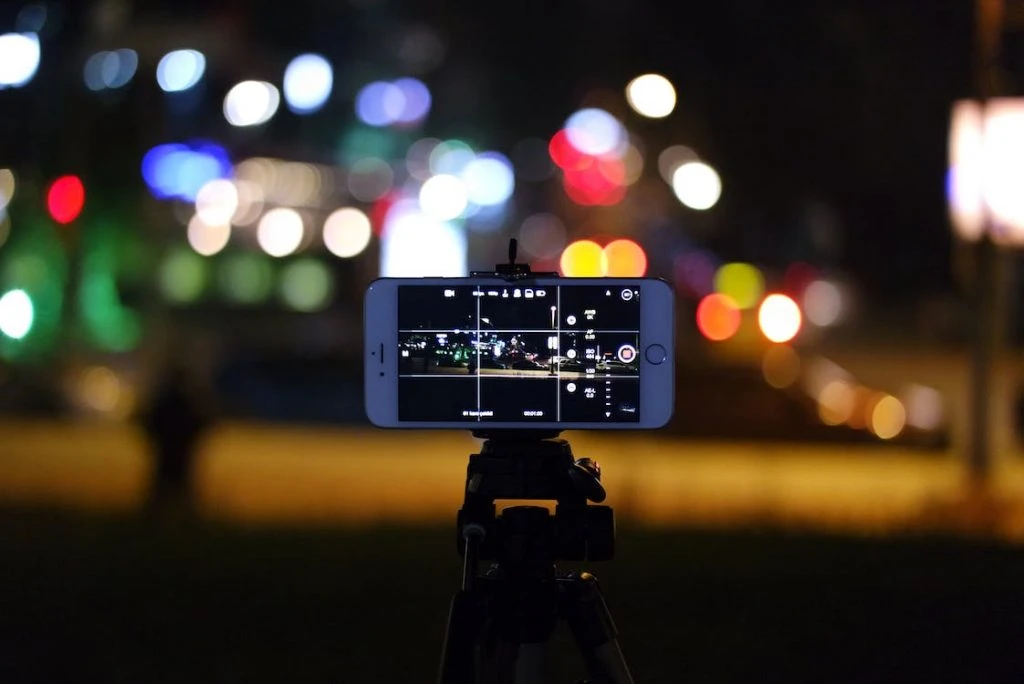
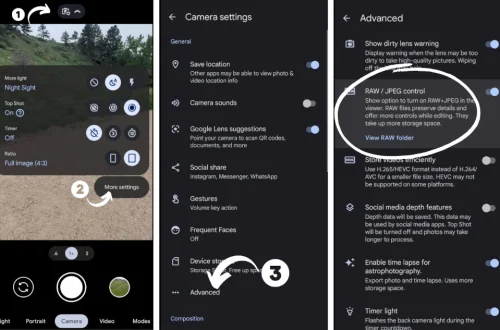
Android apps like ProShot, Open Camera, and Lightroom Mobile enable DSLR-style manual exposure control, including ISO, shutter speed, and RAW capture. ProShot supports ISO from 50 to 3200 with shutter speeds up to 10 seconds and exposure bracketing. Open Camera offers manual shutter speed, exposure compensation, and burst mode. Lightroom Mobile provides Pro mode with manual control and instant RAW editing on both Android and iOS.
- ProShot: Offers full manual control over ISO, shutter speed, white balance, and focus. It supports RAW capture and shutter speeds up to 10 seconds, ideal for long exposures.
- Open Camera: Free app with manual shutter speed control, exposure compensation, and focus modes. It is popular among landscape photographers for its versatility.
- Lightroom Mobile: Provides Pro mode with manual ISO, shutter speed, and white balance. It supports RAW capture and advanced editing, useful for professional workflows.
According to iPhotography, ProShot and Open Camera stand out for their feature-rich manual controls on Android devices, while Lightroom Mobile extends these capabilities with integrated editing. These apps allow photographers to bypass stock camera limitations and tailor exposure precisely.
Features of ProShot
ProShot allows ISO selection from 50 to 3200, shutter speed from 1/8000 to 10 seconds, and RAW photo capture. It supports exposure bracketing and timelapse modes.
Capabilities of Open Camera
Open Camera offers manual ISO and shutter speed, exposure compensation slider, and burst mode to improve hit rates. It is open source and supports external microphones for video.
Lightroom Mobile manual mode
Lightroom Mobile’s Pro mode enables manual exposure settings with a clean UI and instant RAW editing. It is available on both Android and iOS platforms.
How do smartphone exposure controls compare to those of compact and mirrorless cameras?
While smartphones have improved manual controls, they generally lack adjustable apertures and larger sensors found in compact and mirrorless cameras. Only certain Samsung models like the Galaxy S9, S9+, Note 9, S10, S10+, Note 10, and Note 10+ offer adjustable apertures ranging from f/1.5 to f/2.4, and up to f/1.8 on Note 10 series, enabling some depth-of-field control.
Most smartphones use fixed aperture lenses, with the notable exception of Samsung Galaxy S9, S9+, Note 9, S10, S10+, Note 10, and Note 10+, which feature adjustable apertures between f/1.5 and f/2.4 or f/1.8. Compact and mirrorless cameras provide wider aperture ranges, enhancing depth of field and low-light capability.
Smartphone sensors are considerably smaller than those in mirrorless cameras, which limits dynamic range and increases noise at higher ISO settings. Computational photography techniques like HDR and night mode merge exposures and apply noise reduction algorithms to mitigate these hardware limitations, a capability unique to smartphones.
Although smartphones do not have physical aperture controls, AI-driven features like HDR and night mode combined with manual apps such as ProShot and Lightroom Mobile enable users to approximate professional exposure control. Sansom Photography notes, “your phone will do just as good of a job when it comes to preserving memories,” highlighting convenience over hardware differences.
Adjustable aperture availability
Adjustable aperture remains rare on smartphones, limited to select Samsung models with two or three aperture settings. Most phones rely on fixed apertures, restricting depth of field control.
Sensor size and dynamic range differences
Compact and mirrorless cameras have larger sensors, offering superior dynamic range and noise performance at high ISO. Smartphones compensate via computational methods.
Computational photography advantages
Smartphones use AI to merge exposures and reduce noise, enabling features like HDR and night mode. These software-based enhancements partly offset hardware constraints, providing accessible manual exposure control through apps.