SnapRoamer.com – White balance in smartphone photography is a critical setting that adjusts image colors so whites appear neutral regardless of the lighting environment by compensating for the light’s color temperature, measured in Kelvin. Unlike human vision, which automatically perceives white consistently under varying light conditions, smartphone cameras rely on sensor data and algorithms to interpret color. Without proper white balance adjustment, photos can exhibit unnatural color casts—too warm, too cool, or oddly tinted—compromising image realism and aesthetic appeal. While auto white balance (AWB) handles most everyday scenes adequately, manual white balance adjustment or post-processing often yields more precise or creative results, especially under challenging lighting.
Color temperature defines the warmth or coolness of a light source and is measured on the Kelvin scale, where lower values represent warmer, yellow-red hues and higher values correspond to cooler, blue tones. For example, candlelight registers around 1,500-2,000K, incandescent bulbs typically range from 2,700-3,000K, fluorescent lighting varies widely but often falls between 4,000-5,000K, and daylight registers near 5,500-6,500K. Understanding these values is essential for photographers aiming to achieve accurate color rendition. Smartphone cameras interpret these temperature shifts to balance the colors in a scene, aiming to render whites neutrally while preserving the natural ambiance of the environment.
Auto white balance algorithms analyze the scene’s overall colors to estimate the dominant light source and adjust the image accordingly. These algorithms integrate data from multiple sensors and rely on machine learning models trained on diverse lighting scenarios. However, AWB has notable limitations. Under complex lighting—such as mixed daylight and tungsten light indoors, or during sunsets with intense warm hues—AWB can produce inconsistent or inaccurate color correction. For instance, under incandescent light, AWB may overcompensate, resulting in images with a bluish tint, while in fluorescent settings, it may fail to neutralize greenish casts effectively. These inaccuracies rarely match the visual impression perceived by the human eye, leading to color shifts that detract from the photo’s quality.
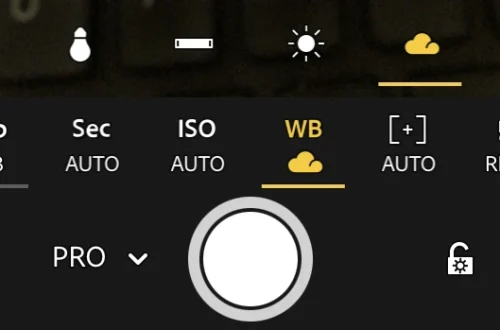
Manual white balance adjustment on smartphones offers a solution to these challenges, providing photographers with control over the color temperature setting. Many modern devices, including flagship Sony Xperia models and Android phones with PRO mode, allow users to select specific Kelvin values or presets such as “Tungsten,” “Fluorescent,” or “Daylight.” On iOS devices like the iPhone 6s and later, third-party apps enable manual white balance adjustments within camera controls or during editing. Utilizing a gray card—a neutral reference target reflecting 18% gray—allows photographers to calibrate white balance precisely by setting the camera’s white balance to neutralize the gray card under existing lighting. This method ensures that colors in the photograph remain true to life. Adjusting white balance manually involves accessing the PRO mode, selecting the white balance option, and fine-tuning the Kelvin value or tint slider until the desired neutrality or creative tone is achieved.
Shooting photos in RAW format significantly enhances white balance flexibility by preserving unprocessed sensor data without in-camera color shifts or compression. Unlike JPEG, which applies white balance and other adjustments permanently during capture, RAW files retain the original light and color information, enabling precise white balance correction during post-processing without degrading image quality. Photo editing apps such as Adobe Lightroom Mobile or Snapseed offer advanced white balance tools that allow selective correction of temperature and tint, handling complex lighting scenarios with greater finesse. For example, mixed lighting environments causing color casts can be balanced by selectively adjusting temperature sliders or using eyedropper tools to sample neutral tones within the image.
Achieving optimal white balance in smartphone photography requires practical experimentation and understanding how various lighting conditions interact with camera settings like exposure, ISO, and shutter speed. Testing different white balance presets or manual Kelvin settings under incandescent, fluorescent, or daylight illumination reveals how color rendition shifts. Photographers should also consider when to embrace color casts creatively—for instance, enhancing the warm glow of sunset or the cool ambiance of overcast skies—to evoke mood rather than strictly neutralize colors. Balancing white balance with exposure ensures that images maintain natural brightness and contrast, as improper exposure can exacerbate color inaccuracies. Additionally, adjusting ISO and shutter speed complements white balance settings by controlling noise and motion blur, respectively.
Future smartphone camera advancements are expected to leverage AI-driven white balance algorithms with enhanced scene recognition and real-time adaptive correction, improving accuracy under complex lighting. Integration of multi-sensor fusion and spectral analysis could provide more granular color temperature data, reducing reliance on manual adjustments while preserving creative control. Meanwhile, photographers are encouraged to combine in-camera white balance control with RAW shooting and sophisticated post-processing workflows to achieve professional-level color fidelity and artistic expression.
Andrea Bianco’s analysis on exposure and white balance in smartphones offers practical insights into the interplay of camera settings, while Lenovo’s glossary on white balance provides foundational definitions and explanations.
Understanding Color Temperature and the Kelvin Scale
color temperature is the quantitative measure of light source warmth or coolness, expressed in Kelvin (K). The Kelvin scale ranges from about 1,000K for very warm, reddish light like candle flames to over 10,000K for cool, bluish light such as clear blue skies. This scale is essential for photographers to interpret lighting conditions and adjust white balance accordingly to maintain color accuracy.
Typical indoor lighting such as incandescent bulbs emits warm light around 2,700-3,000K, which can cause photos to appear yellow or orange if white balance is not corrected. Fluorescent lights, ranging between 4,000-5,000K, often produce a greenish tint challenging for automatic algorithms to neutralize. Daylight varies depending on time and weather, averaging approximately 5,500-6,500K, often considered the neutral standard for white balance reference.
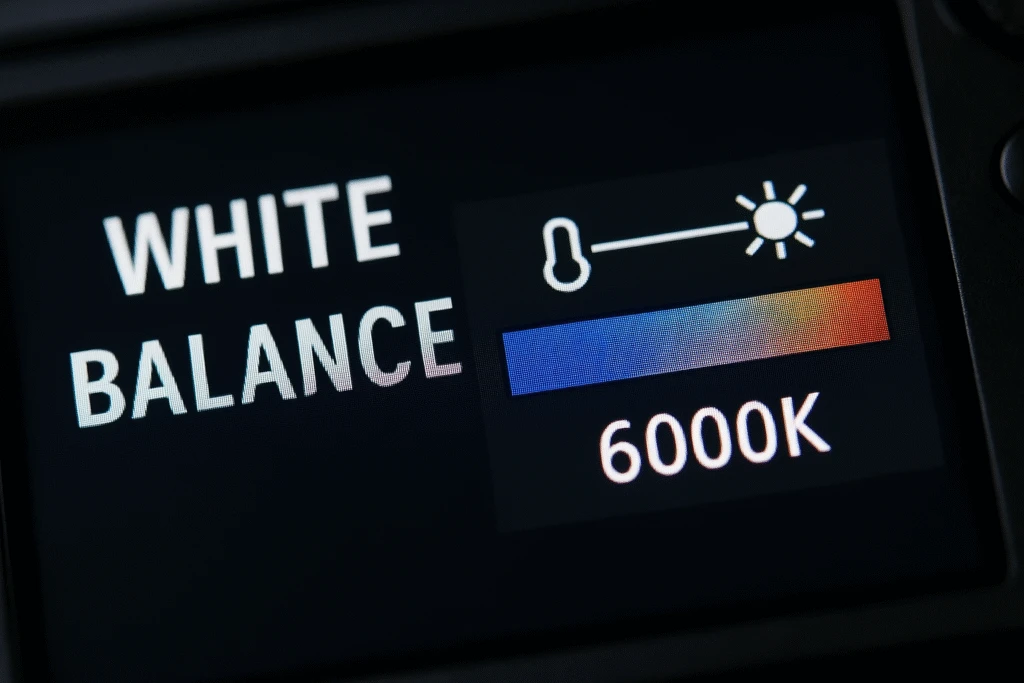
Modern smartphones use this Kelvin scale internally when providing manual white balance controls, allowing users to select precise temperature values matching the environment. For instance, setting white balance to approximately 3,200K compensates for tungsten lighting, rendering whites correctly neutral instead of warm or orange-shifted.
Auto White Balance: Mechanisms and Limitations
Auto White Balance (AWB) algorithms in smartphones typically analyze the overall color distribution of a scene, attempting to identify the dominant light source and balance the image’s color temperature accordingly. These algorithms use heuristic approaches, averaging pixel colors or referencing training data sets that include diverse lighting scenarios.
Despite technological advances, AWB struggles with mixed lighting environments where multiple sources with differing color temperatures coexist. For example, indoor scenes illuminated by both daylight through windows and artificial tungsten bulbs can confuse AWB, resulting in uneven color casts or unnatural tones in parts of the image. Similarly, sunset or sunrise scenes with strong warm hues may prompt AWB to reduce warmth excessively, diminishing the scene’s mood.
Case studies with devices like the Sony Xperia or iPhone 6s reveal that under fluorescent light, AWB can produce greenish or magenta casts due to the spectral complexity of such lighting. Users often report inconsistent results when shooting in HDR mode, where multiple exposures are merged and AWB may apply different corrections to each layer, causing color shifts.
Manual White Balance Adjustment: Tools and Techniques
Manual white balance adjustment is accessible on many smartphones through PRO or manual modes, offering sliders or presets for Kelvin temperature selection. Android devices with PRO mode, including flagship models, allow users to input Kelvin values typically ranging from 2,000K to 10,000K. iOS users often rely on third-party camera apps to access such controls.
Using a gray card is a reliable method for setting custom white balance. By photographing a neutral gray card under the current lighting and setting the camera’s white balance to neutralize that reference, photographers achieve accurate color rendering. This technique is especially useful for product photography, portraits, and controlled studio environments.
The adjustment process involves:
Post-Processing White Balance Correction and RAW Benefits
Shooting in RAW format is indispensable for photographers seeking maximum white balance control. Unlike JPEGs, which apply white balance permanently during capture, RAW files retain all sensor data untouched, allowing adjustments without quality loss. This flexibility is crucial for correcting white balance in post, particularly under mixed or challenging lighting.
Photo editing apps such as Adobe Lightroom Mobile and Snapseed provide temperature and tint sliders to refine white balance selectively. These tools enable users to sample neutral areas within the image or experiment with warmer or cooler tones to achieve either accurate or stylized results.
Handling mixed lighting in post-processing often involves localized adjustments or split-toning to balance color casts across different regions of the photo. Advanced apps support layering and masking, allowing precise control over white balance corrections on specific elements, enhancing overall image coherence.
Practical Tips for White Balance Mastery in Smartphone Photography
Consistent practice with manual white balance adjustment builds an intuitive understanding of how different lighting affects color. Photographers should test white balance settings in diverse environments—incandescent-lit rooms, fluorescent offices, outdoor daylight—to observe resulting shifts.
Embracing color casts creatively is a valid artistic choice. Warm color casts can enhance the emotional tone of sunset or candlelit scenes, while cool casts might emphasize moodiness in overcast or night photography. Balancing white balance with exposure and ISO settings ensures images remain well-exposed without introducing noise or motion blur.
Adjusting shutter speed in tandem with white balance affects the overall image tone, especially in dynamic lighting conditions. For example, longer exposures during sunset can intensify warm tones, complementing manual white balance settings for creative effect.
Forward-Looking Considerations in Smartphone White Balance Technology
Emerging smartphone cameras are incorporating AI-powered white balance that dynamically adapts to complex lighting using real-time scene analysis and spectral data fusion. This promises improved color accuracy without manual intervention, benefiting casual users.
Nevertheless, professional and enthusiast photographers will continue to rely on manual control and RAW shooting to retain artistic freedom and precise color management. Future developments may integrate advanced calibration tools, such as built-in gray card detection or enhanced spectral sensors, streamlining white balance accuracy while maintaining creative flexibility.
Continued education on color science fundamentals and evolving smartphone capabilities remains essential for photographers aiming to optimize image quality in an increasingly diverse photographic landscape.
FAQ

What is white balance in smartphone photography?
White balance adjusts the colors in a photo so that whites appear neutral under different lighting conditions by compensating for the light’s color temperature, measured in Kelvin. This ensures accurate color representation despite variations in light source warmth or coolness.
How does auto white balance work and when does it fail?
Auto white balance algorithms analyze the overall scene colors to estimate the dominant light source and adjust accordingly. It can fail under mixed lighting, strong color casts like sunsets, or artificial lighting such as fluorescent bulbs, leading to inaccurate or unnatural colors.
Can I manually adjust white balance on my smartphone?
Yes, many smartphones offer manual white balance adjustment through PRO mode or third-party apps, allowing users to select specific Kelvin temperatures or presets. Using a gray card can help calibrate white balance precisely for the current lighting.
Why is shooting in RAW important for white balance?
RAW files retain unprocessed sensor data, preserving all color information without in-camera white balance application. This allows photographers to adjust white balance flexibly and accurately in post-processing without quality loss.
What are practical tips for improving white balance in smartphone photos?
Photographers should test different white balance presets or manual settings under various lighting, use gray cards for calibration, shoot in RAW format, and employ photo editing apps to fine-tune colors. Balancing white balance with exposure, ISO, and shutter speed enhances overall image quality.
This comprehensive overview equips smartphone photographers with a deep understanding of white balance mechanics, practical adjustment techniques, and post-processing strategies to achieve accurate and creative color representation in their images.