SnapRoamer.com – To master smartphone photography, you must move beyond automatic modes by mastering the exposure triangle: ISO, shutter speed, and aperture. By switching to RAW format and utilizing ‘Pro Mode’ or third-party manual apps, you can bypass restrictive AI algorithms to capture professional-grade detail, control depth of field, and prevent digital artifacts. Switching to RAW format gives you significantly more flexibility for corrections during post-processing compared to standard JPEGs.
The Pro-Grade Foundation: Choosing RAW over JPEG
Switching to RAW format gives you more flexibility in corrections, according to clippingexpertasia.com. Unlike JPEGs, which compress data and discard detail, RAW files capture all the sensor’s information, providing the necessary flexibility to adjust exposure, white balance, and color grading in apps like Adobe Lightroom without losing image quality.
Why JPEG compression kills your editability
Standard JPEG files undergo heavy processing by the smartphone’s internal software, which can lead to significant data loss. When you attempt to recover details from shadows or highlights in a heavily compressed JPEG, you often encounter digital artifacts. This occurs because the camera has already discarded much of the sensor’s original data to save space. One common failure mode is the loss of color depth, making professional color grading nearly impossible.
The RAW workflow with Adobe Lightroom
Using RAW format provides more flexibility for corrections, which is essential for high-quality results. Professional photographers often use Adobe Lightroom to manage these large files. To avoid common mistakes that ruin image quality, consider these specific constraints:
- Mastering the Exposure Triangle on Mobile Hardware
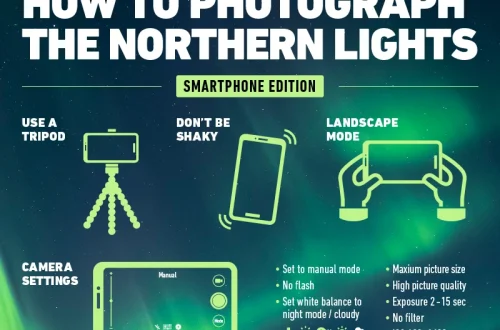
The exposure triangle consists of ISO, shutter speed, and aperture. On a smartphone, you balance these to control light: lower ISO reduces noise, faster shutter speeds (1/320th) freeze motion, and aperture controls depth of field. Manual mode allows you to bypass internal logic for precise control over these three variables.
The relationship between these settings is fundamental to how a sensor perceives light. According to Figure 4, the exposure triangle consists of aperture, shutter speed, and ISO.
Setting Primary Effect Impact on Quality ISO Light Sensitivity Higher values increase digital noise/grain Shutter Speed Motion/Exposure Slow speeds cause motion blur Aperture Depth of Field Controls light entry and focus plane The table above illustrates how each component of the triangle affects the final image. Balancing these is the core of manual control.
ISO: Balancing light vs. digital noise
ISO measures the sensor’s sensitivity to light. A value of 100 is the lowest possible setting, offering the cleanest image with the least amount of grain. While some hardware can reach 6400 ISO, grain becomes too high for professional use at that level. To avoid grain, practitioners often recommend that 800 ISO is a safe maximum for most mobile sensors.
Shutter Speed: Freezing action vs. motion blur
shutter speed dictates how long the sensor is exposed to light. To freeze motion effectively, you should aim for at least 1/320th of a second. If the shutter speed drops below 1/50th of a second, you risk significant motion blur, making the shot unusable for moving subjects.
Aperture: Managing depth of field and light entry
Aperture controls the amount of light entering the lens and the depth of field. Most mobile sensors operate within an aperture range of F1 to F22. While physical aperture is often fixed on many smartphones, understanding how it controls light entry is vital for understanding exposure.
Computational vs. Manual: When to Fight the AI
computational photography uses software to merge multiple frames to create a single “perfect” image. While useful, automatic exposure can be fooled by lighting conditions. For example, in overly light or dark situations, the light will fool the camera’s sensor, leading to unnatural results.
Warning: Relying solely on Auto-HDR can lead to “flat” images that lack natural contrast. If the AI-processed image looks unrealistic, switch to manual settings.
When the automatic mode fails, you can use the EV slider to adjust exposure via exposure compensation. This allows you to manually override the internal logic to ensure the subject is properly lit without the software overcompensating for the background.
Step-by-Step: Activating Pro Mode on Samsung Galaxy
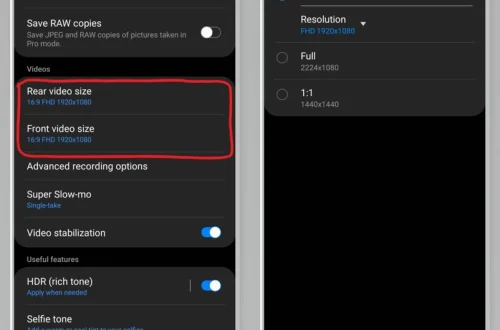
Samsung Galaxy devices offer a dedicated Pro Mode that grants full control over the camera’s hardware functions. This mode is essential for capturing specific lighting scenarios that the standard “Photo” mode might misinterpret.
Shortcut: Camera app > Mode button > Select ‘Pro’
- Open the Camera app on your Samsung Galaxy device.
- Tap the Mode button located in the main interface.
- Select ‘Pro’ from the available options.
- Use the manual adjustments to control ISO, shutter speed, white balance, and exposure.
- If the subject is out of focus, tap ‘MANUAL’ or drag the adjustment bar for focus.
By utilizing these settings, you can perform precise adjustments that preserve detail and prevent the loss of information that occurs in fully automatic modes.
Advanced Techniques: Macro and Third-Party Apps
In macro photography, there is no diminution of the subject’s size on the sensor due to the proximity to the subject, according to pmc.ncbi.nlm.nih.gov. This allows for the capture of intricate details.
If your phone lacks a dedicated macro mode, you can use an Easy-Macro lens, which offers 4x magnification. When using built-in macro modes, look for a yellow flower-shaped icon in the viewfinder to confirm it is active.
For users who require even more granular control than the native app provides, third-party applications are highly effective:
The following table compares the two primary methods of magnification used in mobile photography.
| Feature | Optical Zoom | Digital Zoom |
|---|---|---|
| Mechanism | Physical lens movement | Software cropping |
| Image Quality | High (Preserves detail) | Low (Causes pixelation) |
Optical zoom uses the lens to magnify, resulting in better quality; digital zoom crops the photo, resulting in pixelation.
Post-Processing: Avoiding Common Editing Pitfalls
Even with precise settings, poor editing can ruin a high-quality RAW file. Digital post-processing is an extension of the shooting process, not a replacement for it.
Warning: Over-sharpening creates halos—those bright outlines around objects that scream “over-edited.”
When adjusting your images, pay close attention to these technical values to maintain a professional look: