SnapRoamer.com – Color temperature adjustment in smartphone photography can be precisely achieved by using manual camera settings such as ProCamera on iOS or Pro Mode on Android, or by editing images in apps like Adobe Lightroom. Lower Kelvin values produce warmer tones, while higher values yield cooler tones, enabling photographers to control photo mood and color accuracy.
Smartphone photography has matured beyond casual snapshots, requiring advanced techniques to capture colors as accurately as possible. Color temperature—measured in Kelvin (K)—directly influences how warm or cool photo tones appear, affecting the mood, realism, and overall aesthetic. Accurate adjustment of color temperature is crucial for true-to-life reproduction and creative expression, especially when lighting conditions vary widely. Understanding how to measure, adjust, and correct color temperature both during capture and in post-processing empowers smartphone photographers to elevate their images significantly.
Understanding Color Temperature and Its Role in Smartphone Photography
color temperature quantifies the hue of a light source, expressed in Kelvin units, and ranges typically from warm incandescent lighting at around 3,200 K to cool daylight or shade exceeding 7,000 K. This scale reflects the color characteristics emitted by light sources; lower Kelvin values correspond to amber, reddish tones, while higher values tend toward blueish, cooler shades. The color temperature profoundly impacts the emotional tone of a photograph—for instance, warm light evokes coziness, while cool light can convey calm or sterility.
In photography, white balance is the camera’s mechanism to neutralize color casts caused by varying color temperatures. It adjusts how the sensor interprets the scene’s colors so that whites appear neutral, and other colors retain natural hues. Smartphones often default to automatic white balance, which can misinterpret complex lighting and produce inaccurate colors. Hence, manual control over color temperature and white balance is essential to manage color fidelity, especially in mixed or challenging lighting environments.
The importance of color temperature extends beyond aesthetics. In product photography or digital marketing, accurate color rendition affects consumer perception and trust. Misadjusted white balance can lead to dissatisfaction or misrepresentation. Therefore, mastering color temperature adjustment techniques on smartphones bridges the gap between casual and professional-quality photography.
Measuring and Interpreting Color Temperature: Tools and Techniques
The Kelvin scale remains the standard for quantifying color temperature, with practical benchmarks such as 3,200 K for indoor tungsten lighting and 5,500-6,500 K for midday sunlight. Understanding these values helps photographers anticipate the color cast of different lighting conditions. For example, shooting under incandescent bulbs without correction results in overly warm images, whereas shooting in shade may impart a blue tint.
Accurate measurement of color temperature requires reliable tools. Professional color meters like the Sekonic C-800 Spectromaster provide comprehensive readings, including green/magenta tint shifts, critical for precise color calibration. These devices deliver high accuracy but come at a premium price, making them less accessible for casual or smartphone photographers.
Affordable alternatives include smartphone light meter apps such as Kelvin Meter and Lumu Light Meter, which estimate color temperature by analyzing ambient lighting through the device’s sensors. While less precise than professional meters, these apps offer practical value for field measurements and on-the-fly adjustments. Additionally, gray cards—neutral reference targets—assist in calibrating white balance by providing a known neutral tone for the camera to lock onto during capture or editing.
The choice of measurement tools affects the outcome of color temperature adjustment. Professionals rely on hardware meters for studio work, while smartphone users benefit from apps and gray cards for everyday color accuracy.
Manual Color Temperature Adjustment on Smartphones
Modern smartphones increasingly support manual camera controls that allow photographers to fine-tune color temperature settings. On iOS, the ProCamera app offers Kelvin-specific white balance adjustments, enabling users to set exact color temperatures rather than relying solely on presets or auto modes. Android devices often feature a Pro Mode or manual camera settings panel where Kelvin values and tint corrections can be specified.
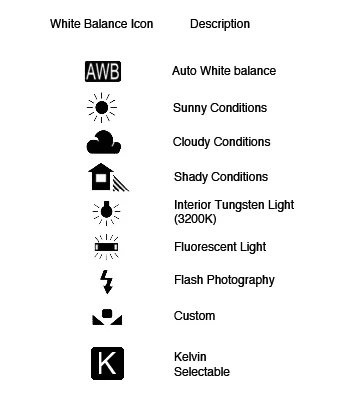
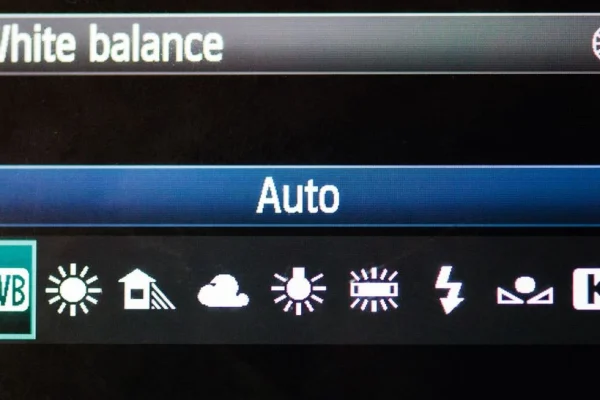
Default white balance presets—such as Auto, Daylight, Cloudy, Shade, Incandescent, and Fluorescent—serve as starting points but may lack the precision needed for complex lighting. For instance, ‘Cloudy’ presets typically apply a warmer correction (around 6,000 K), while ‘Incandescent’ presets shift toward cooler tones to counteract warm indoor lighting. However, these presets do not allow for granular tint adjustments that correct subtle green or magenta color casts.
Advanced manual controls also facilitate tint adjustments, which correct color casts on the green-magenta axis. This is essential because color temperature alone does not fully address all lighting nuances. For example, fluorescent lighting often introduces a greenish tint that requires targeted correction beyond simple Kelvin adjustment.
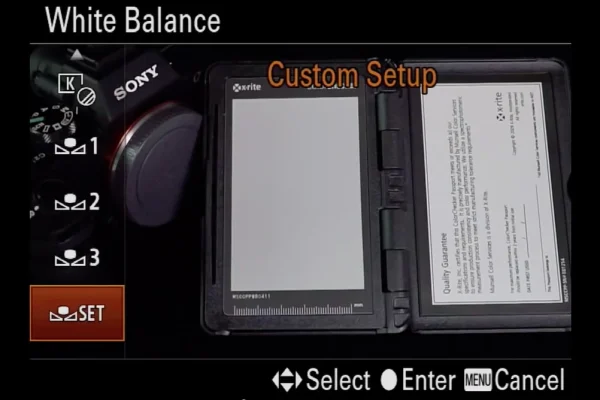
ProCamera’s interface and Android’s manual modes allow the user to lock white balance at a custom Kelvin value and fine-tune tint settings, achieving accurate color reproduction in real time. This capability is vital for photographers seeking consistency across multiple shots or lighting scenarios.
Post-Processing Color Temperature Correction: Apps and Techniques
When precise white balance adjustments are missed during capture, post-processing tools offer powerful means to correct color temperature. Adobe Lightroom, a leading photo editing app available on both iOS and Android, provides Temp and Tint sliders to adjust warmth (Kelvin) and green-magenta shifts respectively. Lightroom’s raw file support enhances the ability to recover color information without degradation, making it preferred for serious smartphone photographers.
Similarly, Google Photos includes basic editing features such as Warmth, Tint, and Saturation adjustments, useful for quick corrections. However, Google Photos lacks the granular control and raw processing capabilities of Lightroom, limiting its use for professional-grade color correction.
While post-processing can rescue images with poor white balance, it cannot fully replicate the benefits of correct in-camera color temperature setting. Editing introduces risks of noise amplification and color banding, especially when extreme color shifts are applied. Therefore, combining manual capture settings with thoughtful post-processing yields optimal results.
Practical Strategies for Achieving Accurate Color in Smartphone Photography
Using a gray card or a neutral white reference during shooting is one of the most reliable methods to ensure color accuracy. By photographing the gray card under the scene’s lighting conditions, photographers obtain a reference to calibrate white balance either in-camera or during editing. This technique mitigates errors caused by mixed lighting and varying light sources.
Mixed lighting—such as natural daylight combined with indoor artificial light—poses significant challenges due to competing color temperatures. Photographers should strive to minimize mixed sources or prioritize one dominant light type for white balance calibration. Additionally, calibrating smartphone displays and editing monitors ensures that colors are viewed consistently, preventing misjudgments during editing.
Calibrating smartphone cameras themselves is limited by hardware and software constraints but updating camera firmware, using manual apps, and avoiding automatic filters enhances color fidelity. Understanding the light source and its Kelvin value allows photographers to anticipate necessary adjustments and plan their shooting accordingly.
Comparing Affordable and Professional Tools for Color Temperature Accuracy
While professional devices like the Sekonic C-800 and XRite Colormunki deliver industry-grade color calibration, their cost and complexity restrict their use to specialized fields. These meters measure spectral power distributions and color shifts with exceptional accuracy, supporting color workflows in commercial photography and cinematography.
In contrast, smartphone apps such as Kelvin Meter and Lumu Light Meter provide accessible means to approximate ambient color temperature. Kelvin Meter app estimates temperature by analyzing images or sensor data, while Lumu Light Meter connects as an external accessory, combining hardware precision with smartphone convenience. These tools empower enthusiasts and semi-professionals to achieve better color balance without extensive investment.
The table below summarizes key features and suitability of various color temperature tools:
| Tool | Type | Accuracy | Platform | Price Range |
|---|---|---|---|---|
| Sekonic C-800 Spectromaster | Professional Color Meter | High (±1K, tint shifts) | Standalone Device | High ($2,000+) |
| XRite Colormunki | Professional Calibration Device | High (Colorimeter + Spectrometer) | Standalone Device | High ($1,000+) |
| Lumu Light Meter | Hardware Light Meter (Smartphone Accessory) | Moderate (±5K) | iOS | Moderate ($300+) |
| Kelvin Meter App | Software Light Meter App | Moderate (Estimation) | iOS, Android | Low (Free or <$10) |
These options illustrate a spectrum from precision instruments for professional use to affordable apps suitable for smartphone photographers seeking practical color temperature management.
Future Directions and Practical Considerations for Smartphone Photographers
As smartphone camera technology evolves, manual control over color temperature is expected to become more sophisticated and user-friendly. Artificial intelligence integration may allow dynamic, scene-aware white balance adjustments that mimic human perception more closely. Meanwhile, improvements in sensor technology and computational photography will enhance native color accuracy, reducing reliance on post-processing.
Photographers should remain aware of the limitations of automatic white balance algorithms and invest time in mastering manual controls and color calibration techniques. Experimenting with Kelvin values and tint shifts during capture, combined with selective post-processing, provides the best pathway to achieving artistic and accurate color rendition.
Ongoing education, such as following expert tutorials from Adobe Lightroom or ProGrade Digital, and using credible measurement tools, will continue to elevate smartphone photography standards. Incorporating affordable accessories like gray cards into shooting routines also helps ensure consistent results.
By understanding and applying color temperature principles, smartphone users can not only correct color inaccuracies but also creatively influence the atmosphere and storytelling power of their images.
FAQ

What is the difference between color temperature and white balance in smartphone photography?
Color temperature refers to the actual hue of the light source measured in Kelvin, indicating whether light is warm or cool. White balance is the camera’s setting that adjusts the image to neutralize the color cast caused by the light source’s temperature, ensuring colors appear natural. White balance uses color temperature data to correct images.
How does adjusting the Kelvin value affect the look of smartphone photos?
Lower Kelvin values (around 3,000–4,000 K) add warm, orange-yellow tones to photos, enhancing cozy or sunset moods. Higher Kelvin values (6,000–7,000 K and above) introduce cooler, bluish tones, suitable for daylight or shade conditions, creating calm or crisp atmospheres. Adjusting Kelvin allows control over the photo’s emotional impact and color accuracy.
Can I achieve accurate color temperature adjustments without professional meters?
Yes. While professional meters provide high precision, smartphone apps like Kelvin Meter and Lumu Light Meter offer practical alternatives for estimating color temperature. Using gray cards and manual camera apps also significantly improves color accuracy in smartphone photography without expensive equipment.
Is it better to adjust color temperature during capture or in post-processing?
Adjusting color temperature during capture using manual camera controls yields more accurate and higher-quality results, preserving image data. Post-processing corrections can fix mistakes but may degrade image quality if extreme adjustments are needed. Combining both approaches is ideal for best results.
What are common pitfalls when adjusting white balance on smartphones?
Common issues include relying solely on auto white balance in mixed lighting, which can produce inconsistent colors; neglecting tint adjustments leading to green or magenta casts; and failing to use reference tools like gray cards, resulting in color inaccuracies. Understanding lighting conditions and using manual controls mitigate these pitfalls.
For detailed insights on color temperature in photography, visit ProGrade Digital’s guide to color temperature. Additionally, expert advice on enhancing photo colors is available at The New York Times Wirecutter.
Mastering color temperature adjustment equips smartphone photographers with a powerful toolset for authentic and impactful imagery. As technology advances, combining manual techniques with evolving software capabilities will define the next frontier in smartphone photography excellence.