SnapRoamer.com – Mobile cameras have increasingly become primary tools for photography, yet achieving accurate color reproduction remains a challenge due to complex lighting conditions and inherent limitations of automatic processing. Manual white balance adjustment on smartphones offers photographers greater control to neutralize color casts caused by varying light sources. By selecting white balance presets or fine-tuning using the Kelvin temperature scale, users can ensure consistent, natural colors across different scenes. Although Auto White Balance (AWB) simplifies shooting, it frequently shifts hues between shots, reducing color fidelity especially in mixed or artificial lighting environments.
Understanding the Kelvin temperature scale is fundamental for effective manual white balance correction. This scale quantifies color temperature from approximately 2000K (warm, reddish tones typical of tungsten lighting) to around 8000K (cool, bluish daylight or shade). Different lighting conditions inherently shift the perceived color temperature: daylight averages near 5500K, shade tends toward 7000K or higher, and fluorescent lighting often skews greenish or magenta, complicating automatic correction. By manually setting the white balance to match the lighting’s color temperature, or using a neutral reference like a gray card, photographers can achieve more accurate and consistent color rendering on their mobile devices.
White Balance and the Kelvin Temperature Scale Explained
white balance controls color tint by compensating for the color temperature of the light illuminating the scene. The Kelvin scale, a measurement of absolute temperature, represents this color temperature numerically. A lower Kelvin value (2000K-3000K) corresponds to warm, amber hues like candlelight or incandescent bulbs, whereas higher values (6000K-8000K) indicate cooler, bluish light typical of overcast skies or shade.
Lighting environments directly influence camera color balance. For example:
Smartphone cameras attempt to neutralize these effects using auto white balance algorithms, but these can misinterpret complex or mixed lighting, leading to inconsistent color reproduction. Manual adjustment using the Kelvin scale or presets allows users to override automatic decisions, aligning the camera’s color interpretation closer to the true scene colors.
Accessing Manual White Balance Controls on Smartphones
Most contemporary smartphones offer manual white balance settings primarily through the camera app’s Pro or manual mode, which provide granular control over exposure, focus, ISO, and white balance. The exact navigation varies by device and operating system:
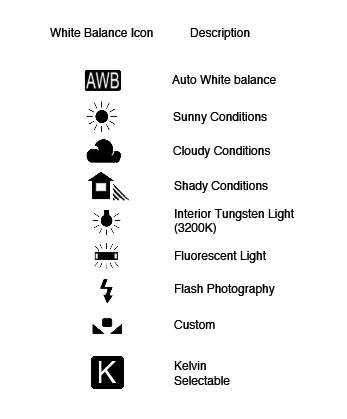
Manual white balance settings often include presets such as Daylight, Cloudy, Shade, Tungsten, and Fluorescent. More advanced apps allow direct Kelvin temperature input, often ranging from 2000K to 8000K in increments of 100K for precise control.
White Balance Presets Versus Custom Kelvin Adjustment
white balance presets simplify the adjustment process by offering predefined color temperature profiles tailored to common lighting scenarios:
While presets provide convenience, they may not perfectly match every lighting nuance. Custom Kelvin adjustment allows users to calibrate white balance closely to ambient conditions, which proves essential for mixed lighting or unusual light sources. For example, setting white balance to 4500K might better correct a room lit by a combination of tungsten and daylight.
Using the Kelvin scale, photographers can also fine-tune white balance to creative effect, either warming or cooling an image intentionally, but the primary goal remains accurate color reproduction.
Advanced Manual White Balance Techniques: Gray Card Method
The gray card method remains the gold standard for precise white balance calibration in photography. A gray card is a neutral 18% reflectance surface that serves as a color reference under the same lighting as the subject. Using a gray card involves:
Many smartphone cameras and third-party apps support custom white balance sampling. This method compensates for complex and mixed lighting scenarios, where preset options and auto white balance often fail. By relying on a neutral reference, the camera can eliminate color casts caused by ambient light variations and produce consistent color fidelity across multiple shots taken in the same environment.
Practical Tips for Maintaining Consistent White Balance in Mobile Photography
Maintaining consistent white balance across a photo series requires deliberate control since auto white balance algorithms dynamically adjust based on scene content and lighting changes. To minimize color inconsistency:
These practices reduce the need for extensive post-processing color correction and improve workflow efficiency for mobile photographers aiming for professional-quality results.
Device Limitations and Recommended Apps for Enhanced Manual White Balance Control

Not all smartphone cameras fully support manual white balance adjustments, especially in modes utilizing multiple lenses such as dual or triple camera setups, portrait mode, or depth effects. These modes often rely on auto white balance to synchronize color across cameras, restricting manual control.
Third-party apps offer more comprehensive white balance settings and can circumvent some native app limitations. Popular recommendations include:
These applications enhance control over white balance and integrate well with professional mobile photography workflows.
| White Balance Preset | Approximate Kelvin Value | Typical Use Case |
|---|---|---|
| Daylight | 5200K – 5600K | Bright sunny outdoor conditions |
| Shade | 6500K – 7500K | Shadowed outdoor scenes with cooler light |
| Cloudy | 6000K – 6500K | Overcast daylight conditions |
| Tungsten | 2500K – 3500K | Indoor lighting with incandescent bulbs |
| Fluorescent | 4000K – 5000K | Artificial fluorescent lighting |
FAQ

How do I manually set white balance on my smartphone camera?
Manual white balance is usually set by entering the camera app’s Pro or manual mode, then selecting white balance options. You can choose from presets such as Daylight or Tungsten or adjust the Kelvin temperature slider to match the lighting conditions. Third-party apps may provide additional control.
What is the benefit of using a gray card for white balance?
A gray card provides a neutral color reference under the current lighting, allowing the camera to calibrate white balance accurately. This method reduces color casts and improves consistency, especially in mixed or challenging lighting scenarios.
Why does auto white balance sometimes produce inconsistent colors?
Auto white balance algorithms analyze the scene and adjust color temperature dynamically. Changes in lighting, subject colors, or shadows can cause the camera to shift white balance between shots, resulting in inconsistent color tones.
Can I use manual white balance in all camera modes on my smartphone?
Manual white balance is often restricted to Pro or manual camera modes. Modes like portrait, night, or multi-lens shooting may not permit manual white balance adjustments due to software processing constraints.
What Kelvin temperature should I use for indoor lighting?
Indoor lighting with incandescent bulbs typically requires a Kelvin value between 2500K and 3500K (Tungsten preset) to neutralize warm yellow-orange coloration. Fluorescent lighting may require higher values around 4000K to 5000K.
Manual white balance adjustment on mobile cameras empowers photographers to take control of color accuracy, overcoming the limitations of auto white balance in complex lighting environments. By understanding the Kelvin temperature scale, utilizing presets or custom values, and implementing methods like gray card calibration, users can achieve consistent and realistic photo colors. As smartphone camera technology evolves, manual white balance remains a crucial tool for serious mobile photographers seeking professional-grade image quality.
For detailed technical insights and step-by-step guides, consult manual white balance controls on smartphone cameras and how to adjust white balance on your phone’s camera.