SnapRoamer.com – Setting and adjusting custom white balance on smartphones is essential for achieving accurate color reproduction in photos and videos, particularly under diverse lighting conditions where automatic white balance often falls short. By using a neutral surface such as a gray card or even the back of your phone, you can manually calibrate your device’s white balance settings to eliminate unwanted color casts. This tutorial provides detailed, step-by-step instructions for both iOS and Android users, covering native camera apps and popular third-party options, along with advanced tips for video recording and post-production correction.
Understanding and applying custom white balance on your smartphone will enhance the fidelity of your imagery, making colors appear natural and consistent, regardless of complex or mixed lighting environments.
Understanding White Balance and Its Importance on Smartphones
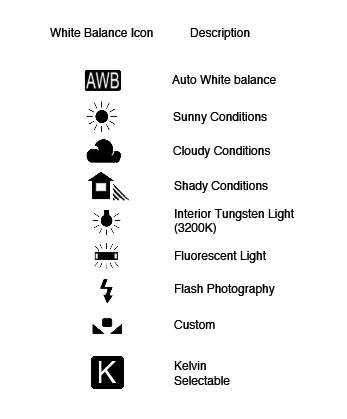
White balance controls how your smartphone camera interprets color temperature—the warmth or coolness of light in a scene. It is measured in Kelvin (K), with daylight typically around 5500K, incandescent lighting around 2800K, and fluorescent lighting varying widely between 4000K and 6500K. Automatic white balance (AWB) aims to compensate for these differences but often struggles with mixed lighting or scenes dominated by a single color, resulting in color casts that distort the image’s true hues.
Smartphones generally offer preset white balance modes such as daylight, cloudy, tungsten, and fluorescent, each designed to correct specific lighting conditions. However, these presets can be imprecise or ineffective in complex environments. Custom white balance settings override the automatic adjustments, allowing photographers to manually calibrate the camera to a neutral reference point for more accurate color rendering.
How to Access White Balance Settings on iOS and Android Smartphones
Accessing and adjusting white balance varies between smartphone platforms and camera applications. Native camera apps often limit direct control, so third-party apps are frequently used for manual white balance adjustment.
On iOS devices: The default iPhone camera app does not offer manual white balance controls, but apps like ProCamera provide comprehensive manual settings, including white balance adjustment and locking. To access white balance in ProCamera:
On Android devices: Many Android smartphones offer native white balance sliders within the camera app’s manual or Pro Mode, especially with newer OS versions like Android 14. Steps typically include:
Manual mode differs from automatic mode by allowing full control over exposure, focus, ISO, shutter speed, and white balance, enabling more precise image capture.
Step-by-Step Guide: Setting Custom White Balance Using a Neutral Surface
Using a neutral surface such as a gray card or the matte back of your smartphone provides a reliable reference for accurate white balance calibration. The gray card reflects light neutrally across the visible spectrum, making it ideal for this purpose.
This process eliminates color casts caused by varying light sources, ensuring your images and videos maintain accurate color reproduction.
Advanced Tips for Video White Balance on Smartphones
Video recording presents unique challenges, as changing light conditions can cause distracting color shifts if white balance is not locked.
These techniques reduce color shifts that often degrade video quality during extended shoots.
Troubleshooting Common White Balance Issues and Post-Production Correction
Auto White Balance can fail under mixed lighting (e.g., daylight combined with incandescent), causing images to look unnaturally warm or cool. Fluorescent lighting may introduce greenish hues, while tungsten lighting can cause overly warm tones.
- Inconsistent color casts between shots.
- White balance drifting during video recording.
- Smartphone screen calibration causing perceived color inaccuracies.
- Use photo editing tools like Adobe Lightroom or mobile apps to adjust color temperature and tint.
- Color correction tools allow selective adjustments to restore natural hues.
- Avoid relying solely on post-processing; aim for accurate white balance capture to reduce editing time.
Common Mistakes to Avoid When Setting Custom White Balance
Avoiding these mistakes ensures your custom white balance settings deliver consistent and accurate results.
Recommended Accessories for Precise White Balance Calibration
Photographers seeking higher accuracy can use specialized tools:
Using these accessories improves calibration quality, especially in professional smartphone photography workflows.
FAQ
What is the easiest way to set custom white balance on my smartphone?
The simplest method is to use a neutral surface like a gray card or the back of your phone to fill the white balance patch in a manual camera app, then calibrate and lock the white balance setting.
Can I lock white balance during video recording on smartphones?
Yes, many smartphones and third-party camera apps allow white balance lock during video recording to prevent color shifts caused by changing lighting conditions.
Why does my smartphone camera’s auto white balance sometimes produce inaccurate colors?
Auto white balance can struggle under mixed or artificial lighting, such as incandescent or fluorescent bulbs, which have varying color temperatures and spectral distributions.
Are white balance presets reliable for all lighting conditions?
White balance presets provide quick adjustments but may not be accurate in complex lighting scenarios. Custom white balance calibration is recommended for precise color reproduction.
How can I correct white balance if I forgot to set it before shooting?
You can adjust color temperature and tint during post-processing using software like Lightroom or mobile editing apps, though this is less effective than capturing accurate white balance in-camera.
—
For further in-depth discussions and community insights on smartphone white balance adjustments, see the Android Central white balance forum and detailed smartphone photography guides like the UVic Libraries smartphone photography resource.
Mastering custom white balance on smartphones empowers you to capture true-to-life colors, elevating the quality and professionalism of your photos and videos. Incorporate these techniques and tools into your workflow to confidently handle any lighting environment.