SnapRoamer.com – To master museum photography with a smartphone, you must move beyond automatic modes. The key is balancing light through AE/AF locking, managing mixed color temperatures, and choosing between automated Night Mode and manual Pro Mode to preserve authentic textures without the artificial over-processing typical of mobile sensors.
Museum lighting often presents a “Night Mode paradox.” Automated processing can inadvertently erase the fine textures of historical art by smoothing out details.
The AE/AF Lock Masterclass: Preventing Exposure Hunting
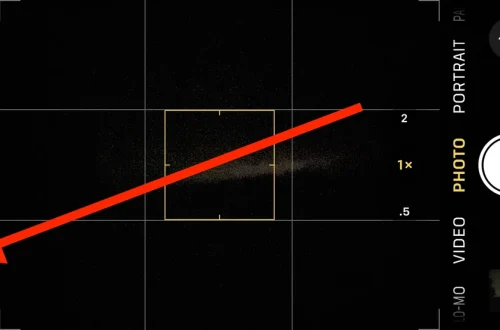
To prevent your smartphone from constantly re-adjusting brightness, use AE/AF Lock. Long-press your subject on the screen until the ‘AE/AF Lock’ notification appears. This freezes both the exposure and focus settings, allowing you to compose shots in dark galleries without the camera ‘hunting’ for light when moving between shadows and bright spotlights.
The problem of exposure hunting in high-contrast galleries
Many galleries utilize a high-contrast lighting scheme. A single, intense spotlight often illuminates an artifact against a pitch-black background. When a smartphone attempts to use face recognition or automatic light metering in these settings, the sensor often fails. The camera attempts to brighten the entire frame to compensate for the shadows, which results in the artwork being blown out by extreme highlights while the background remains a muddy, digital mess.
This failure mode occurs because the software is trying to find a middle ground that does not exist in the physical space. If you do not lock your settings, the camera will constantly cycle through brightness levels as you move, a phenomenon known as exposure hunting.
Step-by-Step Locking Workflow
To achieve professional results, follow this specific sequence to ensure stability:
- Point the camera at the artwork.
- Tap and hold the specific area of the artifact you want to be sharp.
- Wait for the “AE/AF Lock” indicator to appear on the screen.
- Manually slide the brightness/exposure slider (usually represented by a sun icon) down to darken the image.
By locking these two variables, you prevent the 2 or 3 seconds of delay that usually occurs when a camera tries to re-calculate light mid-composition. It is a common mistake to assume the phone will “figure it out,” but manual intervention is the only way to stop the sensor from overcompensating for dark corners.
The paradox of using Night Mode versus maintaining authenticity
The choice between automated Night Mode and manual Pro Mode determines whether your photo looks like a historical record or a digital painting. While Night Mode is convenient, it often prioritizes visibility over accuracy, which can be a significant pitfall for serious photography.
Instances where Night Mode over-processes images
Night Mode works by taking multiple long-exposure frames and stitching them together using computational photography. While this makes a dark room look bright, it creates a “plastic” effect on oil paintings or stone sculptures. The software sees the fine cracks in a 17th-century canvas or the grain in a marble statue as “noise” and attempts to smooth them out. The result is an image that lacks the tactile depth of the original work.
Small mobile sensors struggle with this because they lack the physical surface area of professional cameras. To compensate for the lack of light, the software aggressively pushes the ISO, which can lead to heavy digital grain if the processing isn’t handled carefully.
The trade-off between ISO and noise
If you choose to move away from Night Mode, you must understand the relationship between light sensitivity and image cleanliness. The following table illustrates the primary modes used in museum settings:
| Mode | Best Use Case | Primary Risk |
|---|---|---|
| Auto Mode | Quick snapshots in well-lit lobbies | Extreme overexposure or “hunting” |
| Night Mode | General visibility in dim rooms | Loss of fine texture and “plastic” look |
| Pro/Manual Mode | Capturing fine art details accurately | Blurry shots due to slow shutter speeds |
The goal is to find the lowest possible ISO that still allows for a fast enough shutter speed to prevent motion blur. Increasing ISO too much will introduce chromatic noise, while keeping it too low will force a shutter speed so slow that even a heartbeat can ruin the shot.
Navigating mixed lighting and color temperature
Handling mixed lighting requires manual white balance (WB) adjustment. When a gallery features warm incandescent spotlights alongside cool LED or natural window light, use your smartphone’s ‘Pro’ or ‘Manual’ mode to select a Kelvin value that neutralizes the dominant color cast, ensuring the art’s true colors are captured.
A common failure occurs when a painting is lit by a warm 2700K spotlight but the room has cool 5000K LED ambient light. An automatic setting will often pick a middle ground, leaving your subject looking unnaturally orange or sickly blue. To fix this, you must manually adjust the white balance slider. If the art looks too yellow, move the slider toward the blue/cool end of the spectrum. If the art looks too blue, move it toward the yellow/warm end.
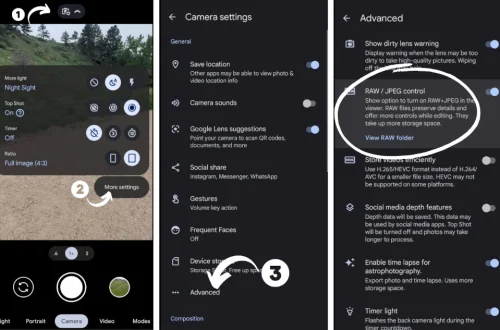
For those seeking maximum precision, shooting in RAW format is essential. Unlike JPEG, which bakes the color and white balance into the file, a RAW file preserves the original color data from the sensor. This allows you to correct the color temperature during post-processing without the image degrading or losing detail in the highlights. While more difficult to manage, the ability to recover the true pigments of a masterpiece is worth the extra steps.
Pro Mode workflows for iOS and Android manual control
Professional-grade photography requires accessing specific manual sub-menus. While both operating systems allow for manual control, the implementation of these features differs significantly between the two ecosystems.
Granular control over shutter and ISO on Android
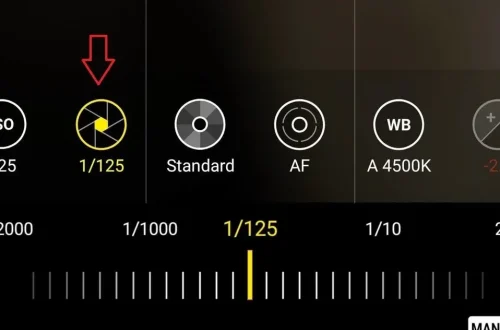
Most Android devices offer a dedicated “Pro Mode” within the camera app. This mode provides direct access to individual parameters. To use this effectively, navigate to the Camera app > More > Pro Mode. Once inside, you can control:
- ISO: Adjusting the sensor sensitivity.
- shutter speed (S): Controlling how long the sensor is exposed to light.
- EV (Exposure Value): A quick way to offset brightness.
- Focus: Manually shifting the focal plane for macro-style details.
The advantage here is the ability to set a specific shutter speed, such as 1/60th of a second, to ensure the image is sharp while still allowing enough light in for a clean shot.
Leveraging ProRAW and exposure compensation on iOS
Apple does not offer a traditional “Pro Mode” with individual ISO and Shutter sliders in the native camera app. Instead, iOS users must rely on two specific tools. First, enable ProRAW in Settings > Camera > Formats. This provides the high-dynamic-range data needed for professional editing. Second, use the exposure compensation slider by tapping the screen and sliding the sun icon up or down. While less granular than Android, using ProRAW allows you to manipulate the exposure in post-production with much higher fidelity than a standard JPEG.
A physical technique guide for anti-glare
Even with perfect settings, a single stray reflection from an overhead spotlight can ruin a photograph of glass-encased art. Managing lens flare is a physical challenge that requires specific body positioning rather than software fixes.
When shooting art behind glass, the light often hits the glass at an angle and bounces directly into your lens. To combat this, you can use the “Shoulder-Tilt” method: tilt your phone slightly downward or to the side, using your own body to create a shadow over the lens. Alternatively, the “Lens-Shield” technique involves using your hand or a dark piece of clothing to block the overhead light from entering the camera’s field of view while you shoot.
Shortcut: Use the volume buttons on the side of your phone to trigger the shutter. This allows you to hold the phone more steadily and prevents the “tap-shake” that often occurs when hitting the on-screen button.
The lens-shield technique
For extremely reflective surfaces, try to get the lens as close to the glass as possible without touching it. By minimizing the distance between the lens and the glass, you reduce the angle at which external light can enter the sensor, effectively “closing the gap” where reflections live.
Sensor limitations regarding optical versus digital zoom
Mobile sensors are significantly smaller than those found in professional DSLRs, resulting in a lower signal-to-noise ratio. This makes every bit of light critical for image quality.
When you use digital zoom, you are not actually magnifying the image; you are cropping into the center of the sensor and enlarging the pixels. In a low-light museum, this is a recipe for disaster. Digital zoom amplifies the existing noise, turning a slightly grainy photo into a pixelated, unrecognizable mess. To maintain the integrity of the artwork, you must use the dedicated optical zoom lenses (usually marked as 2x, 3x, or 5x on your screen). Optical zoom uses the physical glass to change the focal length, preserving the resolution and the exposure quality of the sensor. If your phone does not have an optical lens for the specific distance you need, it is always better to take a wider shot and crop it later in an editing app than to use digital zoom while standing in front of the piece.
FAQ
Using Portrait Mode for museum sculptures
portrait mode can isolate sculptures from busy backgrounds, but in low light, the edge detection may struggle with complex textures. This can lead to “halos” around the edges of the art where the software incorrectly identifies the background.
Avoiding blurry shots in dim galleries
Use a self-timer or a stable surface to prevent shake, and aim for a shutter speed of at least 1/60th or 1/100th if using Pro mode. If the light is too low for these speeds, you must prioritize ISO or use a tripod.
Whether it is okay to use the flash
No. Avoid flash to prevent glare on glass-encased art and to avoid potentially damaging sensitive pigments in older works. Flash also creates a harsh, flat lighting effect that destroys the natural shadows and depth of the piece.