SnapRoamer.com – To adjust exposure on a Samsung Galaxy, you can either use the quick exposure slider in the standard Camera app for rapid brightness changes or switch to Pro Mode for full manual control over ISO and shutter speed. For consistent lighting on a specific subject, perform a long press on the screen to trigger the AE/AF lock.
According to Samsung, exposure settings reset when the Camera app is closed. This ensures that every new shooting session begins from a standard baseline, preventing previous manual adjustments from interfering with new environments.
Mastering AE/AF Lock: The Bridge Between Auto and Pro
To lock exposure on a Samsung Galaxy, perform a hard or long press on the display area of your subject. A small icon featuring a sun and a circle with a lock symbol will appear, preventing the camera from automatically shifting brightness or focus as the scene changes.
This feature serves as a middle ground for users who find the standard Auto mode too unpredictable but do not want to manage the full complexity of Pro Mode. According to a user in the Samsung Community, users can trigger this by following a specific interaction: after opening the camera app, a hard or long press on the display causes a small icon with a line and a tiny sun to appear alongside a circle with a lock symbol.
Preventing brightness ‘pumping’ in video
Videographers often face a failure mode known as “brightness pumping,” where the camera constantly adjusts the exposure level during a pan or zoom, creating a distracting flickering effect. By utilizing the AE/AF lock, the sensor’s light intake remains constant regardless of moving objects in the frame. This is essential for maintaining a professional look in cinematic shots where light levels fluctuate slightly but should not trigger a full sensor recalibration.
How to unlock and return to Auto mode
Unlocking the settings is straightforward. To return to the standard automated behavior, simply tap any area of the screen that is not the locked subject, or tap the lock icon if it remains visible on the UI. This immediately releases the constraints on the sensor, allowing the software to recalculate brightness based on the new visual data.
- The Primary Method: Long press on the subject to lock both focus and exposure.
- The Quick Adjustment: Tap once to set focus, then use the slider to adjust brightness.
- The Reset: Tap a different part of the frame to release the AE/AF lock.
Data Loss Prevention: Why Underexposing is Safer Than Overexposing
When shooting in high-contrast environments, overexposing can lead to a failure mode where highlights become “blown out.” This results in the sensor capturing pure white pixels with zero recoverable detail. Once a highlight is overexposed, that data is permanently lost, regardless of how much you attempt to edit the photo later.
To prevent this, users can manage exposure by tapping the screen and dragging the sun icon downward. Using this technique helps maintain texture in bright areas like a sunset or a bright window. If the image is too dark, modern software can often recover shadows, but it cannot recreate details in a white, featureless sky.
Exposing for the highlights
When using the Samsung Galaxy interface, you can manage this by tapping the screen and dragging the sun icon downward to decrease the exposure value. This technique is particularly effective when the camera’s intelligent automation tries to overcompensate for a dark background by brightening the entire frame, which inadvertently ruins the sky or light sources.
The impact of high contrast on JPEG vs. Expert RAW
The choice of file format significantly changes how exposure errors affect your final result. Standard JPEG files are processed by the phone’s internal algorithms, which can sometimes struggle with extreme contrast. Conversely, using Expert RAW allows for much higher dynamic range, providing more flexibility to recover details from both shadows and highlights during post-processing.
Navigating Pro Mode: Manual Control of the Exposure Triangle
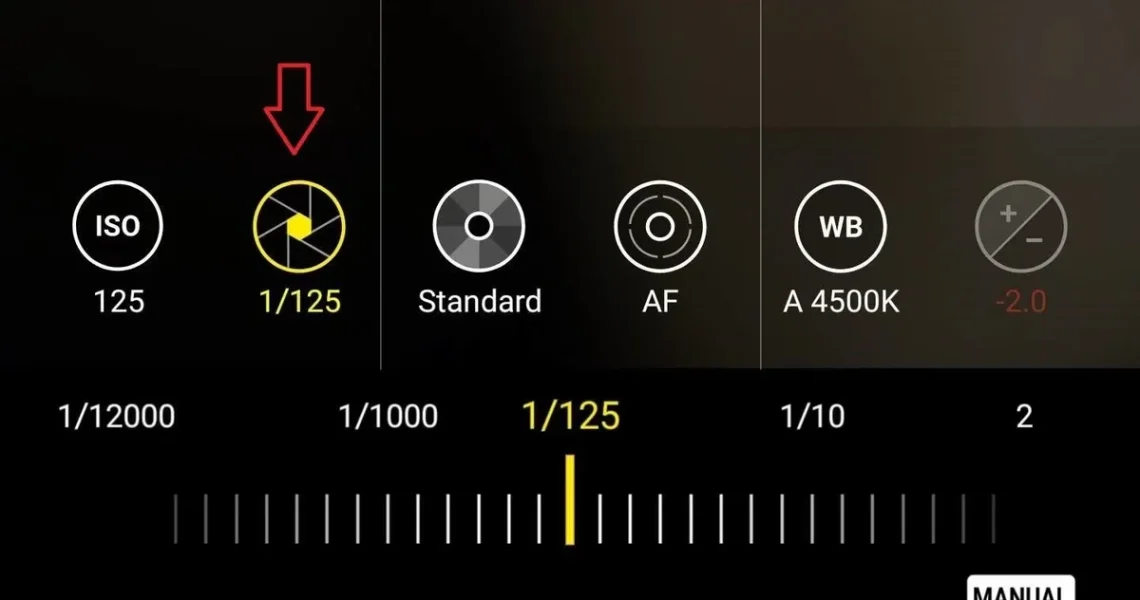
Pro Mode allows manual adjustment of ISO, Shutter Speed, and Exposure levels. To access it, open the Camera app, swipe to ‘More’, and select ‘Pro Mode’. Note that if you set Shutter Speed manually, the ISO and Exposure Value settings will be locked and cannot be set to Auto.
Samsung AE Support clarifies the technical function of these controls: “Exposure: Change the exposure value. This determines how much light the camera’s sensor receives.” Within this mode, you are essentially managing the “Exposure Triangle,” where each setting affects both light intake and image quality.
| Setting | Impact on Light | Primary Trade-off | Best Use Case |
|---|---|---|---|
| Slow Shutter Speed | Increases light intake | Higher risk of motion blur | Night landscapes / Light trails |
| Fast Shutter Speed | Decreases light intake | Requires more ambient light | Freezing fast-moving subjects |
| Low ISO | Decreases sensitivity | Requires more light/longer shutter | Bright daylight / Tripod shots |
| High ISO | Increases sensitivity | Increases digital noise | Low-light / Handheld shots |
The settings in the table above dictate how the device manages light intake through mechanical and electronic adjustments.
ISO: Balancing sensitivity and digital noise
ISO measures the sensor’s sensitivity to light. While increasing the ISO allows you to take photos in darker environments without a tripod, higher ISO settings can result in noise in photos or videos, according to Samsung AE Support documentation.
Shutter Speed: Freezing motion vs. light intake
A slow shutter speed allows more light in, making the photo or video brighter, as noted by Samsung AE Support. Conversely, a fast shutter speed captures a precise moment in time but requires a significant amount of light to produce a usable image.
The Manual Shutter Speed Constraint
A critical technical limitation exists within the Pro Mode workflow. If the shutter speed is set to “Manually,” the system locks the ISO and prevents it from being set to Auto. This means the photographer must calculate the relationship between ISO and shutter speed manually to achieve the desired brightness. You will also find that you are unable to change the exposure value once the shutter speed is set to a manual value.
Quick Adjustments vs. Intelligent Automation
Samsung provides two distinct paths for managing light: the rapid manual slider and the automated Scene Optimizer. While the slider gives you immediate control over brightness, the Scene Optimizer uses machine learning to interpret the scene and adjust multiple parameters at once.
The Scene Optimizer can automatically adjust exposure, contrast, white balance, and more based on what is detected in the camera frame. This is highly effective for common scenarios like food, landscapes, or bright skies, where the AI can instantly apply optimal settings that might take a manual user several steps to achieve.
When to use Scene Optimizer
The Scene Optimizer is best used when you want the phone to do the “heavy lifting” of photography. It is ideal for casual snapshots where speed is more important than granular control. However, it can fail in complex lighting, such as backlit subjects, where the AI might incorrectly prioritize the background brightness over the subject’s face.
Using the Quick Control Exposure Icon
For those who want to stay in the standard Auto mode but need a slight tweak, the Quick Control method is the most efficient. Follow this path: Camera > Quick control menu > Exposure icon. From there, you can slide the icon to adjust the brightness or darkness of the frame before the shutter is even pressed.
- Use Scene Optimizer for: Landscapes, food, and bright daylight shots.
- Use Quick Control for: Correcting a slightly too-dark or too-bright Auto shot.
- Use Pro Mode for: Night photography, long exposures, and complete creative control.
Practical Exposure Cheat Sheet for Galaxy Users
Applying these settings effectively requires understanding the specific lighting conditions of your environment. Below is a guide for two of the most common professional-style shooting scenarios.
| Scenario | ISO Setting | Shutter Speed | Exposure Value (EV) |
|---|---|---|---|
| Golden Hour Portrait | 100 | 1/125s | 0 to +0.3 |
| Night Cityscape | a low ISO setting | 1-2s | Manual Adjustment |
| Bright Daylight | 100 (Auto) | 1/500s+ | 0 |
Note that the Night Cityscape setting requires a tripod to prevent camera shake during the long 1-2s exposure.
Golden Hour Portraits
During the “golden hour,” light is soft and warm. To capture the best skin tones and prevent blowing out the soft light, aim for an ISO of 100 and a shutter speed around 1/125s. Setting your exposure value to between 0 and +0.3 will help maintain the natural warmth of the sun without making the image look washed out.
Night Cityscapes (Tripod Required)
Capturing the lights of a city at night requires a slow shutter speed to gather enough light. Using a shutter speed of 1-2s allows the sensor to soak up the ambient glow of streetlights and buildings. To keep the image clean, keep your ISO relatively low (between 200 and 400) and ensure your Galaxy device is mounted on a stable tripod to avoid motion blur.
FAQ
Why do my exposure settings reset every time I take a photo?
Samsung’s camera software is designed to reset exposure settings when the Camera app is closed to ensure the next session starts from a standard baseline.
Can I use Auto ISO in Pro Mode?
No, if you set the shutter speed to ‘Manual’ in Pro Mode, the system locks the ISO and prevents it from being set to Auto.
How do I stop my video from changing brightness mid-shot?
Use the AE/AF lock feature by performing a long press on the screen to lock the exposure on your subject.