SnapRoamer.com – iPhone exposure settings allow you to control image brightness by manually adjusting the light levels via the on-screen slider, using AE/AF Lock to freeze settings, or utilizing ProRAW for advanced post-processing. Mastering these tools prevents over-exposure (too bright) and under-exposure (too dark) in challenging lighting.
According to the iPhone Photography School, “Exposure refers to the brightness of an image.” There is no exact science to setting it; you simply decide what looks best for the specific shot. As the iPhone Photography School notes, “There’s no exact science to setting exposure. You just have to decide what looks best for the particular photo you’re taking.”
Pro-Level Workflow: Combining AE/AF Lock and Exposure Compensation
To master iPhone exposure, first tap and hold the screen to activate AE/AF Lock, which prevents the camera from re-adjusting when subjects move. Then, swipe up on the viewfinder or tap the exposure icon to drag the slider for precise brightness control without losing your focus point.
The relationship between focus and exposure
Tapping once on the iPhone screen sets both the focus point and the exposure level for that specific subject. This method ensures the subject is sharp and appropriately lit. However, if something moves within the scene and AE/AF Lock is not used, the autofocus system may trigger an automatic re-adjustment of both focus and exposure.
Why AE/AF Lock is essential for moving subjects
AE/AF Lock is a critical tool for stability. By pressing and holding the focus area, you activate AE/AF Lock, which prevents the autofocus system from re-adjusting exposure or focus when subjects move within the frame. This prevents the common failure mode where a moving subject causes the camera to hunt for focus, resulting in a blurry or incorrectly lit image. A common misconception is that adjusting exposure after locking will shift your focus; however, even when AE/AF Lock is activated, you can still manually adjust the exposure by swiping up or down on the screen, and the focus point will not be altered.
Follow these steps to execute the workflow:
- Identify your primary subject in the viewfinder.
- Press and hold on the subject until the AE/AF Lock notification appears.
- Swipe up or down on the screen to adjust the brightness.
- Capture the shot.
Changing the distance between the camera and the subject after the lock is active can cause the camera to focus on the wrong part of the scene. Because the camera is locked to a specific point, moving closer or further away means the previously locked focus point no longer aligns with the new perspective.
The ProRAW Advantage: Maximum Data for Post-Processing
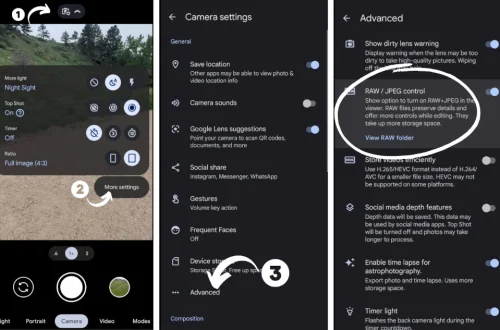
Apple ProRAW provides more control over exposure, color, and white balance, allowing for richer edits. This format is designed for photographers who intend to perform heavy edits in applications like Lightroom mobile or VSCO, as it preserves much more data in the highlights and shadows.
JPEG vs. ProRAW: The storage trade-off
While ProRAW offers superior flexibility, it comes with a significant cost in terms of device resources. Users must be aware that ProRAW files are much larger than standard JPEGs. This can lead to a situation where storage may run out quickly if the setting is left on for every casual snapshot. iPhone 12 Pro or later models running iOS 14.3 or newer support Apple ProRAW, allowing users to toggle this feature within the camera interface.
| Feature | Standard JPEG | Apple ProRAW |
|---|---|---|
| Exposure Control | Limited to baked-in adjustments | High; preserves highlight/shadow data |
| Color/White Balance | Fixed during capture | Highly adjustable in post-processing |
| File Size | Small and efficient | Much larger than JPEG |
| Post-Processing | Basic edits only | Professional-grade flexibility |
The technical characteristics in the table above help determine which format to use based on your specific shooting scenario.
When to use ProRAW for high-contrast scenes
ProRAW is most effective in high-contrast environments, such as a sunset where the sky is extremely bright and the foreground is in deep shadow. In these instances, a standard JPEG might “clip” the highlights, turning the sky into a solid white mass. ProRAW captures the data necessary to recover those details during editing. If you are shooting a simple, well-lit portrait, stick to JPEG to save space; if you are shooting a complex landscape, switch to ProRAW.
Mastering the Built-in Camera Controls
Access manual exposure via the iPhone 11 (or later) by tapping the arrow at the top of the screen or swiping up on the viewfinder, then tapping the Exposure icon. For newer models, double-press the Camera Control button to open the exposure and zoom overlay.
Using the Exposure Compensation Slider
For users with an iPhone 11 or later running iOS 14 or later, the exposure compensation slider is the primary tool for quick adjustments. You can access this by tapping the arrow at the top of the screen or swiping up on the viewfinder > Exposure icon. This allows you to shift the brightness of the entire scene up or down without needing to lock the focus first. This is ideal for adjusting to a bright sky or a dark room before you commit to a specific subject.
Navigating the new Camera Control button
On the latest iPhone models equipped with the dedicated Camera Control button, the workflow has become even more tactile. You can double-press the Camera Control button to open a specialized overlay. This overlay provides rapid access to zoom, exposure, or focus settings. Once the overlay is active, you can slide your finger across the button to adjust the exposure level in real-time, providing a much more fluid experience than the traditional on-screen slider.
Troubleshooting Common Exposure Failures
Exposure settings reset by default when opening the camera. To prevent this, you must navigate to Settings > Camera > Preserve Settings and toggle on “Exposure Adjustment.” This ensures your manual brightness levels stay active for your next shot rather than reverting to the factory default.
Warning: If you adjust exposure for a specific subject and then move to a completely different scene without resetting the slider to zero, your next photo will likely be significantly over-exposed or under-exposed. Always check your slider position before shooting a new subject.
Preventing automatic resets with Preserve Settings
To avoid losing manual brightness levels, navigate to Settings > Camera > Preserve Settings and turn on exposure adjustment. This prevents the camera from resetting exposure to default every time you open the app. It is the only way to maintain a consistent photographic style across multiple sessions.
Avoiding focus shifts after AE/AF Lock
A common error occurs when a user locks exposure and focus, but then physically moves the phone. Because the camera is “locked” to a specific point in 3D space, changing your distance to the subject can cause the image to appear out of focus. Always finalize your physical positioning and framing before engaging the AE/AF Lock.
Advanced Scenarios: HDR and Long Exposure
When using HDR, the camera captures several images at different exposures and automatically combines them into a single well-exposed photo. This process is perfect for landscape photography where you have a bright sky and a darker foreground.
When to rely on Apple’s Smart HDR
HDR is ideal for landscape photography where you have a bright sky and a darker foreground. While the device handles the balancing of light automatically, professional photographers may prefer using ProRAW to ensure the combined result does not appear overly processed.
Third-party apps for long exposure effects
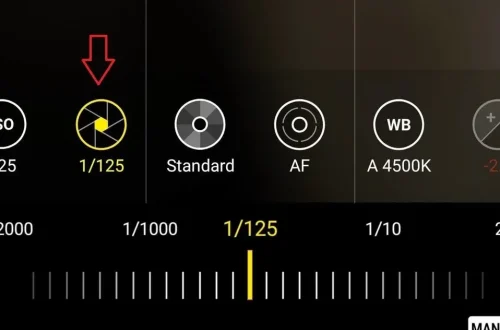
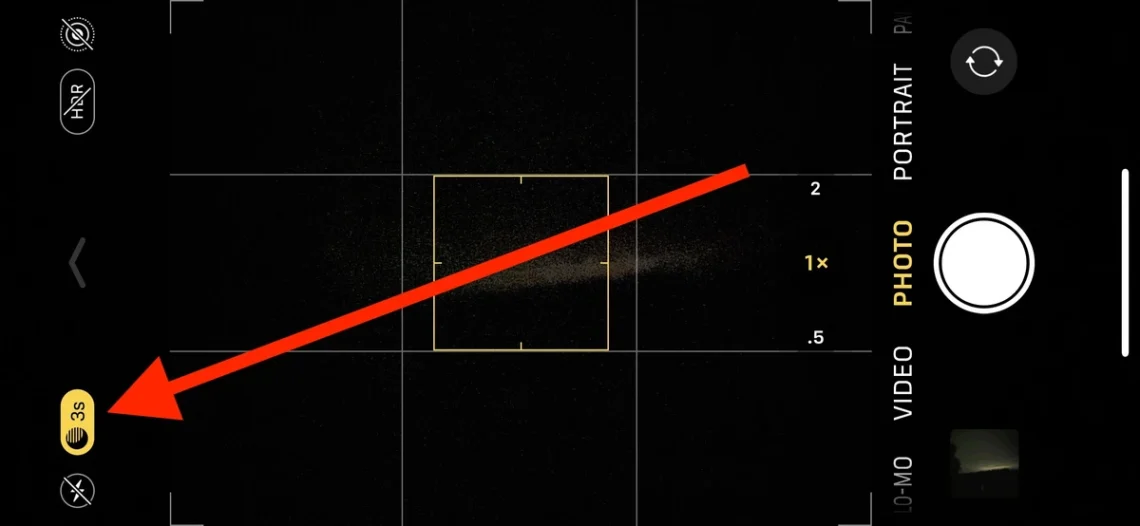
If you want to achieve effects that the standard iPhone camera app cannot perform—such as making moving water look silky or creating light trails from cars—you will need third-party software. The Slow Shutter Cam app is a notable option, offering 3 specific modes: motion blur, Light Trail, or Low Light. These modes allow you to manually adjust the shutter speed slider to control exactly how long the sensor is exposed to light, enabling creative long-exposure photography that is impossible with the standard “instant” capture settings.
FAQ
How do I stop my iPhone exposure from resetting every time I open the camera?
Navigate to Settings > Camera > Preserve Settings and toggle on ‘Exposure Adjustment’. This ensures your manual settings stay active for your next shot, preventing the camera from reverting to default brightness every time you launch the app.
What is the difference between over-exposed and under-exposed photos?
As noted by the iPhone photography School, “A photo that’s too bright is over-exposed. And a photo that’s too dark is under-exposed.” Over-exposed images lose detail in highlights, while under-exposed images lose detail in shadows.
Can I manually adjust exposure on older iPhones?
Manual exposure compensation sliders require an iPhone 11 or later running iOS 14 or later. If you are using an older model, you may be limited to tapping the screen to set basic exposure and focus without the advanced compensation slider.