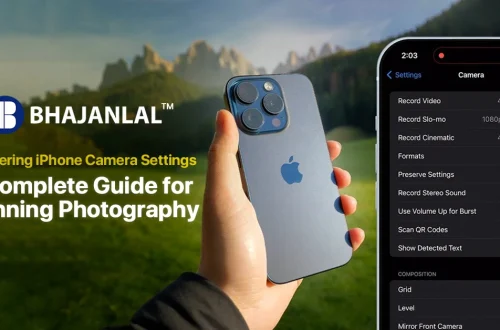
SnapRoamer.com – To capture stunning travel photos with your smartphone, leverage specific features on models like the iPhone 15 Pro, which offers multiple cameras with apertures around f/1.6 to f/2.4 and computational photography capabilities such as Night Mode and AI enhancements. For instance, night mode adjusts shutter speed to about 1/40 second and raises ISO automatically, helping you get bright images in low light without flash. Managing exposure compensation directly in the camera app by dragging the sun icon after focusing allows precise brightness control, essential for varied travel scenes.
The iPhone 15 Pro exemplifies the recent trend where smartphones feature multiple cameras combined with advanced imaging algorithms to produce high-quality photos. These new phones include lenses with apertures like f/1.6 and f/2.4, enabling better light capture, while software uses AI to optimize exposure and color balance, offering travelers enhanced creative options compared to older models.
How can you optimize smartphone camera settings specifically for travel photography?
Optimizing smartphone camera settings for travel involves using computational photography features like night mode for low light, portrait mode for sharp subjects, and AI enhancements for better exposure and color. Adjusting settings such as ISO, exposure compensation, and using clip-on polariser filters can improve image quality in diverse environments.
- Using Night Mode for Low Light: Night mode activates longer exposure times combined with AI noise reduction to capture clearer images in dim conditions. For example, the iPhone 15 Pro’s night mode adjusts shutter speed to about 1/40 second and raises ISO automatically, producing bright photos without flash. However, this mode can fail if the camera is not held steady, resulting in motion blur.
- Applying Polariser Filters on Smartphones: Using clip-on polariser filters reduces reflections and enhances colors, particularly useful at beaches or city streets with glass surfaces. These filters work best under bright daylight and can be mounted via the smartphone’s case or lens attachment. Contrary to popular belief, polarizers can sometimes reduce sharpness if not aligned correctly.
- Leveraging AI and Computational Photography: Phones like the iPhone 15 Pro utilize AI for scene recognition, adjusting exposure compensation automatically, often around -0.67 EV to preserve highlights in travel scenes. Despite the automation, manual adjustments via the camera app’s exposure slider (found under Settings > Camera > Exposure Compensation) can improve results in complex lighting.
Shortcut: On iPhone, access exposure compensation by tapping the screen to focus, then dragging the sun icon up or down for precise brightness control.
What troubleshooting tips help fix common smartphone camera problems during travel?
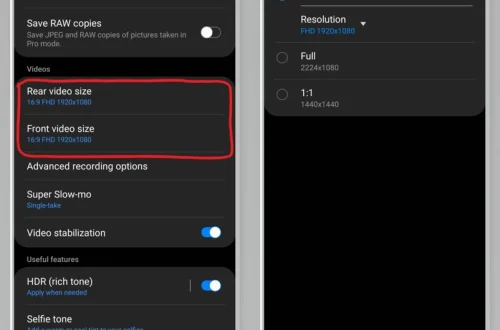
Frequent smartphone camera issues encountered while traveling include focus failures, exposure errors, and motion blur. To troubleshoot, switch from automatic multi-point autofocus to single-point autofocus by tapping and locking focus on your subject, especially for moving objects or portraits. Adjust exposure compensation to around -0.67 EV to avoid blown highlights, and enable image stabilization in your camera settings under Settings > Camera > Stabilization to reduce blur caused by hand shake.
- Fixing Focus Failures with Single-Point Autofocus: Switching from automatic multi-point autofocus to single-point autofocus ensures sharp focus on subjects like faces or landmarks. On many Android phones, this can be activated by tapping the desired focus area on-screen and locking it. Failure to do so often results in blurry images, especially with moving subjects.
- Adjusting Exposure Compensation to Avoid Highlights: Exposure compensation set around -0.67 EV helps prevent blown-out highlights commonly seen in bright travel scenes such as beaches or snowy landscapes. This setting can be changed via the camera app’s exposure slider. Counterintuitively, underexposing slightly preserves detail better than overexposing.
- Enabling Image Stabilization to Reduce Blur: Optical or electronic image stabilization reduces camera shake, crucial for handheld shots in low light. If your phone’s camera settings menu (Settings > Camera > Stabilization) allows toggling this feature, ensure it’s enabled. Image stabilization failure is a common cause of blurry photos during travel walks.
How do smartphone camera apps compare for manual control and RAW shooting in travel photography?
Third-party camera apps such as Moment Pro provide extensive manual controls, including ISO adjustment from ISO 125 to 800 and shutter speeds as slow as 1 second, plus RAW capture in DNG format. This contrasts with native apps like the iPhone 15 Pro’s default camera, which offers ProRAW support but limits manual shutter and aperture settings. While Moment Pro requires some learning, it gives photographers greater flexibility, especially when precise exposure control is necessary.
| Camera App | Manual Controls | RAW Support | Computational Features | Ease of Use |
|---|---|---|---|---|
| Native (iPhone 15 Pro) | Limited (no full manual shutter/aperture) | Yes (ProRAW format) | Night mode, HDR, AI enhancements | High (intuitive UI) |
| Moment Pro | Full manual (ISO, shutter speed, focus) | Yes (DNG RAW files) | Limited computational features | Medium (requires learning curve) |
| Snapseed (editing) | N/A (editing app) | Yes (RAW editing) | N/A | High |
Moment Pro allows precise control over ISO values (e.g., ISO 125 to 800) and shutter speeds ranging from 1/40 to several seconds, which native apps typically restrict. However, native apps’ computational photography often produces superior automatic results in scenarios like night scenes. This contrast reveals a trade-off between control and automation.
Shortcut: In Moment Pro, manual shutter speed is adjusted via the slider at the bottom of the interface, enabling speeds down to 1 second for creative long exposures.
What are the best camera settings for travel photography with DSLR or mirrorless cameras?
For DSLR or mirrorless cameras during travel, use aperture priority mode with Auto ISO and a minimum shutter speed to balance exposure and sharpness. Aperture settings between f/8 and f/16 suit landscapes, while shutter speeds from 1/500s freeze motion. Shooting in RAW and enabling image stabilization enhances post-processing flexibility and image quality.
- Using Aperture Priority with Auto ISO: Glenn McKimmin recommends aperture priority mode combined with Auto ISO and a minimum shutter speed of 1/60 second to avoid camera shake. Aperture between f/8 and f/16 ensures deep depth of field, perfect for landscapes. For example, the Fujifilm X-H2 allows setting Auto ISO range between 100 and 400, adapting to changing light.
- manual mode for Full Control: Manual mode lets photographers set aperture, shutter speed, and ISO independently. Andre Pel employs aperture rest stops at f/2, f/4, and f/8 for efficient shooting. However, manual mode can fail if exposure is miscalculated, resulting in underexposed or blurred images, especially without a tripod.
- Benefits of Shooting in RAW: RAW files retain maximum detail for post-processing. Shooting with Sony a6700 or Fujifilm X100VI in RAW format allows recovering shadows and highlights missed in JPEG. This flexibility is crucial in high-contrast travel scenes like cityscapes at sunset.
Shortcut: On Fujifilm X-H2, access aperture priority mode by turning the mode dial to “A” and enable Auto ISO via the menu path Shooting Menu > ISO Auto Setting.
How can travel photographers manage storage and battery life while shooting extensively?
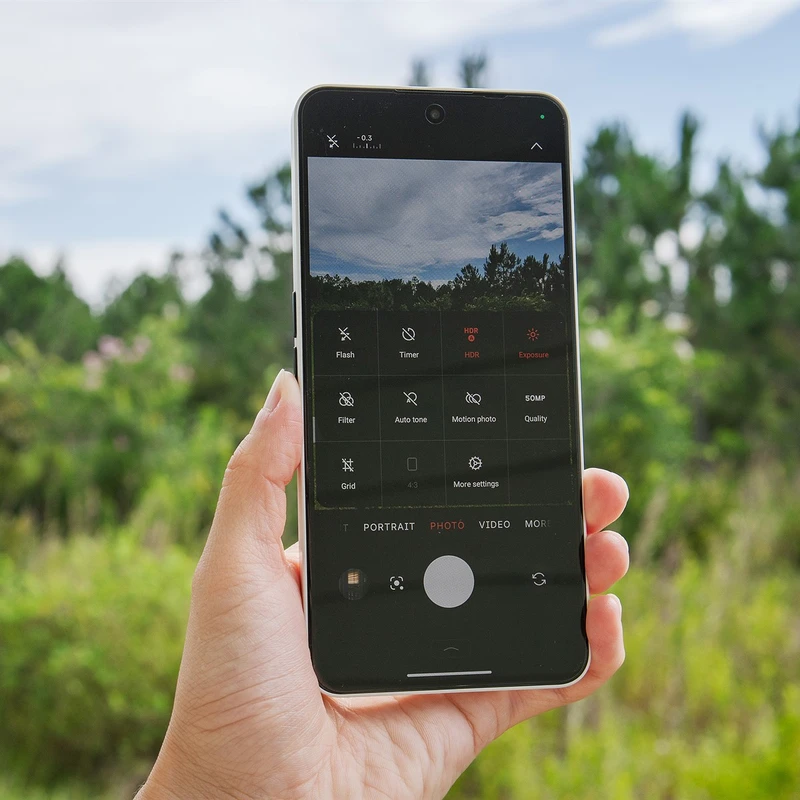
To manage storage and battery life effectively during travel photography, carry at least one high-capacity microSD card or portable SSD for frequent backups. Cloud services such as Google Photos or iCloud can offload photos automatically but depend on reliable internet access. Reduce screen brightness to below 50% and toggle airplane mode during standby to significantly extend battery life. Additionally, close background apps and disable location services for the camera app to conserve power.
Photographers should avoid excessive burst mode shots and instead pre-visualize compositions carefully to minimize wasted storage and battery use. Smartphones processing HDR and AI enhancements consume more power, so planning shots helps conserve resources for longer shooting sessions.