SnapRoamer.com – Mastering Google Pixel exposure involves balancing the device’s advanced computational HDR+ engine with manual overrides. While Google’s AI handles most scenes, users can gain precise control through the brightness slider, Pro mode shutter speed adjustments, and Long Exposure presets to prevent blown-out highlights or underexposed shadows. Google recently released the Pixel Camera 10.2 update specifically to fix controversial exposure controls that had frustrated users.
The Exposure Decision Tree: What to Adjust First
To master exposure on a Pixel, follow this hierarchy: first, adjust Shutter Speed to control motion and light duration; second, adjust ISO to manage sensor sensitivity; and third, use exposure compensation (+/-) to override the AI’s brightness decisions. For most scenarios, changing shutter speed provides the cleanest results without adding digital noise.
Prioritizing Shutter Speed over ISO
When light levels drop, increasing ISO sensitivity can be risky. According to How to Geek, high ISO can result in a blown-out photo during long exposures. Instead, prioritize shutter speed to keep the sensor’s native sensitivity low. If the scene is static, letting the shutter stay open longer is almost always superior to increasing ISO.
Using Exposure Compensation for quick fixes
If you do not want to dive into the deep settings of a Pro menu, use the Exposure Compensation tool. By tapping the +/- symbol in the camera interface, you can override the camera’s internal calculations. This is the fastest way to fix a scene where the AI is being too aggressive. If the camera is underexposing a subject, slide the compensation toward the positive side. It is a quick, effective way to manage brightness without technical complexity.
- Step 1: Evaluate the scene for motion (requires Shutter Speed adjustment).
- Step 2: Check light levels (requires ISO or Shutter Speed adjustment).
- Step 3: Use Exposure Compensation (+/-) for final brightness tweaks.
Pro vs. Standard: Navigating Pixel’s Manual Capabilities
Control over light varies significantly between device tiers. While standard models rely on automated presets, Pro models allow for granular manipulation of the exposure triangle, such as manual ISO overrides and specific shutter speed ranges.
| Feature | Standard Pixel Mode | Pro Pixel Mode |
|---|---|---|
| Long Exposure Presets | Available (.5, 1, 2, and 5 seconds) | Available via presets |
| Manual Shutter Speed | Not available | Available (1/10,000th to 16 seconds) |
| ISO Control | Automated | Manual override |
| Exposure Compensation | Standard slider | Standard slider |
The table above highlights the technical differences between consumer presets and professional-grade manual controls. Standard models are limited to specific intervals, whereas Pro users can fine-tune every millisecond.
The ‘Long Exposure’ Preset for Standard Pixels
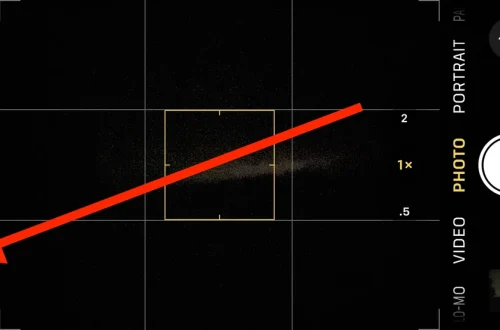
Standard Pixel users can still achieve artistic motion blur using the Long Exposure preset. To access this, go to the Camera app -> Photo mode -> Swipe left to ‘Long Exposure’. This mode offers fixed durations of 0.5, 1, 2, and 5 seconds. It is important to remember that the real key is to keep your Pixel as still as possible when taking long exposure photos, as even slight hand tremors will ruin the effect.
Unlocking Pro Mode Shutter Speeds
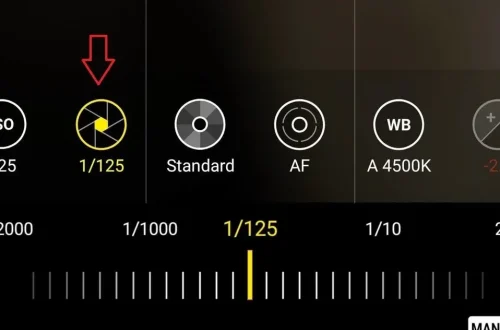
Pro Mode users have much wider latitude. They can set a shutter speed as fast as 1/10,000th of a second to freeze high-speed action or as slow as 16 seconds for deep night photography. This allows for much more precise control than the standard presets. However, a common pitfall is failing to use a tripod when selecting speeds longer than a few seconds, which leads to immediate motion blur across the entire frame.
Understanding the Pixel Camera 10.2 UI Update
The user interface for exposure has undergone significant changes. According to a 9to5Google report via Android Headlines, “Google has heard your complaints, and in the latest Pixel Camera 10.2 update, the company is pushing out a fix for the confusing exposure controls that frustrated users after a recent UI change.” This update, which rolled out around December 1, 2025, aims to stabilize the user experience.
Restoring the Primary Brightness Slider
One of the most significant changes in the Pixel Camera 10.2 update is that it restores intuitive brightness adjustments back to the primary slider position. Previously, users found the controls fragmented, making it difficult to perform quick adjustments during a shoot. The update simplifies the workflow, ensuring that the brightness slider is where most photographers expect it to be.
Avoiding the Shadow Control Pitfall
A major frustration in previous versions was when shadow control was moved into the primary slider position. This disrupted the workflow for adjusting overall scene brightness, making it difficult to distinguish between brightening the entire image and simply lifting dark areas. The 10.2 update addresses this by re-separating these functions.
Computational Photography vs. Manual Control
Pixel exposure relies on HDR+ technology, which merges 2–8 frames (or up to 100 in some modes) to expand dynamic range. While this automation is powerful, it can fail in high-contrast scenes like sunsets, where manual exposure is necessary to prevent the AI from over-brightening shadows at the expense of highlights.
How HDR+ Merges Frames
The Pixel’s HDR+ process merges between 2 and 8 frames to calculate a high-dynamic-range image. In some specialized modes, this can involve up to 100 frames. This technique helps retain detail in both bright clouds and dark shadows while reducing noise.
When the AI Overrides User Intent
Despite the power of HDR+, the computational engine may prioritize “middle grey” or attempt to lift shadows too aggressively in high-contrast environments. This can result in an image that looks artificial or “flat.” Manual control is the only way to tell the camera to ignore the shadows and preserve the integrity of the highlights.
The RAW Advantage and Post-Processing Safety
Users must account for the permanence of their settings. Adjustments made through the standard camera interface are not temporary previews.
Warning: Once you apply exposure adjustments through the standard camera interface, these changes are baked into the pixels. You cannot “un-darken” a photo that was captured with an incorrect exposure setting if it is saved in a compressed format.
Why ‘Burned-In’ Settings Matter
Local Guides Connect reports that manual exposure adjustments are “burned” into the image. This means once the file is saved, you cannot reset or undo these specific changes later. Getting the exposure correct in-camera is vital for those not using professional formats.
Recovering Detail with DNG Files
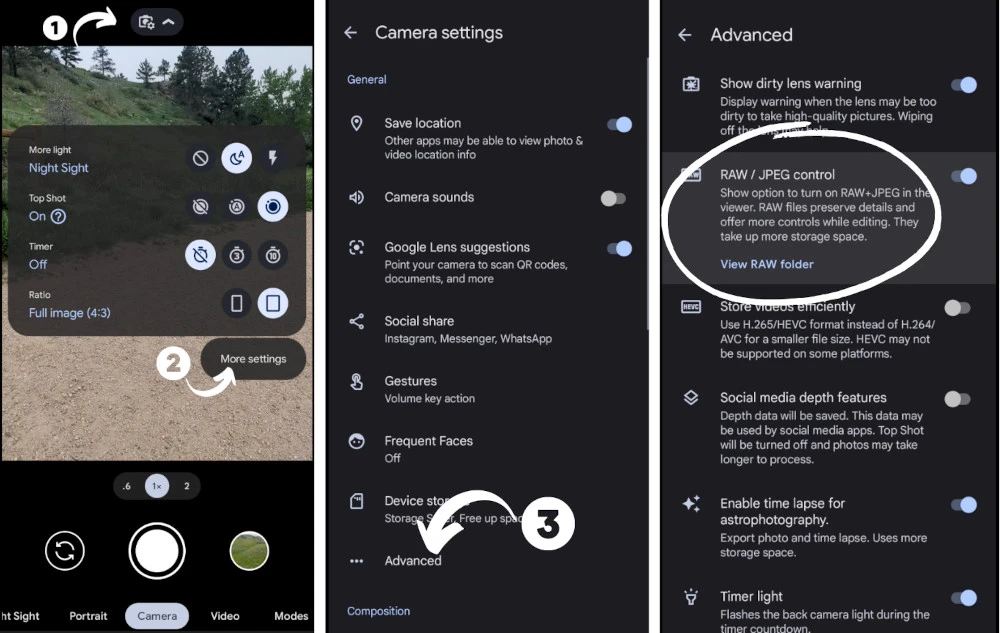
To mitigate the risk of “burned-in” errors, professional users should utilize RAW format. Shooting in DNG (Digital Negative) format provides a safety net by capturing raw sensor data before the Google HDR+ engine applies its permanent “look.”
Why RAW Files are Superior for Editing
Smartphone RAW files offer noticeably more editing flexibility than JPEG equivalents. This is especially true when performing significant exposure and white balance corrections in post-processing software.
Scenario-Based Exposure Recipes
Different hardware capabilities require specific setting combinations to achieve desired results.
The Silky Waterfall (Long Exposure)
To achieve the classic “silky” water look, use the following methods:
- Simple Method (Standard Pixels): Launch Camera app -> Photo mode -> Swipe to ‘Long Exposure’ -> Tap shutter with phone steady.
- Pro Method (Pro Pixels): Launch Camera app -> Photo mode -> Tap setting icon -> Swipe to ‘Shutter Speed’ -> Set to 2 or 5 seconds -> Tap shutter with phone steady.
The Moving Subject (Fast Shutter)
When capturing a person running or a pet in motion, you must prioritize speed. Use the Pro menu to set a shutter speed of at least 1/500th of a second to prevent the subject from appearing as a blurry ghost in your frame.
FAQ
Why are my Pixel photos too dark despite auto settings?
This can occur when the camera miscalculates ‘Middle Grey’ or when high-contrast scenes confuse the HDR+ engine. Use the +/- exposure compensation slider to manually brighten the scene.
Can I undo manual exposure changes in the Pixel app?
No. According to Local Guides Connect, manual adjustments made via the slider are “burned” into the final image. To avoid permanent errors, use RAW format for better post-processing flexibility.
How do I take long exposure photos on a Pixel?
For standard models, go to Camera app -> Photo mode -> Swipe to ‘Long Exposure’. For Pro models, use the ‘Shutter Speed’ setting in the Pro menu for more precise control.