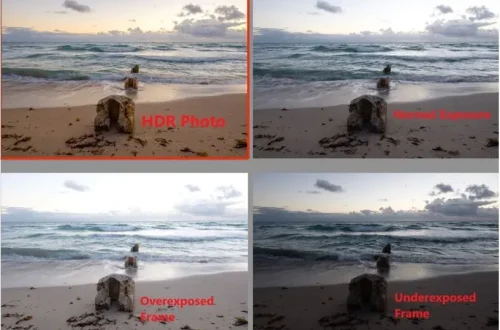
SnapRoamer.com – Mastering smartphone camera modes requires balancing computational AI with manual control. While ‘Night Mode’ and ‘HDR’ use software to automate exposure, ‘Pro Mode’ allows users to manually adjust ISO, shutter speed, and aperture to achieve artistic effects like long-exposure light trails or shallow depth-of-field bokeh that auto-modes often fail to replicate.
Computational AI vs. Manual Control: When to Trust the Algorithm
Trust computational AI (like Night Mode or HDR) for quick, high-contrast snapshots where speed is essential. Switch to Manual/Pro Mode when you need specific artistic outcomes, such as intentional motion blur, precise light trails, or avoiding the ‘over-processed’ look caused by aggressive software sharpening and noise reduction.
Manual mode provides more creative freedom than auto mode. While automation is convenient, it operates on a logic of mathematical averages rather than artistic intent. As noted by morebeatty.com, the camera does not care about style or vision; all it cares about is creating “technically correct images.” This technical correctness often results in a flat, lifeless image that lacks the dramatic contrast a photographer might desire.
The limits of ‘Technically Correct’ images
When a smartphone uses its standard auto-exposure, it attempts to balance the histogram to ensure no part of the image is too dark or too bright. This often leads to a failure mode where shadows are artificially lifted, making a moody night scene look like a poorly lit afternoon. If you are shooting in a high-contrast environment, the software may struggle to decide which luminance level to prioritize, resulting in a muddy mid-tone range.
Avoiding the over-processed AI look
To bypass the “plastic” look caused by aggressive software sharpening, users can utilize Pro Mode. By manually controlling exposure, you prevent the device from applying heavy-handed computational stacking that can smear fine textures. This helps maintain organic detail that is often lost in multi-frame HDR captures.
The Smartphone Pro Mode Rosetta Stone: iOS vs. Android
Pro mode allows for better control over light metering and exposure. Navigating these settings requires understanding how different operating systems present the same physical variables of light.
| Feature | Android (Pro/Expert RAW) | iOS (ProRAW/Manual) | Primary Impact |
|---|---|---|---|
| ISO Control | Direct slider in Pro Mode | Limited in native app; requires ProRAW | Sensor sensitivity/Noise |
| Shutter Speed | Manual selection (e.g., 1/1000 to 30s) | Standard app is limited; relies on exposure compensation | Motion blur/Light capture |
| Metering | Multi-point/Spot/Center available | Center-weighted/Matrix focus | Light distribution |
| File Format | RAW/DNG support | Apple ProRAW | Post-processing headroom |
The divergence in light metering and exposure control across ecosystems dictates how photographers manage sensor data. While Android users often find a more granular “Pro Mode” directly in the native camera menu, iOS users frequently rely on the ProRAW format to gain the necessary data for manual adjustments during post-processing.
Mapping ISO and Shutter Speed across platforms
Regardless of the device, the relationship between ISO and shutter speed remains constant. To access these on most Android devices, users typically navigate through Camera > More > Pro. On an iPhone, while a dedicated manual shutter slider is not present in the standard interface, using ProRAW allows for significant control over the final image data. A common mistake is attempting to compensate for a slow shutter speed by cranking the ISO to extreme levels, which results in significant digital grain.
Understanding ProRAW vs. Expert RAW
High-end mobile photography relies on specialized file formats. Expert RAW on Android platforms provides a deeper layer of data than standard JPEG, allowing for better recovery of highlights and shadows. Similarly, Apple’s ProRAW combines the computational benefits of the iPhone’s processing with the high dynamic range of a RAW file. Both formats are designed to mitigate the failure of standard auto-modes when dealing with complex lighting, though they require more storage space and more intensive editing.
Mastering Long Exposure and Light Painting
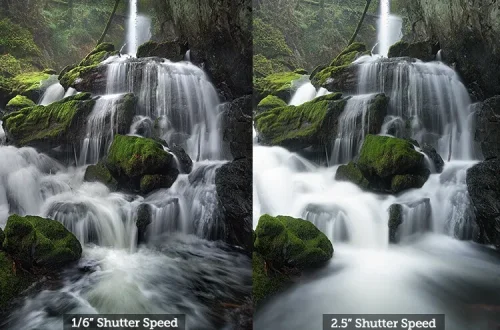
To execute long exposure on a smartphone, use manual mode to set a slow shutter speed (e.g., 10-15 seconds for light trails), lower your ISO to 100 to minimize noise, and use a tripod or remote shutter to prevent camera shake. This allows for capturing moving light sources as continuous streaks.
A long exposure is required for most night scenes. Without sufficient time for the sensor to gather photons, creating a clean image of a dark environment becomes difficult.
- Mount the smartphone on a stable tripod to eliminate all movement.
- Enter Manual Mode via the camera settings.
- Set the ISO to 100 to ensure the cleanest possible image with minimal noise.
- Adjust the shutter speed to between 10 to 15 seconds for capturing traffic or light trails.
- Use a 2-second or 5-second self-timer or a remote shutter to prevent the vibration caused by touching the screen.
The Light Painting Workflow
Light Painting Mode is a specific application of long exposure. By mounting the smartphone on a tripod, you can use a secondary light source—such as a flashlight or even the screen of another phone—to “draw” in the air. This technique is used to create traffic trails, light graffiti, or star trails. For example, a Huawei P30 Pro user can utilize these settings to turn a dark street into a canvas of glowing streaks.
Essential settings for night skies
When moving from cityscapes to the stars, the requirements change. For dark skies, you will need to increase sensitivity. While 100 ISO is ideal for long exposures in cities to avoid noise, you may need to jump to a 3200 ISO setting or even a 6400 ISO setting for extremely dark skies to capture the faint light of celestial bodies. However, be prepared for the trade-off: higher ISO settings will inevitably introduce more digital noise.
Low Light Physics: ISO, Noise, and Sensor Limits
Managing ISO is critical for preventing image degradation. As noted by morebeatty.com, a high ISO is useful in low light but can introduce noise to your images.
- Cityscapes: An ISO range of 800-1600 is generally the “sweet spot” for urban environments, providing enough light without excessive grain.
- Dark Skies: When photographing the night sky, settings of 3200 ISO or 6400 ISO are often necessary to register the stars.
- The Noise Trade-off: High ISO can introduce noise to images, appearing as multicolored speckles or grain that obscures fine detail.
As you increase the ISO, you are essentially amplifying the electrical signal from the sensor. If that signal is weak (as in low light), you are also amplifying the background electronic noise, leading to a loss of image clarity.
Macro and Macro and Portrait Modes: Beyond the Basics
smartphone lenses often face physical limitations when approaching subjects. Super macro mode helps capture details that are too close for standard focus, providing a way to bypass the physical limitations of the lens assembly.
Shortcut: To find macro settings, look for the “Flower” icon or navigate to Camera > Settings > Macro Mode.
Creative Bokeh in Landscapes
While portrait mode is primarily marketed for human subjects, it can be used creatively for landscapes via bokeh effects. By selecting a landscape subject and applying the software-generated blur, photographers can create a sense of depth that mimics a professional DSLR. This is particularly useful for isolating a single flower or a distant mountain peak against a soft, non-distracting background.
Overcoming the 5cm focus barrier
Most smartphone cameras struggle to focus at a distance of 5-6 cm. If you attempt to get closer than this, the autofocus will likely hunt indefinitely or fail to lock, resulting in a completely blurred image. To overcome this, use Super macro mode if available, or move the phone back to the 5-6 cm threshold and use the digital zoom to frame the shot. Remember that it is often better to have a slightly noisier file that is sharp, than a shot which is noise-free, but soft.
Mobile Failure Modes: Why Your Manual Shots Fail
Technical errors can compromise even the most carefully planned manual exposures. Achieving professional results requires identifying these specific pitfalls.
- Blurry images: Occurs when the camera is not perfectly still during long exposure.
- Focusing issues: Often happens when relying on autofocus at high magnifications or in low-contrast scenes.
- Image softness: Caused by diffraction when using extremely small apertures like f/22.
Diffraction is a common but misunderstood issue. While it might seem intuitive to use a small aperture like f/22 to increase depth of field, doing so can actually cause your photos to become softer due to the way light waves bend as they pass through a tiny opening. Additionally, if you are shooting in macro, relying on autofocus at high magnifications is a frequent cause of failure; in these instances, switching to manual focus is often the only way to ensure sharpness.
FAQ
Why are my long exposure photos blurry?
Blur is usually caused by camera shake. Use a tripod, a remote shutter release, or the built-in self-timer to ensure the phone is perfectly still during the exposure.
Can I use Portrait Mode for landscapes?
Yes. While designed for faces, you can use the bokeh effects in Portrait Mode to create creative depth and artistic blur in landscape shots.
What is the best ISO for night photography?
For cityscapes, aim for 800-1600. For very dark skies, you may need 3200-6400, but be aware that higher ISO increases digital noise/grain.