SnapRoamer.com – To achieve silky waterfall effects on a smartphone, you must control shutter speed to blur water movement while keeping the rest of the scene sharp. This is done either through the iPhone’s ‘Live Photo’ long exposure effect or by using manual exposure apps like Halide to set specific shutter speeds.
The shutter speed you select is the single biggest factor in determining how flowing water appears in your image.
Computational vs. Manual: Choosing Your Long Exposure Method
You can achieve long exposure on a smartphone using two methods: the ‘Live Photo’ computational method, which stacks frames in the Photos app, or the ‘Manual’ method using third-party apps like Halide or ProShot to control shutter speed directly for professional-grade silky textures.
Industry data indicates that 65% of stills shot with third-party apps allow for much higher precision than native software. While Apple provides built-in computational tools, these methods rely on software algorithms to simulate motion blur rather than true optical long exposure.
The Quick Fix: iPhone Live Photo Method
For users with an iPhone 12 Pro Max or iPhone 13 Pro, the Live Photo feature offers a way to simulate long exposure without extra software. To use this, follow these steps:
- Launch the Camera app.
- Ensure the Live Photo icon is toggled on.
- Take your photo of the waterfall.
- Open the Photos app and select the image.
- Tap the “Live” dropdown menu in the top left corner.
- Select “Long Exposure.”
The Live Photo capability of the Camera app simulates a longer exposure by stacking individual frames of a short video. While convenient, this method relies on software simulation rather than manual control of the shutter.
The Pro Way: Manual Apps for Total Control
Using manual exposure apps allows photographers to bypass automated logic to set specific shutter speeds, ISO, and aperture. For professional-grade textures, apps like Halide, ProShot, or Slow Shutter Cam provide the necessary manual controls.
- Halide: A high-end manual exposure app for granular control.
- ProShot: Offers deep manual settings similar to a DSLR.
- Slow Shutter Cam: Specifically designed for long exposure tasks.
manual mode ensures full creative control for waterfalls, streams, or seascapes. Beginners should be cautious in bright light, as the sensor can overexpose rapidly at slow shutter speeds.
The ‘Tap-to-Shoot’ Trap: How to Prevent Camera Shake
Because photographers aim for slow shutter speeds, a sturdy tripod is necessary to avoid camera shake. Without stability, even minor vibrations will blur the entire image.
The physical act of touching the screen to trigger the shutter introduces micro-vibrations that ruin the sharpness of the rocks and vegetation surrounding your waterfall. To mitigate this, use the Volume Button on the side of your phone as a physical shutter or set a 2-second timer in your camera settings.
Mastering Shutter Speed for Different Water Textures
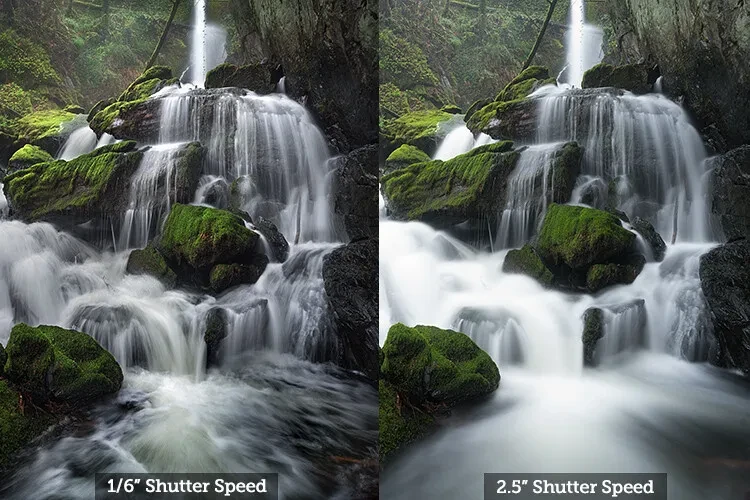
Use a fast shutter speed (e.g., 1/320s) to freeze splashing water detail, or a slow shutter speed (1/4s to 1/2s) for a soft, flowing look. For extreme, mist-like effects on oceans or abstract shots, aim for 1 to 30 seconds.
A faster shutter speed may freeze motion and show detail in splashing water, while a slower shutter speed will blur movement into smooth, silky textures. Your choice depends entirely on the aesthetic you want to achieve.
| Shutter Speed | Water Appearance | Best Use Case |
|---|---|---|
| 1/320 second | Frozen droplets and splashes | Capturing high-energy movement |
| 1/4 to 1/2 second | Soft, flowing movement | Standard silky waterfall look |
| 1 to 5 seconds | Mist-like, ethereal flow | Ocean waves or heavy falls |
| 30 seconds | Complete abstraction | Extreme long exposure/mist |
Adjusting the shutter speed determines whether the water appears as frozen droplets or a painterly, fluid element.
Essential Manual Settings: ISO and Aperture
Managing light intake via ISO and aperture is required to achieve long exposures without overexposing the image.
Low ISO helps achieve minimal noise and the longest exposure possible. If you increase your ISO to compensate for darkness, you will introduce digital grain (noise) that degrades the image quality, especially in the shadows of the waterfall rocks.
Why ISO 100 is your best friend
For waterfall photography, aim for the lowest ISO available, typically ISO 100. This provides the cleanest image data. In some professional scenarios, such as the settings used at Millaa Millaa Falls, an ISO of 320 might be necessary, but ISO 100 remains the gold standard for minimizing noise.
Finding the sweet spot with Aperture
While smartphones have fixed apertures, manual apps allow you to simulate the effects of aperture control through exposure compensation. In professional photography, an aperture like f/8 is often used to maintain sharpness across the frame. On a smartphone, you must balance light intake to ensure the water blurs without turning the entire scene white.
| Setting | Fast Shutter (e.g. 1/320s) | Slow Shutter (e.g. 1/2s) |
|---|---|---|
| Water Texture | Sharp, frozen splashes | Silky, smooth flow |
| Light Requirement | Requires high light/high ISO | Requires low light/ND filter |
| Stability Need | Handheld is often possible | Tripod is mandatory |
The settings above demonstrate how shutter speed affects both water texture and stability requirements.
Using ND Filters to Manage Bright Light
ND filters are often needed to darken images enough to shoot a long exposure. Without them, a 1-second exposure in bright sun will result in a completely white, overexposed image.
A 10-stop ND filter, such as those manufactured by Zomei, can significantly reduce the amount of light reaching your sensor. For example, on a sunny day, using a high-density filter can allow for an average exposure of 30-45 seconds, which is impossible with native settings alone.
Shortcut: Always set your focus and exposure settings before attaching the ND filter. Applying the filter can change the light levels so drastically that the camera struggles to find focus or recalculate exposure correctly.
FAQ
Can I use my iPhone’s native app for long exposures?
Yes, by using the Live Photo feature. Enable Live Photo in the Camera app, take the shot, then in the Photos app, swipe up and select ‘Long Exposure’ to simulate the effect.
Do I really need a tripod for smartphone photography?
Yes, especially for shutter speeds slower than 1/60s. Without a tripod or a stable surface, even minor vibrations from your hands or wind will cause blur across the entire image.
What is the best ISO for waterfall shots?
Aim for the lowest ISO possible, typically ISO 100, to minimize digital noise and allow for longer shutter speeds without overexposing the image.