
SnapRoamer.com – Exposure compensation allows you to override your smartphone’s automatic exposure decisions by manually adjusting the brightness of a shot. By using the ‘+’ or ‘-‘ controls, you can prevent the camera from being tricked by bright scenes like snow or dark subjects, ensuring your creative vision is captured accurately.
Bright scenes such as a snowy landscape or a sunny beach can trick your camera’s metering system into underexposing the scene.
Smartphone UI Masterclass: How to Access Exposure Controls
To adjust exposure on a smartphone, tap your subject on the screen to set the focus point, then slide the ‘sun icon’ or brightness slider that appears next to the focus box. For more granular control, switch to ‘Pro Mode’ in your camera app to access dedicated ISO and shutter speed sliders.
The iOS ‘Sun Slider’ Method
On iPhone devices, the interface relies on a gesture-based system. Once you tap a specific area of the frame, a yellow focus box appears. Directly adjacent to this box is a sun icon. Sliding your finger up or down on this icon provides immediate exposure compensation Control. This method is highly effective for rapid adjustments, but users must be careful not to lose focus while sliding.
Android ‘Pro Mode’ and Manual Sliders
Many Android devices, including models like the Google Pixel 8, offer more direct access to technical parameters. While the standard mode uses a brightness slider, switching to a manual or “Pro” mode allows you to manipulate the Exposure Compensation Button, which often looks like a plus sign (+) over a minus sign (-). In these modes, you can also access the Temperature Slider to adjust white balance at will, ensuring color accuracy alongside brightness.
Tap-to-Focus vs. Tap-to-Expose
Mobile photographers often struggle when tapping the screen triggers focus and exposure simultaneously. To prevent this, practitioners recommend tapping to set the focus first, then utilizing the dedicated brightness slider. If the camera continues to shift brightness unexpectedly, it is likely attempting to recalculate the average light of the entire frame.
- Standard Mode: Best for quick, casual snapshots using the sun slider.
- Pro/manual mode: Necessary for precise control over ISO and shutter speed.
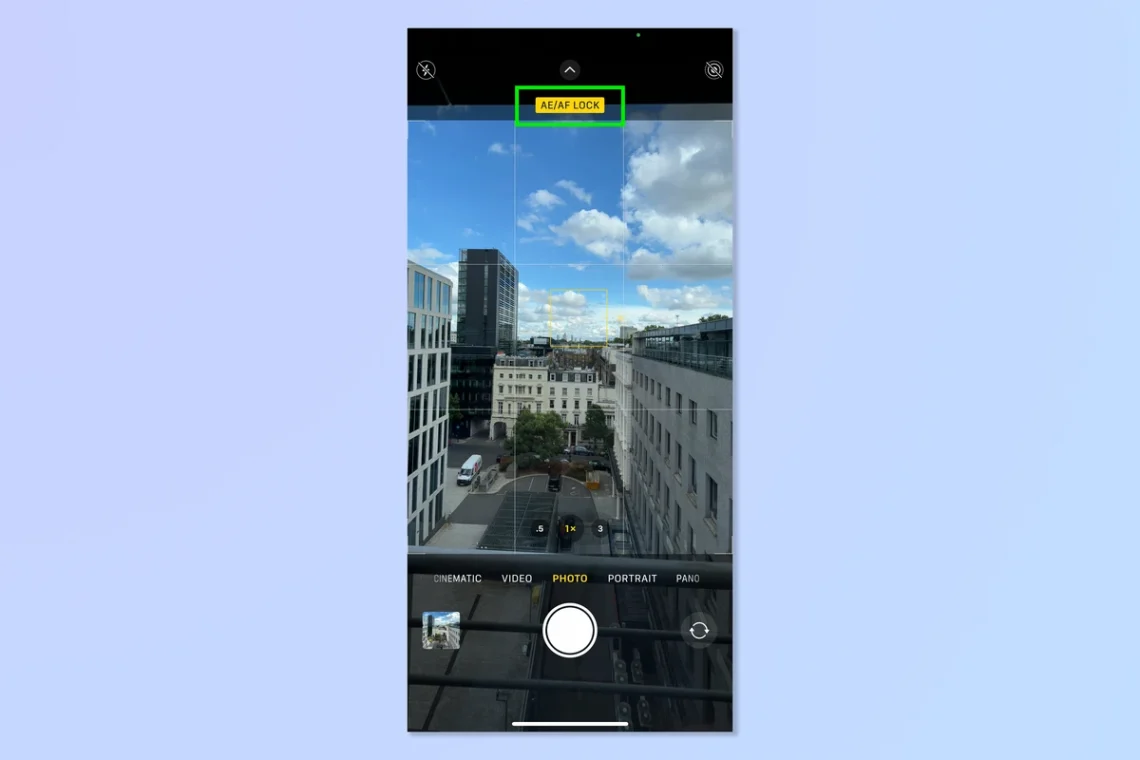
- AE/AF lock: A critical shortcut to prevent the camera from re-adjusting after you have set your desired brightness.
Winning the AI Battle: Managing Computational Photography
Modern smartphones use complex algorithms to interpret light. As Adorama notes, the exposure compensation feature enables you to override the camera’s automatic exposure decisions to maintain control over the final image.
High Dynamic Range (HDR) modes often attempt to balance shadows and highlights automatically. In some instances, this can fight against your manual settings. If you attempt to underexpose a scene to create a mood, the HDR algorithm might detect the dark areas and automatically “boost” them, effectively neutralizing your adjustment. This creates a tug-of-war between your intent and the software’s logic.
To prevent “pumping” light—where the brightness shifts visibly as the AI recalculates the scene—you must lock your exposure. By long-pressing the screen to engage AE/AF Lock, you tell the software to stop its real-time analysis and stick to your chosen brightness level. This is essential when shooting moving subjects or changing light environments.
The Sensor Reality Check: Noise vs. Blown Highlights
Smartphone sensors are subject to specific physical constraints. When a part of the image becomes too bright, the sensor reaches its maximum capacity, resulting in “blown highlights.” In these instances, the data is lost. Conversely, underexposure can lead to digital noise. When you try to brighten a very dark image in post-processing, you often reveal grainy, multicolored artifacts known as noise.
The danger of overexposure lies in “blown highlights.” When a part of the image becomes too bright, the sensor reaches its maximum capacity, and the data is lost forever. No amount of editing can bring back detail in a pure white sky. Conversely, underexposure can lead to digital noise. When you try to brighten a very dark image in post-processing, you often reveal grainy, multicolored artifacts known as noise.
Core Mechanics: Understanding Stops and the Exposure Triangle
Exposure compensation works by adjusting the camera’s internal settings—usually ISO—to reach a target brightness. One ‘stop’ of compensation represents a doubling or halving of light; for example, +1 EV doubles the light, while -1 EV halves it, allowing you to override the camera’s attempt at ‘middle gray’.
What is an ‘EV’ or ‘Stop’?
In photography, an Exposure Value (EV) represents a measurable amount of light. As noted by Canon Georgia, the three key factors in exposure—aperture, shutter speed, and ISO—work in combination. When you adjust exposure compensation by +1 EV, you are essentially telling the camera to make the image twice as bright as its automatic calculation. If you move to -1 EV, you are halving the light. Some professional cameras, like the Sony A6000, can accommodate up to +5 stops of compensation, though smartphone limits are typically much lower.
How Compensation Affects ISO in Auto Mode
In automatic modes, the device will primarily adjust the ISO to satisfy your request. Increasing the exposure via the ‘+’ slider will raise the ISO, which can increase brightness but may also introduce more grain. Decreasing exposure via the ‘-‘ slider lowers the ISO, resulting in a cleaner but darker image.
Scenario-Based Quick Taps for Mobile Photographers
Because exposure compensation is faster than manually adjusting shutter speed, ISO, and aperture, it is the preferred method for fleeting moments. Use it to prioritize which part of the scene you’d like to be correctly exposed.
- Bright Landscapes: When shooting snow, the camera often sees the white surface and tries to turn it gray. To keep the snow looking white, dial in approximately +1.3 EV. For sunny beaches, ensure the sand doesn’t wash out by slightly decreasing exposure.
- High-Contrast Silhouettes: To create a dramatic silhouette, tap on the brightest part of the background (like the sky) and slide the exposure down. This forces the subject into shadow.
- Low-Light Dining: In dark restaurants, tap on a person’s face and slightly increase the exposure to ensure they are visible, but be wary of the resulting digital noise.
Common Pitfalls and Hardware Limitations
Hardware constraints can limit your creative control. Even with correct settings, you may hit a physical limit where the camera cannot reach your desired brightness.
One major pitfall is hitting a “hard cap.” For example, if you are shooting in a mode that prioritizes shutter speed to avoid motion blur, and the lens is already at its maximum aperture, the camera may be unable to brighten the image further even if you slide the exposure compensation to the maximum positive value. You are effectively at the mercy of the hardware’s physical limits.
Additionally, be aware of tracking loss. This occurs when images are overexposed or underexposed due to incorrect target pixel intensity values, causing the AE algorithm to struggle.
| Method | Speed | Control Level | Best Use Case |
|---|---|---|---|
| Exposure Compensation Slider | High | Moderate | Fleeting moments and quick scene changes. |
| Manual Exposure (Pro Mode) | Low | High | Controlled environments and specific creative intent. |
The table above compares the two primary ways to manage brightness on a mobile device, highlighting why speed often dictates the choice of method.
FAQ
Why does my phone keep changing the brightness even after I adjust it?
This is often due to computational photography or AI face detection overriding your manual setting. To stop this, use the “AE/AF Lock” feature by long-pressing on your subject until the lock icon appears.
Is it better to underexpose or overexpose on a smartphone?
It is generally safer to underexpose slightly. While overexposure can cause permanent data loss in blown highlights, underexposure can often be recovered in RAW files during the editing process.
Does exposure compensation work for video?
Yes, but be careful. Adjusting exposure during a video can cause “flickering” or light pumping. It is best to lock your exposure settings using the AE lock before you hit the record button to ensure consistent brightness.


