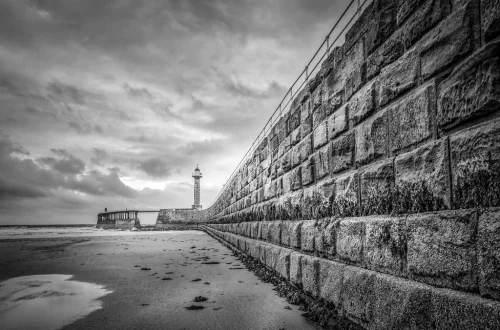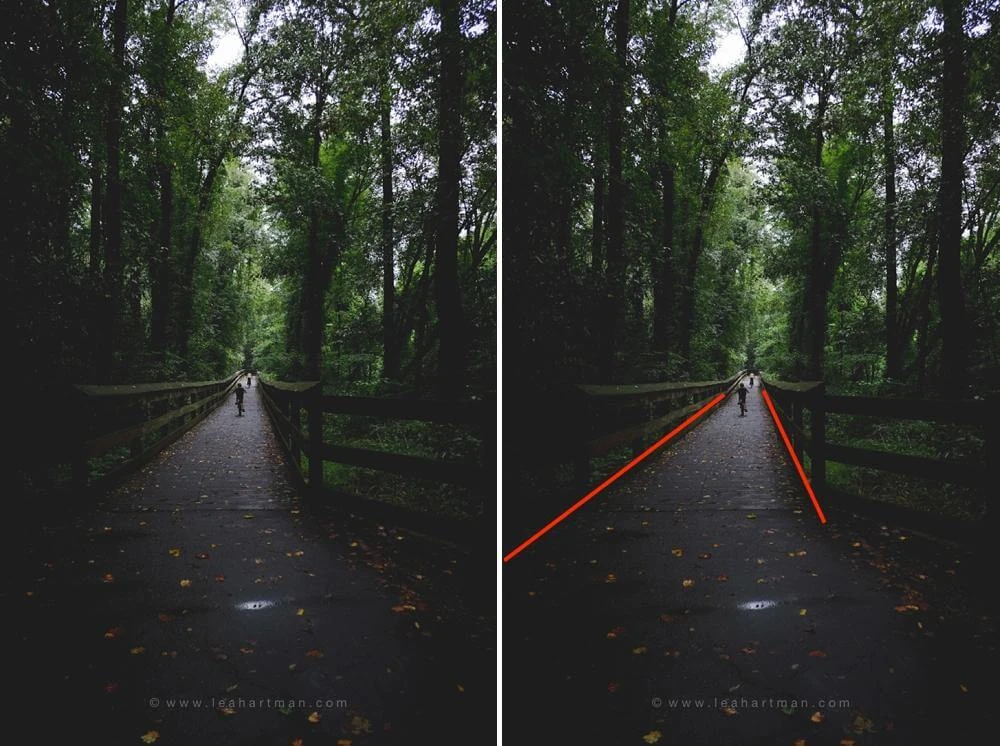
To enhance leading lines in Lightroom mobile, straighten structural perspective in the Geometry panel, then apply a Linear Gradient mask along the path with feather set between 20 and 50. Increase clarity and exposure along the line while subtly darkening edges to channel visual flow directly toward your focal subject.
Photographic educator Alan Ranger notes that leading lines create deliberate paths that guide viewers through an image toward the primary focal element. As tutorial publisher iPhotography explains, using tools like Lightroom or Photoshop to increase contrast and clarity along those lines makes them stand out and guides the viewer’s eye more effectively. Mobile travel compositions benefit from selective structural and tonal adjustments that transform flat smartphone captures into images with clear visual depth.
Check Subscription Requirements and Calibration Engine
Advanced selective tools in Adobe Lightroom Mobile depend on specific licensing and file configuration parameters before editing begins. While basic global adjustments like white balance, standard exposure, and global contrast are available across all accounts, advanced features like selective Masking, Geometry adjustments, and the Healing tool require an active Adobe Creative Cloud subscription. Without a paid plan, these dedicated toolbars remain locked.
Warning: Masking tools will appear greyed out and unavailable if your file is rendered on legacy Process Version 1 or Process Version 2. Photographer and technical writer Greg Benz points out that modern masking engines require Process Version 5 to function. Verify that your camera calibration is set to Process Version 5 to unlock local linear gradients and luminance range masks.
When importing legacy files or editing raw DNG assets created in older desktop workflows, verify the image calibration version. Updating legacy files to Process Version 5 ensures that Lightroom mobile exposes the complete suite of local linear masks, luminance controllers, and geometric perspective tools needed for compositional adjustments.
Straighten Converging Lines in the Geometry Panel
Smartphone wide-angle lenses introduce optical convergence that can bend or distort straight pathways, railings, and roads before tonal adjustments even begin. Correcting structural perspective ensures that your leading lines point cleanly toward the subject rather than tilting or drifting off-frame.
Photographer Silva notes that you find the subject first and then work backward to look for lines leading toward it. To restore structural alignment in architectural and outdoor environments:
- Open your photo in Detail view and tap the GEOMETRY panel on the bottom navigation bar.
- Toggle on CONSTRAIN CROP to prevent transparent wedge artifacts from appearing along canvas borders during distortion correction.
- Tap the Upright dropdown menu and select AUTO to let Lightroom automatically calculate vertical convergence and horizontal balance.
- If baseline horizons remain tilted, open the Crop module and drag the Straighten dial to level the foundational horizontal axis against your frame edges.
Shortcut: Inside the Crop module, double-tapping the Straighten dial automatically levels crooked horizons against the frame boundary without requiring manual slider dragging.
Leveling the physical lines first establishes the geometric path that your subsequent lighting adjustments will emphasize.
Carve Visual Flow with Directional Linear Gradients
To apply a linear gradient to leading lines in Lightroom Mobile, open Masking, select Linear Gradient, drag the pin along your line’s path, and set feather between 20 and 50. Lower exposure slightly along outer borders and raise exposure at the subject to establish strong directional lighting.
Unlike radial gradients that target circular or oval regions, linear gradients operate along a continuous straight axis. This linear geometry makes them ideal for roads, bridges, shorelines, and architectural corridors. Follow these sequential steps to sculpt light along the pathway:
- Tap Masking on the action bar, tap the plus (+) icon to create a new mask, and select Linear Gradient.
- Touch and drag your finger across the screen along the directional angle of the leading line, positioning the center pin directly over the primary path.
- Rotate the outer boundary guides to match the diagonal trajectory of your pathway as it moves toward the subject.
- Set the feather value between 20 and 50. A feather value of 0–10 creates an abrupt, unnatural hard line across the image, whereas 20–50 produces a natural transition. Use values of 60+ when working across expansive sky or water transitions.
- Open the Light panel within the active mask. Subtly elevate the Exposure slider along the line corridor to illuminate the pathway.
- Create an opposing Linear Gradient along the outer edges of the frame and apply negative exposure to dim periphery distractions, creating an intentional light tunnel that draws the eye forward.
Directional exposure variations establish depth by darkening peripheral edges while directing optical energy toward the primary focal terminus.
Sculpt Line Texture and Isolate Luminance Tones
Emphasizing the physical texture of a line makes it visually dominant without altering the lighting of the rest of the photograph. However, applying broad global contrast often causes similar tones to blend together and destroys fine edge details. Applying targeted micro-contrast exclusively along the leading path prevents this tonal crushing.
Execute this sequential checklist inside the selective masking workspace:
- Select the existing Linear Gradient covering your leading path, or tap + to add a targeted brush or linear mask over the central line.
- Navigate to the Effects adjustment sub-panel within the active mask.
- Increase the Clarity slider moderately to harden midtone line transitions and define structural boundaries.
- Increase the Texture slider to accentuate tactile surfaces like asphalt grit, wood grain, or architectural ridges without introducing heavy chromatic noise.
- Add a Luminance Range mask within the masking stack to isolate specific tonal brackets. Tap the eyedropper onto the brightest highlights of the leading line to restrict contrast enhancements strictly to the line itself.
Digital artist Andrew Haysom emphasizes targeted masking for precise local corrections. Isolating luminance values ensures that background terrain remains soft and natural while the directional line gains crisp separation.
The table below outlines how key compositional and masking adjustments interact across different focal lengths, gradient geometries, and application environments.
| Adjustment Variable | Option A | Option B | Impact on Leading Lines |
|---|---|---|---|
| Gradient Geometry | Linear Gradient mask | Radial Gradient mask | Linear gradients follow straight directional axes like roads and shorelines; radial gradients target circular focal points. |
| Focal Length Selection | Wide-angle lens (14mm–35mm) | Telephoto lens | Wide lenses exaggerate 3D depth by elongating foreground starts; telephoto lenses compress distance and shorten line flow. |
| Aperture Depth Strategy | Narrow aperture (f/8, f/11, f/16) | Shallow aperture (f/1.8–f/2.8) | Narrow apertures maintain front-to-back sharpness across the entire line; wide apertures blur lines before reaching the subject. |
| Platform Masking Controls | Lightroom Classic | Lightroom Mobile | Classic features a dedicated UI Intersect button; Mobile requires manual stacking or add/subtract range operations. |
Selecting the right gradient type and lens geometry during capture establishes the geometric foundation, while mobile masking parameters refine the path’s tonal balance.
Remove Pathway Disruptions with the Healing Tool
A leading line loses its visual power when broken by unwanted debris, litter, or intersecting physical obstacles. If the viewer’s gaze hits a visual blockage midway through the frame, visual momentum stalls before reaching the focal subject.
Tap the Healing panel on the main toolbar to clean up the pathway. Select either standard Healing or Generative Remove, adjust the brush size using the touch slider, and paint over distracting objects such as discarded trash, intrusive branch shadows, or cross-cutting utility lines. Lightroom mobile samples surrounding textures to blend the repair smoothly into adjacent pavement, sand, or stone. Inspect the line from entry point to subject terminus to confirm an uninterrupted visual corridor.
Troubleshoot Edge Banding and Masking Limitations
Selective editing on mobile screens can introduce subtle artifacts that only become noticeable on high-resolution displays. Understanding how mobile rendering behaves prevents harsh mask boundaries and crushed tonal ranges.
Warning: Setting mask feathering between 0 and 10 produces abrupt, visible banding across gradients. Always maintain a feather slider value of 20 to 50 for standard environmental transitions, or push beyond 60 for ultra-soft blends across atmospheric elements.
Mobile creators also encounter distinct interface constraints when attempting complex mask intersections. While Lightroom Classic includes an explicit “Intersect” button in its masking menu, Lightroom mobile does not expose a standalone intersect command. To achieve intersecting masks on mobile:
- Create your primary Linear Gradient over the leading line.
- Tap the mask layer, select Subtract, and choose an inverted brush or Luminance Range to carve away unwanted coverage.
- Alternatively, select Add to combine adjacent masks along non-linear curves.
Watch your midtone contrast levels closely. Stacking global contrast on top of aggressive local clarity causes similar tones to merge, destroying fine edge boundaries along the path. If edge definitions begin to look chalky or blocked up, reduce the global Contrast slider in the Light panel and rely entirely on local mask adjustments to guide viewer attention.
FAQ
Can I enhance leading lines using the free version of Lightroom Mobile?
Free users can perform global adjustments, adjust basic contrast, and use the Crop module Straighten tool to level horizons. Selective editing tools like Linear Gradients, Luminance Range masking, Geometry Upright perspective correction, and Healing tools require an active Adobe Creative Cloud subscription to unlock in the mobile application.
Why are selective masking tools unavailable or greyed out in my app?
Selective masking tools become disabled when editing legacy image files calibrated to Process Version 1 or 2. Lightroom Mobile requires Process Version 5 to run its modern masking engine. Updating your image’s camera calibration to Process Version 5 immediately restores access to Linear Gradients and range tools.
How do I fix harsh, visible seams along my gradient mask?
Harsh visible borders occur when the Linear Gradient feather value is set too low, particularly in the 0 to 10 range. To eliminate banding and visible seams, adjust the feather slider to 20–50 for natural tonal falloff, or increase it past 60 for soft atmospheric transitions.