SnapRoamer.com – To recover highlights in smartphone travel shots, you must prioritize shooting in RAW format (like ProRAW or Expert RAW) to preserve sensor data. When editing, use the ‘Highlights’ slider in apps like Lightroom Mobile or Snapseed to pull down brightness, ensuring you don’t hit the ‘clipped’ pure white threshold where data is lost forever.
A RAW file can allow for up to 4.5 stops of recovery from the original image, whereas a JPEG often contains almost no data to recover highlights once they are overexposed.
The Traveler’s Emergency Guide: Recovering Blown-Out Sunsets
The amount of latitude available for recovery depends on the file type. While an 8-bit JPEG contains almost no data to recover highlights in the sky once they are overexposed, RAW files are very forgiving if you have severely overexposed areas.
To manage high-dynamic-range scenes without a tripod, follow these steps:
- Open your RAW image in Adobe Lightroom.
- Locate the ‘Light’ panel.
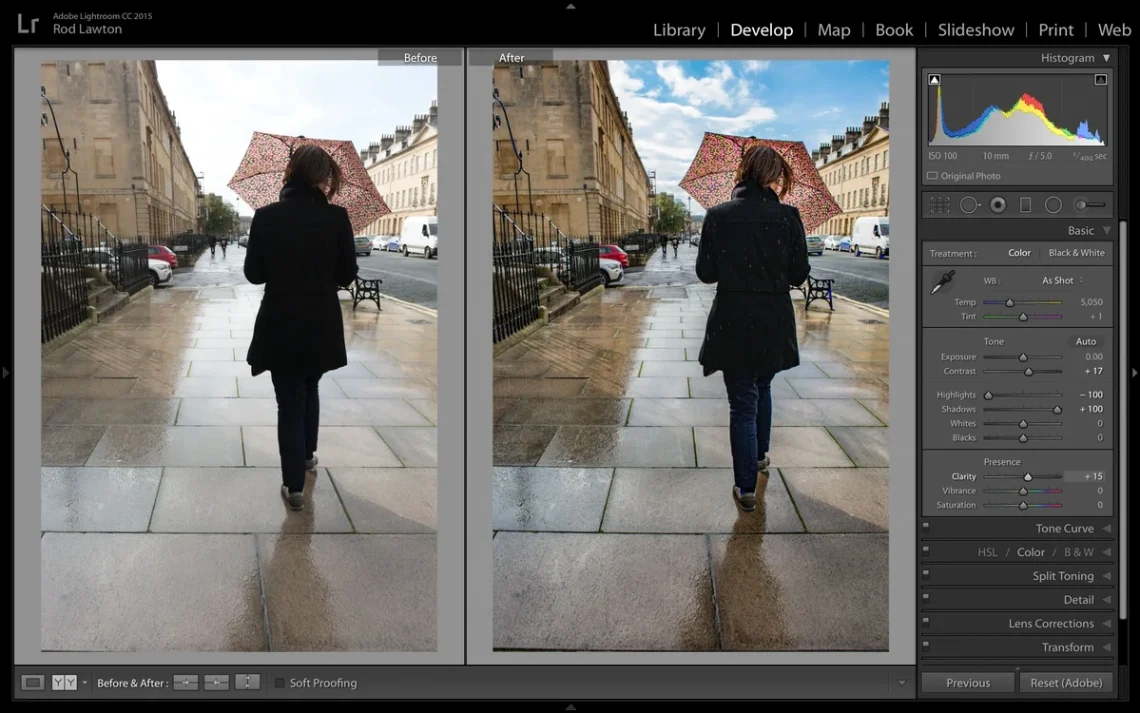
- Move the Highlights slider to the left (negative values) to reveal cloud textures.
- Adjust the Whites slider to ensure the brightest points do not become a flat, featureless mass.
- Check the Histogram to ensure the graph is not “clipping” against the right-hand wall.
It is often safer to let your subject fall into silhouette to capture the full range of light in the bright areas. This ensures the sky retains detail, whereas once the sun or clouds hit pure white, that data is gone.
Computational HDR vs. Manual RAW Recovery
Smartphones rely heavily on software to simulate high dynamic range. For example, the iPhone XS Max and newer Pro models utilize a process where the device takes 4 underexposed shots, 1 at normal exposure, and 1 overexposed shot, blending them nearly instantly to create a single high-quality image. This computational approach works for most daily snapshots but has distinct limitations compared to manual RAW editing.
| Feature | Smartphone JPEG | Smartphone RAW |
|---|---|---|
| Highlight/Shadow Recovery | JPEG often contains no data in overexposed areas. | RAW allows for much greater recovery of detail. |
| Storage Space | Standard consumption. | Consumes more than 3 times the storage of a JPEG. |
| Editing Latitude | Low; prone to banding. | High; preserves sensor data. |
RAW files consume more than 3 times the storage of a JPEG. Despite this, they provide the latitude necessary to recover highlights and shadows that an 8-bit JPEG cannot.
Why your iPhone’s automatic blending might fail
Automatic blending can fail when there is significant movement between the frames or when the light transitions too sharply for the algorithm to patch. This results in “ghosting” or unnatural halos around bright objects like mountain peaks or buildings.
When to override AI with ProRAW
When shooting a sunset where the sun is directly in the frame, the AI might overcompensate, making the sky look muddy. In these cases, overriding the automatic settings with a manual RAW capture allows you to control the luminance curve yourself.
Mobile-Only Post-Processing Masterclass
For professional results on the go, use Adobe Lightroom or Snapseed. In Lightroom, navigate to the ‘Light’ panel and decrease ‘Highlights.’ Use the ‘Masking’ tool to apply these changes only to the sky, preventing the rest of your travel photo from becoming too dark. This selective editing avoids the ‘flat’ look of traditional HDR.
If you lower the highlights for the entire image, your foreground subjects will likely turn into dark silhouettes. Using selective tools is the only way to maintain a natural look.
Step-by-Step: The Snapseed Selective Method
- Import your photo into Snapseed.
- Select the ‘Tools’ menu and tap ‘Selective.’
- Tap on the bright area of the sky.
- Swipe your finger left to decrease ‘Brightness’ specifically in that spot.
- Adjust ‘Saturation’ to ensure the colors remain vibrant after the brightness drop.
Advanced: Using Luminance Curves on Mobile
For those seeking more control, the luminance curve is essential. You can use a “Knee Technique” by adding a point near the upper-right of the curve and dragging it downward. This compresses the highlights into a smoother roll-off, preventing the harsh transition between light and dark that characterizes cheap digital shots.
The Golden Rule: Expose for the Highlights
According to 42West, the almost golden rule is “expose for the highlights”. This principle suggests that it is better to have a slightly underexposed image than one where the bright areas are “blown out.”
In a high-contrast environment, such as a bright beach at noon, your phone’s sensor will struggle. If you prioritize the shadows, the sky will turn into a solid white void. If you prioritize the highlights, the sand and water might appear dark, but you can easily brighten them in post-processing using the Exposure slider.
Why dark shadows are safer than white highlights
Digital sensors are much more efficient at capturing information in the dark than in the light. A shadow can be “lifted” using the Shadows slider, whereas a bright highlight that has hit the sensor’s ceiling provides zero information to the file.
Using the Histogram to prevent clipping
Always keep an eye on your Histogram. This visual representation shows shadows on the left, midtones in the middle, and highlights on the right. If the graph is touching the far right edge, you are losing highlight data.
Common Pitfalls: Avoiding the ‘Fake HDR’ Look
Over-processing can lead to technical artifacts. When users push sliders too far, they risk degrading the image quality through several common errors.
- The danger of 8-bit banding: If you try to pull up shadows or bring down highlights on your JPEG, it could result in banding or posterization. This creates visible “steps” in color gradients, like in a blue sky.
- The Grainy Impressionist trap: Aggressive shadow lifting or using digital zoom can result in grainy images. This creates a “grainy impressionist rendition” rather than a sharp, clear photograph.
- Loss of natural contrast: Overusing the HDR effect can make a landscape look “flat,” stripping away the depth and dimension that makes a travel photo feel real.
Hardware vs. Software: Knowing Your Limits
Ultimately, your ability to recover highlights is bounded by your hardware. A typical smartphone might feature a 20-megapixel sensor, which is significantly smaller than the 46 or 60-megapixel sensors found in high-resolution DSLR cameras. While software can bridge the gap, it cannot replace the physical light-gathering capability of larger sensors.
If you see the histogram hitting both walls simultaneously, the software will likely struggle to produce a clean result, regardless of the app you use.
FAQ
Can I recover highlights from a JPEG if the sky is pure white?
Generally, no. Once a highlight is clipped to pure white in an 8-bit JPEG, the data is gone, resulting in a gray or empty look. RAW is required for meaningful recovery of those bright areas.
Why does my phone take multiple shots for one photo?
Modern smartphones like the iPhone XS Max take multiple underexposed and overexposed shots and blend them instantly to simulate high dynamic range, a process known as computational HDR.
Will using digital zoom ruin my highlight recovery?
Digital zoom can result in a grainy impressionist rendition of the composition, making it difficult to extract detail from bright or dark areas due to the loss of native sensor data.