SnapRoamer.com – White balance on Android is a setting that compensates for a light source’s color temperature to ensure neutral whites. While Auto White Balance (AWB) attempts to estimate the setting, manual control via Kelvin sliders or presets prevents color shifts, especially in challenging lighting like tungsten or underwater environments. The Kelvin scale ranges from warm tungsten tones at 3,200K to cool daylight at 5,500K, requiring precise adjustments to avoid undesirable color casts.
Unlocking Manual Control: Beyond the Native Camera App
Many Android users find that native camera software lacks the granularity required for professional color accuracy. While some devices, such as the Unihertz Tank 3 Pro, offer manual adjustments, many stock applications prioritize ease of use over technical precision. This often results in a lack of dedicated Kelvin sliders within the standard user interface.
The GCam/Modded App Solution
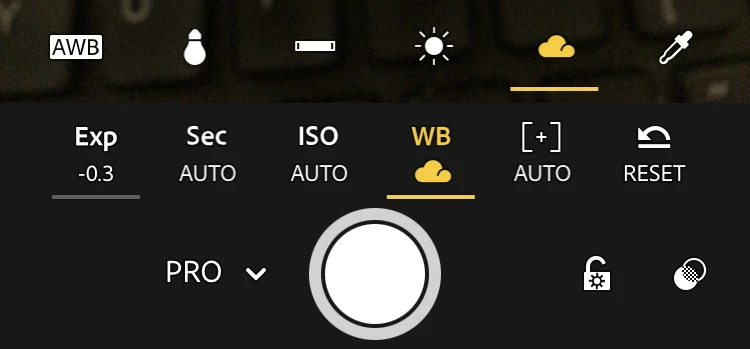
For users seeking professional-grade control, modded versions of the Google Camera app, such as LMC 8.4, serve as a critical workaround. These applications often unlock advanced parameters that are hidden in standard manufacturer software. By accessing the Pro/manual mode via the drop down menu next to shutter release, users can often find dedicated white balance controls. A common failure mode occurs when users attempt to use these mods on unsupported hardware, leading to app crashes or sensor errors. However, when functioning correctly, these mods provide the specific Kelvin-based control necessary for consistent color reproduction.
Open Source Alternatives for Budget Hardware
If modded Google Camera ports are unavailable for a specific device, Open Camera provides a reliable, open-source alternative. This application allows for more direct manipulation of the sensor settings than most stock apps. Users can typically navigate to the settings to find manual white balance options, which is particularly useful for older or budget-friendly Android hardware that lacks a robust native “Pro” mode.
- LMC 8.4: Provides high-level Kelvin control through Google Camera ports.
- Open Camera: Offers a free, open-source path to manual WB settings.
- Native Pro Modes: Available on specific hardware like the Unihertz Tank 3 Pro.
The Video Lock Guide: Preventing Color Hunting in Motion
To prevent color shifts during Android video recording, avoid Auto White Balance (AWB). Instead, use third-party apps like Filmic Pro or ProShot to manually lock the Kelvin temperature. This prevents the “color hunting” effect where the software constantly re-adjusts the color profile as the scene changes.
Color hunting occurs when the AWB algorithm attempts to recalculate the neutral point as subjects move or lighting fluctuates. To mitigate this, mobile videographers utilize applications like Filmic Pro or ProShot to “lock” the white balance. Setting a fixed Kelvin value ensures the color temperature remains static, maintaining a professional aesthetic in cinematic productions.
Understanding the Kelvin Scale and Light Sources
Color temperature is measured in Kelvin (K). Common values include 3,200K for tungsten/incandescent lighting, 4,000–5,000K for fluorescent lights, 5,500K for daylight, 6,000K for cloudy conditions, and 7,000K for shade. Adjusting your camera to these specific values neutralizes color casts.
According to ProEdu, the Kelvin scale runs from warmer tones, such as tungsten lighting, to cooler tones, like daylight. Photographers can anticipate light color by knowing these numeric values. For example, shooting under standard indoor incandescent bulbs requires a setting of approximately 3,200K to counteract orange casts, while heavy shade requires a much higher Kelvin value to prevent a blue appearance.
| Light Source Condition | Typical Kelvin (K) Range |
|---|---|
| Tungsten / Incandescent | 3,200K |
| Fluorescent Lighting | 4,000K – 5,000K |
| Daylight | 5,500K |
| Cloudy Conditions | 6,000K |
| Shade | 7,000K |
Use these Kelvin values as a baseline for manual adjustments in various environmental lighting conditions.
Why Your Manual White Balance Might Still Look “Wrong”
Even with precise Kelvin settings, users often encounter images that do not match their visual expectations. This discrepancy is frequently caused by hardware and software limitations rather than incorrect Kelvin selection. One counterintuitive reality is that matching a scene by eye is limited by your phone screen’s calibration and brightness. If your screen is displaying colors inaccurately, your manual adjustments will be fundamentally flawed.
Warning: AWB can lock onto non-neutral areas, such as a yellow wall, and attempt to balance it, which creates new, artificial color casts rather than neutralizing the scene.
Furthermore, the file format used during capture plays a decisive role in how much control you actually possess. While JPEGs contain baked-in color data that is difficult to shift significantly after the fact, RAW files offer much greater control of white balance adjustments in post-processing. When shooting in RAW, the white balance settings on the camera do not actually change the data in the image; they simply act as a metadata tag for reference. This allows for much more aggressive and accurate color correction in software like Adobe Lightroom or Adobe Photoshop.
| Format | Post-Processing Flexibility | Control Level |
|---|---|---|
| RAW | High (Non-destructive) | Maximum |
| JPEG | Low (Baked-in data) | Limited |
Professional mobile photographers prioritize RAW formats to maximize post-processing control.
Advanced Calibration: From Grey Cards to Underwater Mastery
Underwater photography requires specialized calibration to overcome heavy color filtration. Standard Kelvin presets are often insufficient for managing the extreme color shifts found in marine environments.
Divers can leverage specialized software to manage the extreme color shifts of the ocean. For those using specialized hardware, the UWACAM app is a dedicated tool for managing these complexities. Similarly, the Sealife SportDiver App offers a manual Kelvin range from 2000K to 10000K, allowing divers to fine-tune the color profile to match their specific depth and water clarity. Using these specialized tools prevents the common failure of underwater shots appearing entirely monochromatic or heavily blue/green.
- Grey Card Calibration: Uses a physical neutral reference at a 3ft distance.
- UWACAM: Specialized software for DIVEVOLK users.
- Sealife SportDiver App: Provides a wide 2000K-10000K manual range.
Yes. While JPEGs have baked-in color data, RAW files allow for significantly more effective white balance adjustments in post-processing software.