SnapRoamer.com – Professional smartphone photography requires moving beyond Auto White Balance (AWB), which often creates undesirable color shifts in complex lighting. To achieve color neutrality, photographers must master the Kelvin scale, utilize RAW formats for post-processing leeway, and employ manual calibration tools like gray cards or pro-grade mobile apps.
white balance is the process of transforming a non-color-neutral space into a color-neutral space where equal R, G, and B numbers represent neutrals (Iliah Borg).
Outsmarting the AI: Computational Photography vs. Manual Control
Modern smartphones use computational photography (like Google’s HDR+) that can fight against manual white balance settings. To outsmart the AI, photographers should shoot in RAW format to bypass aggressive in-camera processing and use professional apps like Halide or Lightroom mobile that allow for explicit Kelvin locking.
Why AWB fails in high-contrast scenes
Auto White Balance (AWB) functions by having the camera sensor guess the color temperature of the light source. While this is efficient for casual snapshots, it frequently results in inaccurate color rendering. Bethney Backhaus has noted that AWB can lead to images that feel too cool, particularly when the sensor misinterprets the environment. This failure mode is most common when the camera is surrounded by a neutral palette, such as in professional product photography on a white background, where the sensor lacks a color anchor to calculate the correct balance.
The RAW advantage for mobile editors
Relying on the standard JPEG format limits a photographer’s ability to correct color errors after the fact. Shooting in RAW format works best because of the extra leeway to tweak color settings (theclickcommunity.com). This format preserves the necessary data to adjust temperature and tint during post-processing.
- Capture Format: Always prioritize RAW over JPEG for color-critical work.
- App Selection: Use apps that offer manual Kelvin overrides.
- Exposure Check: Ensure the sensor isn’t overcompensating for color by clipping highlights.
The Mixed Light Survival Guide for Mobile Photographers
White-balancing is necessary especially when moving the camera from one lighting situation to another or when working under fluorescent lighting indoors. The primary challenge for mobile users is “color contamination,” where two different light temperatures occupy the same frame.
Warning: Attempting to use a single AWB setting in a room containing both warm tungsten bulbs and blue daylight from a window will almost always result in a color cast that favors one source while making the other look unnatural.
Managing the ‘Color Contamination’ problem
When light sources vary, the smartphone’s AI struggles to find a single mathematical middle ground. This often results in skin tones looking either sickly green or unnaturally orange. To combat this, photographers must decide which light source is the “key” light. If the subject is lit by daylight, the white balance should be set to daylight, even if the background contains warm indoor lamps.
Balancing indoor tungsten with window daylight
A common professional workflow involves neutralizing the dominant light source. If you are working in a space with 3200K tungsten lighting and 5500K daylight, you can use a manual Kelvin setting to lock the camera to one of these values. This prevents the phone from constantly shifting the color temperature as you move the device between the window and the lamp.
Mastering the Kelvin Scale: A Reference for Mobile Presets
Color temperature is measured in Kelvin (K). Common reference points include Tungsten at 3200K, Daylight at 5500K, Cloudy at 6500K, and Shade at 7000K. Adjusting these values allows you to manually correct color casts caused by specific light sources.
| Lighting Condition | Approximate Kelvin (K) | Visual Character |
|---|---|---|
| Tungsten | 3200K | Warm/Orange |
| Daylight | 5500K | Neutral/White |
| Cloudy | 6500K | Soft/Neutral |
| Shade | 7000K | Cool/Blue |
| Extreme Sunset | Up to 50,000K | Deep Red/Orange |
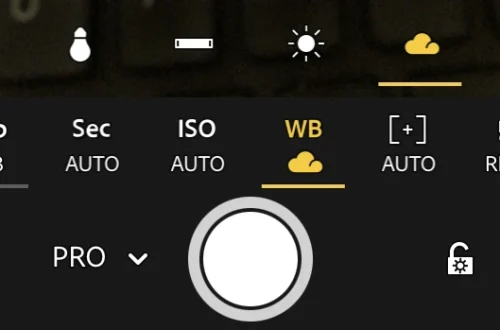
To apply these values, locate the WB button on your camera and cycle through options until you find the ‘K’ setting to set specific Kelvin values (proedu.com). This allows for direct numerical control over the scene’s color temperature.
Understanding the Kelvin spectrum
The Kelvin scale defines light characteristics through specific numeric ranges. Lower numbers represent warmer, redder light, while higher numbers represent cooler, bluer light. For instance, extreme sunset conditions can reach temperatures as high as 50,000K (proedu.com).
Golden hour settings: The 7600K preference
While many assume the golden hour requires a “warm” setting, some photographers actually prefer a higher Kelvin value, such as 7600K, to maintain the specific aesthetic of the light. Adjusting this value allows you to fine-tune the “warmth” of the scene to match your creative intent rather than just the mathematical reality.
Zero-Cost Calibration: Household Substitutes for Gray Cards
While professional incident light meters can cost between $200 and $400, mobile photographers can achieve high-accuracy calibration using items already in their environment. The goal is to find an object that provides a neutral reference point.
The most effective method involves the 18% reflectance rule. A standard gray card is designed to reflect approximately 18% of light, providing a perfect neutral anchor for the sensor. If you do not have a professional card, you can use the following substitutes:
- Neutral Gray Surfaces: Clean asphalt or certain shades of denim can act as a makeshift neutral reference.
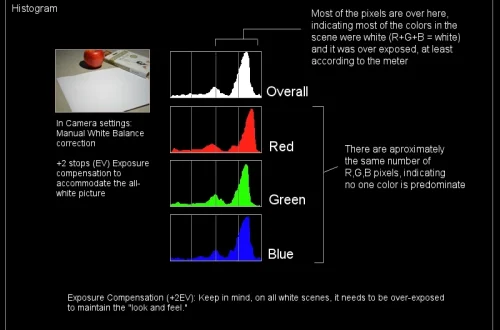
- White Paper: While not a perfect 18% gray, a piece of plain white paper can be used to set a custom white balance, though it may occasionally skew the exposure by approximately 1 EV.
- Matte Surfaces: Avoid shiny or reflective objects, as specular highlights will provide incorrect color data to the sensor.
To use these, place the object in the same light as your subject, take a photo, and then use a “dropper tool” in a mobile editor to select the neutral area. This effectively removes the “unknowns” from your color equation.
Pro App Comparison: Halide vs. Lightroom Mobile vs. Native
Software selection determines the level of control available to the user. While native applications prioritize speed, they often lack the granular settings required for complex color management.
| App/Method | WB Control Level | Best Use Case |
|---|---|---|
| Native Smartphone App | Low (Auto/Presets) | Casual snapshots and quick captures |
| ProCamera (iPhone) | Medium (Manual/Lock) | Controlled environments and manual locking |
| Lightroom Mobile | High (Kelvin/Tint/Dropper) | Post-processing and RAW color correction |
The comparison above highlights that while native apps are sufficient for most, they cannot match the precision of dedicated tools. For example, in the ProCamera iPhone app, users can long press on the WB Lock icon to initiate a specific color calibration, a feature missing from most stock Android and iOS applications.
Precision Kelvin sliders
Professional apps like Lightroom Mobile provide dedicated Kelvin sliders and tint adjustments. This allows you to move the balance between green and magenta tones to eliminate specific color casts that a simple temperature shift cannot fix.
Workflow integration
A professional mobile workflow involves shooting in RAW using a manual-control app and then moving to Lightroom Mobile for final color grading. This ensures that the color data remains intact from the moment the shutter is pressed to the final export.
FAQ
Why does my smartphone photo look blue indoors?
This is often due to Auto White Balance (AWB) failing to recognize warm tungsten light (3200K) or mixed lighting, resulting in a “cool” color cast. Switching to a manual Kelvin setting or using a gray card can fix this.
Can I fix white balance after taking a photo?
Yes, but it is much easier if you shot in RAW format. RAW files contain more data, allowing you to use the “Dropper tool” in apps like Lightroom to select a neutral area and reset the color temperature without losing quality.
What is the best Kelvin setting for sunset?
While sunset temperatures can reach up to 50,000K in extreme cases, many photographers prefer a setting around 7600K to maintain the warm, golden aesthetic of the “golden hour.”