SnapRoamer.com – Smartphone cameras have revolutionized photography, yet mastering focus point selection remains key to capturing sharp, professional-quality images. Whether using the default camera app or advanced third-party tools, understanding how to select, lock, and manually adjust focus points elevates photo sharpness and creative control. This tutorial provides detailed, step-by-step instructions on effectively using smartphone focus points, combining manual focus techniques with exposure adjustments, and troubleshooting common focus challenges across popular devices like the iPhone 13 Pro and Samsung Galaxy series.
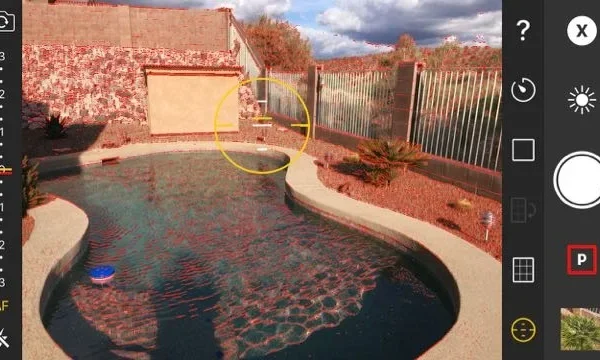
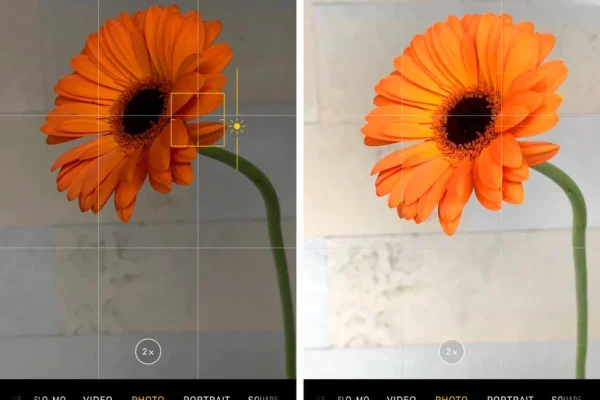
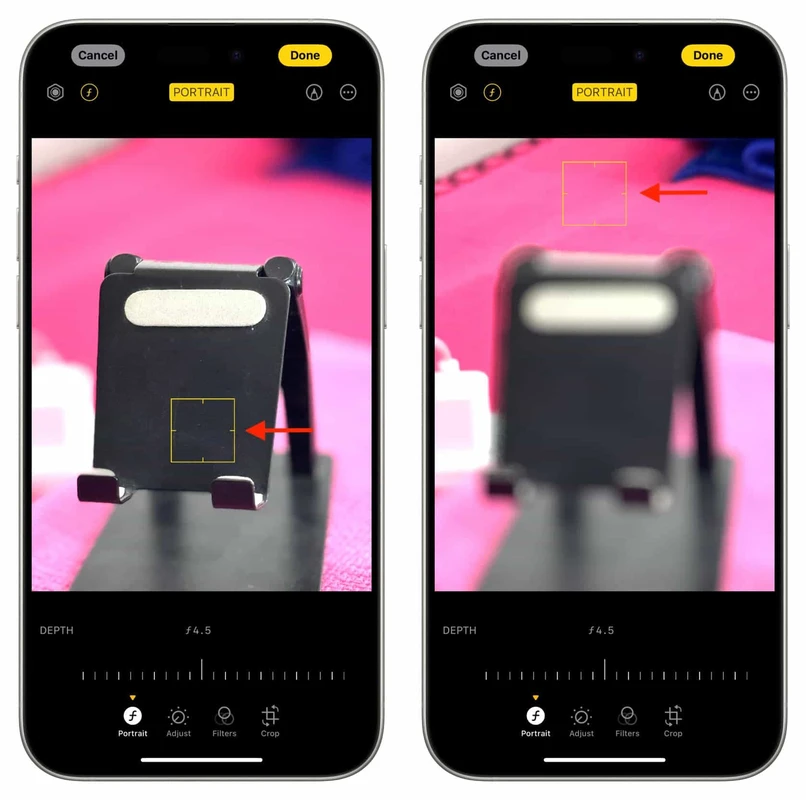
Tap-to-focus is the foundational method for selecting focus on smartphones. Simply tapping the screen where you want the camera to focus directs the lens to prioritize that area, optimizing sharpness. Many camera apps extend this functionality by supporting focus and exposure lock—commonly called AE/AF lock—activated by holding the tap on the designated focus point. This locks both autofocus and auto exposure settings, preventing unwanted refocusing or exposure shifts during composition or capturing. For finer control, some apps offer manual focus sliders, enabling precise distance adjustments beyond the standard tap interaction.
Manual focus capability on smartphones hinges heavily on hardware and software support. Devices leveraging the Camera2 API—available on many Android phones including Samsung Galaxy models—allow deeper manual controls such as focus distance sliders, ISO, shutter speed, and aperture adjustments. Conversely, many front-facing cameras lack manual focus due to hardware constraints, limiting users to autofocus methods. Third-party apps like ProCamera or Lightroom Mobile unlock manual focus and exposure features on supported devices, providing advanced photographers with creative flexibility especially useful for macro photography or challenging lighting.
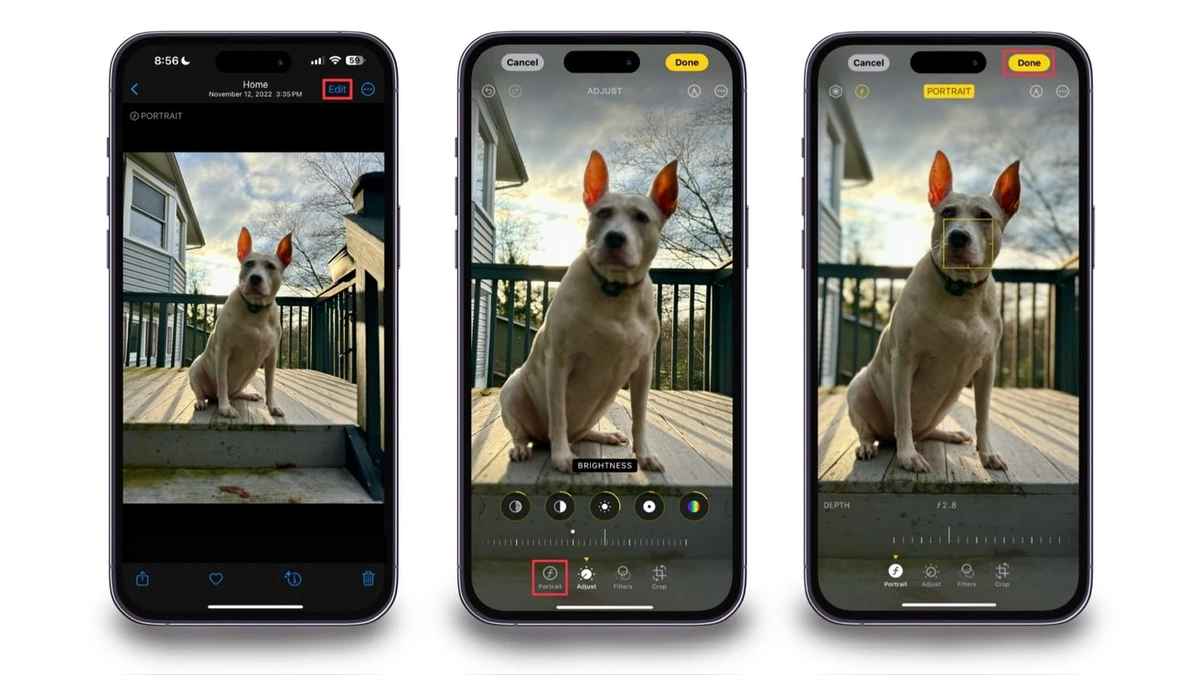
Combining manual focus with exposure controls significantly improves image quality. Adjusting ISO and shutter speed in tandem with manual focus mitigates noise and motion blur while maintaining sharpness. For instance, increasing shutter speed while manually focusing on a close subject reduces blur from hand shake. Aperture control—though limited on smartphones with fixed lenses—can be simulated using computational photography modes or apps that emulate shallow depth of field effects, emphasizing the focused subject against blurred backgrounds. Employing exposure adjustments alongside manual focus is essential for balanced, crisp images.
Effective focus point use varies by scenario. Macro and close-up photography demand precise manual focus to capture intricate details; tapping the screen often lacks the accuracy required. Focus peaking features, available in some apps, highlight in-focus edges in real-time, aiding manual adjustments. Portraits benefit from locking focus on the subject’s eyes, ensuring sharpness where it matters most. Avoid common pitfalls like using excessively high ISO or slow shutter speeds without stabilization, which degrade image clarity despite correct focus. Employing these practical techniques enhances the sharpness and visual impact of smartphone photos.
Composition principles reinforce focus point selection. Activating grid lines based on the rule of thirds guides placing focus points at natural intersections, creating balanced and engaging images. Autofocus tracking modes assist in capturing moving subjects by continuously adjusting focus on the target area, useful in action or wildlife photography. Users should align focus points with compositional elements rather than centering the focus arbitrarily, combining technical sharpness with aesthetic appeal.
Focus issues on smartphones often arise due to hardware or environmental factors. iPhones sometimes struggle with infinity focus in low-light or wide scenes, requiring manual focus adjustments or third-party apps to override autofocus defaults. Autofocus hunting—where the lens repeatedly refocuses—is common under low light; switching to manual focus stabilizes sharpness. When autofocus fails, manual focus serves as a reliable fallback, especially when combined with focus peaking or magnification features available in advanced camera apps.
How to Select Focus Points on Smartphones
Manual Focus Capabilities and Limitations
Manual focus support depends on device hardware and software architecture. Android smartphones using the Camera2 API grant apps access to manual focus controls, whereas iPhones offer limited manual focus primarily via third-party apps. Front cameras typically lack manual focus due to fixed focal lengths and simpler lens systems. Apps like ProCamera and Lightroom Mobile provide manual focus sliders and focus peaking, enhancing control on compatible devices. However, many native camera apps default to autofocus for simplicity, restricting manual focus use.
Enhancing Manual Focus with Exposure Controls
Manual focus paired with exposure settings unlocks superior image quality. Adjust ISO to control sensor sensitivity; lower ISO reduces noise for cleaner images. Modify shutter speed to freeze motion or allow light in dim settings—balancing with focus precision is vital to avoid blur. Aperture adjustments are rare on smartphones with fixed lenses but computational photography may simulate depth of field effects. Use apps that integrate manual exposure controls alongside manual focus for optimal results.
Practical Tips for Effective Focus Point Use
Composition Techniques Supporting Focus Selection
Enable grid lines in camera settings to apply the rule of thirds, placing focus points on intersecting lines for dynamic composition. Utilize autofocus tracking for moving subjects to maintain focus continuity. Position your subject off-center aligned with the grid to create balanced images. Combining compositional awareness with precise focus point selection enhances overall photo impact.
Troubleshooting Focus Issues on Smartphones
| Focus Method | Device Support | Use Case | Limitations |
|---|---|---|---|
| Tap to Focus | All smartphones | General photography, quick focus | Limited precision, no manual adjustment |
| AE/AF Lock (Tap and Hold) | Most modern smartphones | Locking focus and exposure on static subjects | Not always available on front cameras |
| Manual Focus Slider | Camera2 API Android phones, some iPhone apps | Close-ups, macro, low light photography | Hardware-dependent, front camera often unsupported |
| Focus Peaking | Supported via third-party apps | Highlighting sharp areas during manual focus | Requires compatible app and device |
FAQ
How do I lock focus on my smartphone camera?
Tap and hold the desired focus point on your smartphone screen until the AE/AF lock icon appears. This locks focus and exposure, preventing changes while you compose and capture your photo.
Can I manually focus using the front camera?
Most front-facing cameras do not support manual focus due to fixed focal length lenses. Focus is generally fixed for selfies and video calls, though some apps simulate depth effects.
Why is my smartphone camera autofocus hunting in low light?
Autofocus hunting occurs when the camera struggles to find contrast in dim environments. Switching to manual focus or locking focus via AE/AF lock helps stabilize sharpness.
Which apps provide manual focus controls on smartphones?
Apps like ProCamera, Lightroom Mobile, and Open Camera (Android) offer manual focus sliders and focus peaking features on compatible devices with Camera2 API support.
How does using the rule of thirds help with focus point selection?
Enabling grid lines and placing focus points at rule of thirds intersections improves composition and guides viewers’ attention to sharp, well-focused areas of the image.
For further details on manual focus techniques and supported devices, refer to this comprehensive manual focus guide and Samsung’s official support on camera focus modes.
Leveraging these focus selection methods, manual controls, and composition strategies empowers you to capture sharper, more compelling photos with your smartphone camera. As smartphone camera technologies evolve, staying updated on app capabilities and hardware improvements will further enhance your photographic precision and creative expression.