SnapRoamer.com – To master night photography with a smartphone, prioritize using your main lens, stabilize the device to allow for multi-second exposures, and utilize ‘Night Mode’ for computational frame stacking. Avoid the built-in flash to prevent harsh lighting, and manually adjust ISO and shutter speed in Pro Mode to balance light intake against digital noise.
Night photography rewards patience, as a single well-executed frame can outweigh dozens of mediocre ones, according to photographytalk.com.
Troubleshooting Night Mode: Why Your Shots Look Blurry or ‘Ghostly’
Night Mode failures typically stem from ‘positional drift’ or tiny vibrations during the multi-frame stacking process. If your image looks blurry or has ghosting, it is likely because the phone moved during the 1-3 second exposure window. Ensure total stabilization and avoid touching the screen during the capture sequence.
Night Mode functions by capturing multiple stacked frames over several seconds to artificially increase brightness. Because the sensor remains open or processes data over a longer duration, any micro-movement breaks the alignment of these frames. This results in “ghosting,” where moving subjects appear as translucent streaks, or general softness where fine details vanish.
Solving the ‘Ghosting’ effect
Ghosting occurs most frequently when the camera or the subject moves during the stacking sequence. To mitigate this, practitioners recommend using a stable surface. Even a slight tremor from a hand holding the device can disrupt the computational alignment of the 1-3 second exposure window common on iPhone devices.
The limits of computational stacking
computational photography has physical limits. If the environment is too dark, the software attempts to “boost” the signal, which can lead to heavy artifacts. In reality, it requires at least some ambient light to function correctly.
The Pro-Level Workflow: From Capture to Lightroom Mobile
A structured workflow ensures you capture enough data to make meaningful adjustments during the editing phase.
A mobile workflow typically involves these specific steps:
- Capture in RAW: Using RAW format allows you to preserve much more data in the highlights and shadows compared to standard JPEGs.
- Manual exposure control: Instead of letting the phone decide, use Pro mode to set your own parameters.
- Post-processing noise reduction: Once the image is captured, use dedicated software to clean up grain.
Capturing in RAW for maximum dynamic range
When shooting at night, the contrast between a bright streetlamp and a dark alleyway is extreme. Standard processing often crushes the shadows or blows out the lights. By using RAW, you provide yourself with the latitude needed to recover details in the dark areas without introducing massive color shifts.
Targeted noise reduction techniques
Adobe Lightroom is a standard tool for managing the digital noise that inevitably accompanies low-light shooting. After capturing your shot, navigate to the editing panel to apply noise reduction. This process helps smooth out the “grainy” texture in dark sky areas while attempting to preserve the edges of your subjects.
Hardware Optimization: Why the Main Lens is Your Best Friend
Smartphone capabilities vary widely in dim environments. Most modern devices feature multiple lenses, but their performance depends on sensor size and cropping.
The main lens is almost always the superior choice for night photography. This is because ultra-wide and telephoto lenses often perform worse in dim conditions due to smaller sensors or significant digital cropping. Even a high-resolution 50 MP sensor will struggle if the light is being funneled through a secondary, inferior lens.
| Lens Type | Low-Light Performance | Primary Risk |
|---|---|---|
| Main Lens | Highest | Minimal (Best sensor size) |
| Ultra-Wide | Lower | Heavy noise and distortion |
| Telephoto | Lowest | Extreme grain from digital zoom |
Relying on the main lens is critical because digital zoom can degrade image quality in Night mode. The software effectively crops into a small, noisy portion of the sensor.
Mastering Manual Settings: ISO and Shutter Speed
To gain control, utilize manual exposure control to dictate exactly how much light enters the sensor and how sensitive that sensor should be.
When adjusting these settings, keep the following numeric thresholds in mind:
- ISO: Use a 100-400 ISO recommended starting range to maintain image cleanliness. While you may need to go higher, be cautious, as higher ISO settings can introduce noise. A 1600 ISO sensitivity threshold is often the limit before digital noise becomes overwhelming.
- Shutter Speed: On an iPhone, you can use the shutter speed slider range of 0-3 seconds to allow more light in.
Shortcut: To adjust exposure on an iPhone, use the path: Upward arrow > Moon icon > Slider.
A slower shutter speed allows more light to hit the sensor, but it also increases the risk of motion blur. Conversely, a high ISO makes the sensor more sensitive but introduces “grain” or digital noise.
Essential Stabilization Techniques
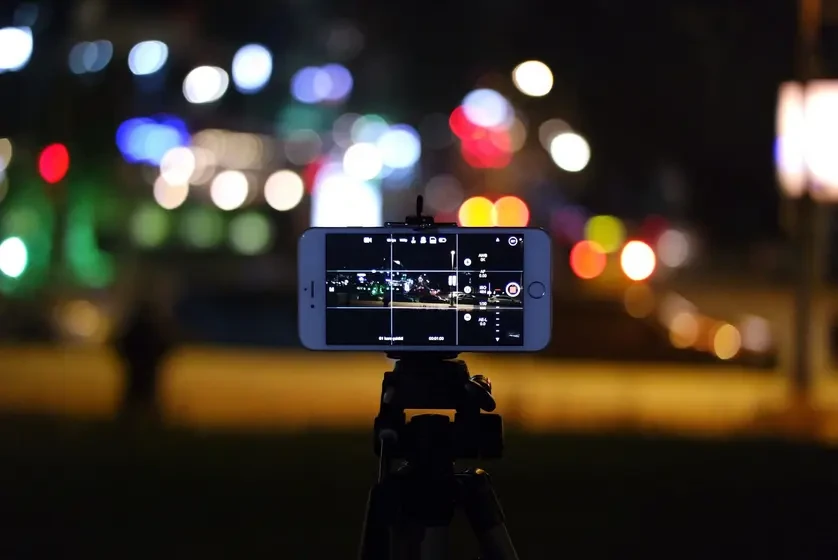
Because night photography often requires the shutter to remain open for several seconds, physical stability is the single most important factor in preventing blurry images.
If you do not have a professional tripod, you can use several improvised methods to stabilize your device:
- Brace the phone against rocks or uneven surfaces to create a steady base.
- Use a backpack as a rest, placing the phone securely in a pocket or on top of the fabric.
- Find a stable ledge or wall to lean the device against.
To avoid the vibration caused by your own touch, use the physical volume buttons as a shutter release. This allows you to trigger the capture without tapping the screen, which is a common source of camera shake.
FAQ
Should I use my phone’s flash at night?
No. The built-in flash often makes skin look harsh and oddly colored, and it lacks the flattering quality of natural light. As noted by digital-photography-school.com, the flash is generally not flattering for photos, whether you are shooting in the daytime, late at night, landscapes, flowers, or portraits.
How can I take a photo without shaking the phone?
Use the physical volume buttons as a shutter release to avoid touching the screen, or brace the phone against a stable object like a rock or backpack. This minimizes the “micro-shakes” that occur when your finger makes contact with the glass.
What is the best ISO for night shots?
Start in the 100-400 range. While higher ISOs like 1600 increase sensitivity, they significantly increase digital noise, which can degrade the overall sharpness and professional look of your image.