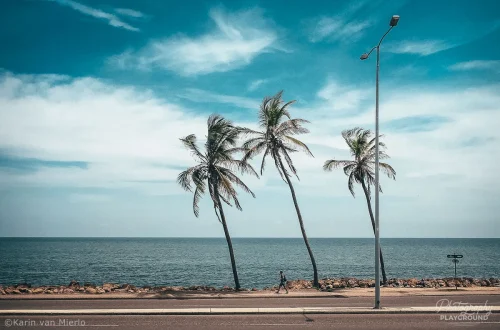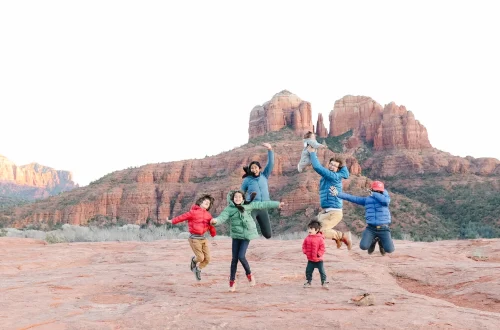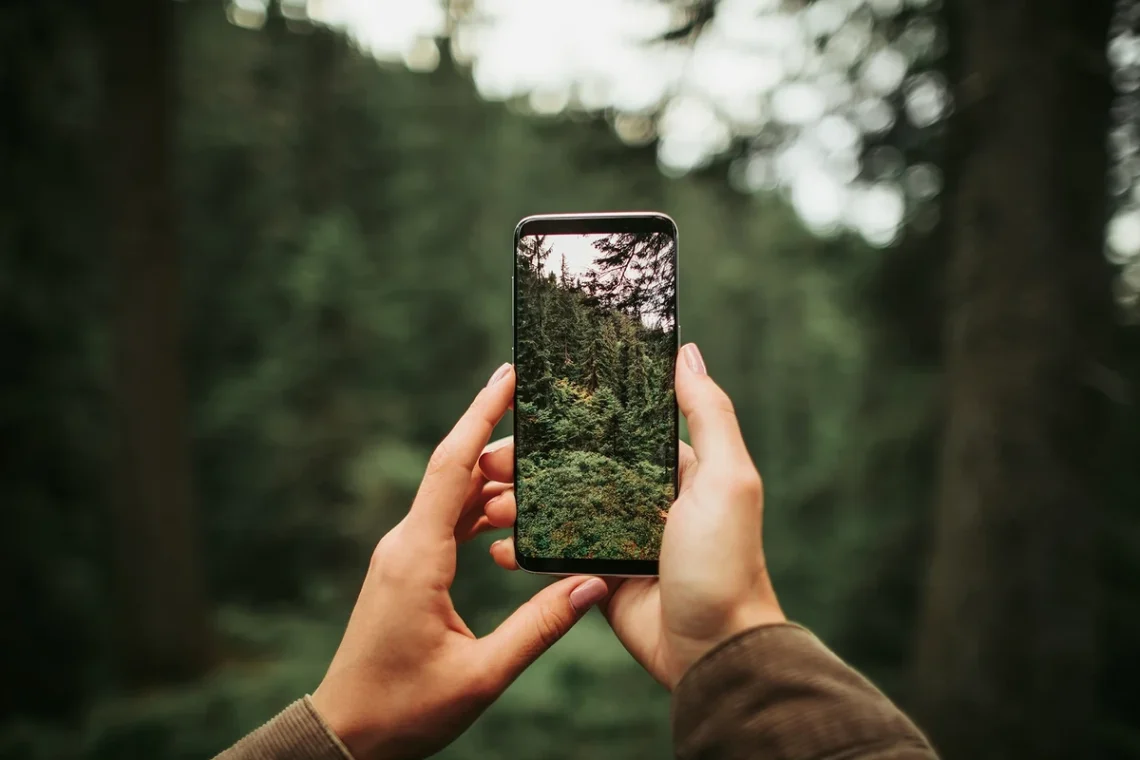
SnapRoamer.com – To master smartphone landscape photography, prioritize composition through layering and the rule of thirds, avoid digital zoom to maintain detail, and use a tripod for long exposures. For professional results, master manual controls like ISO and aperture while using post-processing apps like Snapseed to balance dynamic range.
The idea that the best camera is the one you have with you is a mantra from digital-photography-school.com that empowers anyone to capture vistas using a mobile device.
Overriding the AI: A Guide to Computational Landscape Photography
To prevent AI from making landscapes look artificial, disable ‘Scene Optimizer’ or ‘Auto-HDR’ settings in your camera menu. This allows you to manually control exposure and dynamic range, preventing the ‘watercolor effect’ and over-saturation often caused by aggressive computational processing in mobile sensors.
Mobile phones usually do not handle low light conditions very well, which often triggers aggressive software intervention. While computational photography attempts to bridge the gap, it frequently results in a loss of natural texture. To gain control, photographers should navigate to camera settings > HDR and toggle the setting to off or manual mode. This prevents the device from over-processing shadows and highlights into a flat, unnatural look.
The problem with Auto-HDR
When a smartphone detects a high-contrast scene, such as a sunset over a mountain range, the Auto-HDR feature may attempt to merge multiple exposures instantly. This can lead to a failure mode where the edges of objects appear “haloed” or the colors become hyper-saturated. Industry practitioners note that relying on these automated processes often sacrifices the subtle gradients found in a natural sky.
Manual vs. Computational control
To move beyond basic automation, photographers should implement specific manual adjustments. Instead of letting software determine brightness, focus on these technical steps:
- Manual exposure compensation to prevent blown-out highlights.
- Disabling “Scene Optimizer” to maintain realistic color profiles.
- Using manual focus to ensure the horizon remains tack-sharp.
Composition is king in photography, no matter your camera.
Mastering the Mobile RAW Workflow
Shooting in RAW formats provides the flexibility needed during editing. Standard JPEG files are heavily compressed, meaning much of the data in the shadows and highlights is discarded by the phone’s processor. By using apps like Camera+ or native Pro modes, you can capture more information for later refinement.
Recovering blown-out skies
If you capture a landscape where the sky is too bright, a standard photo will likely show a pure white void. However, with a RAW workflow, you can use the Snapseed app Selective Tool to target specific areas. By selecting the sky, you can lower the brightness without affecting the ground. This allows you to recover details in the clouds that would otherwise be lost.
Essential post-processing tools
Effective workflows use tools to restore a scene rather than adding artificial effects. Key methods include:
- Snapseed: Use the HDR Filter to balance exposure or the Details Tool to bring texture back to rocks and water.
- Selective Adjustments: Use the Selective Tool to lighten shadow areas and darken highlight areas independently.
- Color Correction: Use the Glamour Glow Filter sparingly—reducing its strength to 1/4 of its original value—to prevent the image from looking overly processed.
The Physics of Sharpness: Aperture and ISO
For maximum landscape sharpness, aim for an aperture between f/8 and f/11. Avoid extreme settings like f/22, as diffraction will begin to soften your image, and keep your ISO at the lowest possible setting (typically 100) to prevent digital noise and grain.
Understanding the relationship between light and sensor sensitivity is critical. While some smartphones offer variable aperture, most rely on software to simulate depth. To ensure the highest quality, always aim for an ISO of 100. Higher ISO values increase sensitivity but introduce digital grain that destroys fine details in distant mountains or trees. If you are shooting at f/2.8, you will achieve a shallow depth of field, which is excellent for close-up flora but often detrimental to wide landscapes where you want everything from the foreground to the background to be sharp.
A common misconception is that a higher f-stop number always equals more sharpness. In reality, pushing the aperture to f/22 causes a phenomenon known as diffraction, which actually softens the entire image. Sticking to the f/8 to f/11 range provides the “sweet spot” for most mobile sensors.
Achieving Professional Long Exposures on Mobile
Long exposure photography uses extended shutter speeds to capture motion. To achieve this effect, you must use a narrow aperture, which in turn will reduce your shutter speed and make your images very prone to blur. Many photographers find their images plagued by consistent blurriness if they do not stabilize the device.
Warning: Any movement during a long exposure will result in a ruined image. Even the act of tapping the screen to take the photo can introduce enough vibration to cause blur.
Using a tripod is essential for sharp landscape photos when working with extended shutter speeds. Depending on the light available, you may use various durations:
- 1 second: Useful for slight movement in water or clouds in bright light.
- 10 seconds: Ideal for creating a “silky” water effect during the blue hour.
- 30 seconds: Required for very dark environments or extreme long-exposure effects.
The tripod necessity
A tripod is required to avoid blur when using long shutter speeds. On a stable platform, a tripod ensures the sensor remains still while light accumulates.
Shutter speed durations
When planning your shot, consider the ambient light. In bright daylight, a 1-second exposure might still be too bright, requiring a tripod and potentially a Neutral Density (ND) filter to allow for longer durations without overexposing the sensor.
Compositional Frameworks for Depth
To create depth, photographers use structural frameworks that guide the viewer’s eye through the frame.
The Three-Zone Method
Creating depth comes from layering your composition into three distinct zones: foreground, middle ground, and background. By placing a rock or a flower in the foreground, a lake in the middle ground, and mountains in the background, you create a 3D effect on a 2D screen. This layering technique is the most effective way to prevent uninteresting, “empty” photos.
Grid-based alignment
Most professional landscape images benefit from a landscape orientation and the use of the Rule of Thirds. You can enable this by going to Camera settings > Grid. By dividing your image into nine blocks, you can place your horizon on the upper or lower third line rather than dead center, which creates a more balanced and professional aesthetic.
| Method | Image Quality Impact | Best Use Case |
|---|---|---|
| Zooming in | High reduction; causes blur and loss of detail | Avoid for landscapes |
| Moving closer | Zero impact; maintains full sensor detail | General landscape subjects |
| Portrait Orientation | Limited; restricts wide vistas | Tall subjects (trees, waterfalls) |
| Landscape Orientation | Optimal; fits wide horizons | Standard landscape vistas |
As the table shows, walking toward a subject maintains full sensor detail compared to the resolution loss caused by zooming.
Common Pitfalls to Avoid
Certain habits can consistently degrade the quality of your landscape photography. Recognizing these errors is the first step toward professional-grade mobile imagery.
Warning: Digital zoom is a trap. Unlike optical zoom, digital zoom simply crops the image, which means you are losing resolution and introducing significant blur.
- Digital Zooming: Zooming in on phone cameras can reduce image quality significantly. Always walk toward your subject instead.
- Image Stabilization Conflict: A counterintuitive error is leaving image stabilization on while using a tripod. Stabilization is designed to compensate for hand movement; on a fixed tripod, it can actually introduce micro-vibrations that cause blur. Turn it off in your Camera settings when the device is mounted.
- Low Light Mismanagement: Because mobile phones usually do not handle low light conditions very well, avoid shooting in deep shade or twilight without a tripod and manual controls.
FAQ
Why are my landscape photos blurry when using a tripod?
Check if your image stabilization is still turned on; on a stable tripod, stabilization can actually introduce micro-vibrations. Also, ensure you aren’t using extreme apertures like f/22 which can cause diffraction softening.
Should I use digital zoom for wide landscapes?
No, zooming in on most smartphone cameras can make your image blurry and cause a loss of detail. It is always better to move physically closer to your subject.
How can I add depth to a flat-looking landscape?
Use the layering technique by organizing your shot into three distinct zones: a foreground element, a middle ground subject, and a distant background.