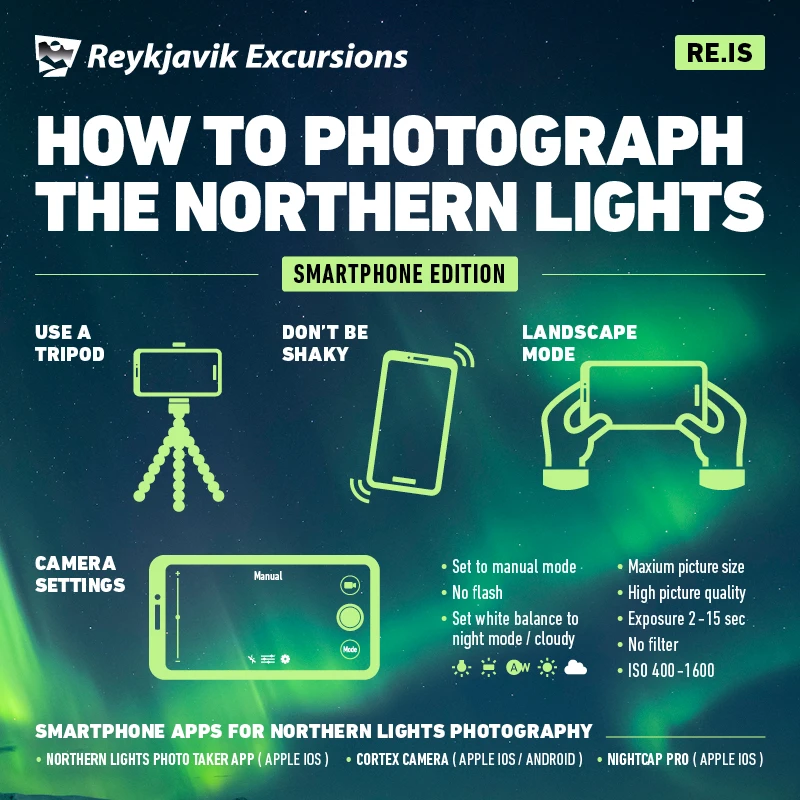
SnapRoamer.com – To photograph the Northern Lights with a smartphone, you must use Manual/Pro Mode to set a wide aperture (ideally f/1.8–f/2.8), a long shutter speed (4–15 seconds), and an ISO between 1600 and 3200. A tripod is mandatory to prevent motion blur during these long exposures.
Even when a display is active, it can appear to the naked eye as little more than a gray cloud, making smartphone sensors essential for detecting the true colors of the aurora.
The Cold Weather Survival Guide for Smartphone Photographers
Low temperatures directly impact chemical reactions within lithium-ion batteries, leading to rapid voltage drops and sudden device shutdowns. These temperature shifts can interrupt the process of writing a RAW file to storage, potentially causing data corruption.
Preventing Battery Drain in Sub-Zero Temps
Cold environments accelerate battery depletion. To mitigate this, keep your smartphone in an inner pocket close to your body heat. Practitioners suggest using the Windy app to monitor cloud cover and wind speeds, ensuring you only expose your device when viewing conditions are optimal. Avoid using high-brightness settings or heavy background applications that consume significant power.
Managing Lens Fogging and Condensation
A common failure mode occurs when moving a cold phone into a warm vehicle or tent. Rapid warming causes moisture to condense on the lens, resulting in blurry, milky images. To prevent this, place your phone in a sealed, airtight plastic bag before entering a warm environment. Allow the device to reach ambient temperature gradually inside the bag to prevent condensation from forming directly on the glass.
- Keep a spare power bank inside an insulated pouch.
- Avoid touching the lens with bare hands to prevent oil transfer.
- Use a Bluetooth shutter remote to minimize physical contact with the device in the cold.
Troubleshooting: Why Your Aurora Photos Look Wrong
If your aurora looks like a green blob, your shutter speed is likely too long; if the sky is pitch black, your ISO is too low. To avoid blowing out the green channel, always aim to slightly underexpose the scene rather than overexposing.
Misinterpreting the light levels is a frequent error for beginners. While it might seem intuitive to increase exposure to see more detail, overexposure often leads to “blowing out” the green channel, a phenomenon where the color information is lost to pure white or neon saturation. Dave Morrow Photography notes that “it’s always better to underexpose the photo as not to blow out the green channel.”
Another failure mode is the “green blob” effect. This occurs when the shutter speed is set too high (e.g., 30 seconds) during a highly active aurora, causing the moving light to smear into a single, featureless mass. Aim for shorter durations when the lights are dancing rapidly.
Essential Manual Settings for Aurora Capture
Set your smartphone to Manual/Pro Mode. Use a wide aperture (f/1.4 to f/2.8) to maximize light, a shutter speed between 4 and 15 seconds, and an ISO range of 1600–3200. Set your White Balance to 3500K–4200K to prevent orange color casts.
Manual control allows you to balance the three pillars of exposure—ISO, shutter speed, and aperture—to suit the specific intensity of the aurora. Mikko Lagerstedt emphasizes that a tripod is not optional; the phone must remain perfectly still for the duration of the exposure.
| Setting | Recommended Range | Purpose |
|---|---|---|
| Aperture | f/1.4 – f/2.8 | Maximize light intake |
| Shutter Speed | 4 – 15 seconds | Capture light without motion blur |
| ISO | 1600 – 3200 | Increase sensor sensitivity |
| White Balance | 3500K – 4200K | Prevent orange/warm color casts |
The table above provides a baseline for most smartphone sensors. While some professional cameras can handle an ISO of 6400, smartphone sensors are smaller and generate significant digital noise at these levels. Aiming for the 1600–3200 range typically provides the best balance between light sensitivity and image clarity.
Mastering ISO and Shutter Speed
The relationship between ISO and shutter speed is a trade-off between light and noise. Increasing the ISO makes the sensor more sensitive, but it introduces grain. Dave Morrow Photography advises: “The goal is to keep your ISO low as possible, while still shooting at the correct f-stop and shutter speed to correctly expose the scene.” If the sky is too dark, increase your shutter speed toward the 15-second limit before pushing the ISO beyond 3200.
The Importance of White Balance (Kelvin)
Auto White Balance (AWB) often fails in the dark, incorrectly interpreting the green aurora as a color error and attempting to “correct” it by adding orange tones. To maintain the natural purples and greens of the aurora, manually set your Kelvin (K) value. A cooler setting between 3500K and 4200K is generally most effective for night skies.
iOS vs. Android: Workflow and App Recommendations
The software ecosystem determines how much manual control you can exert over the sensor. While high-end devices like the Samsung Galaxy S22 and Apple 14 Max Pro offer excellent native capabilities, third-party apps can unlock deeper manual parameters.
| Platform | Recommended App | Key Feature |
|---|---|---|
| iOS | NightCap Camera | Long exposure automation |
| iOS | ProCamera | Manual RAW control |
| Android | ProCam X | Advanced Pro Mode settings |
On iOS, users can utilize “Live” mode to take a burst of photos and then switch the mode within the photo settings to “Long Exposure” to join the frames together. On Android, utilizing the native Pro Mode is often the most direct path to adjusting ISO and shutter speed. Always ensure you are shooting in RAW format to preserve the maximum amount of data for post-processing.
Mobile-First Post-Processing: Fixing Noise and Color
Because mobile sensors are small, they gather less light and often produce digital artifacts. Using Snapseed allows for precise control over individual color channels to recover subtle textures lost during the initial capture.
- Noise Reduction: Use Snapseed to target “chrominance noise,” which appears as colorful speckles in dark areas.
- Clarity and Contrast: Slightly increasing clarity can help define the edges of the aurora curtains.
- White Balance Correction: Use the “Temperature” slider to fine-tune the Kelvin values if the sky looks too yellow.
- Shadow Recovery: Be cautious when lifting shadows; doing so too aggressively will amplify the digital noise.
According to fr33water, using apps like Snapseed allows for precise control over individual color channels. This is critical when trying to recover the subtle textures of a faint aurora display that may have been lost in the initial capture.
FAQ
Do I really need a tripod for smartphone aurora photography?
Yes, a tripod is mandatory. Even a slight movement during a 3-10 second exposure will cause significant blurring and loss of detail. Without a stable base, the long shutter speeds required for aurora capture will result in unusable, shaky images.
Can I use Night Mode instead of Manual Mode?
Manual/Pro Mode is preferred because it provides direct control over ISO and white balance. While Night Mode automates exposure, manual settings help prevent the common error of blowing out the green channel.
What is a good ISO for aurora shots on a phone?
Aim for a range between 1600 and 3200. Higher ISOs gather more light but introduce significant digital noise, while lower ISOs may result in a black sky. Finding the “sweet spot” depends on the intensity of the aurora and your specific phone model.