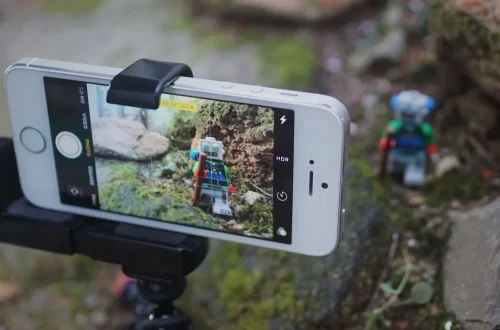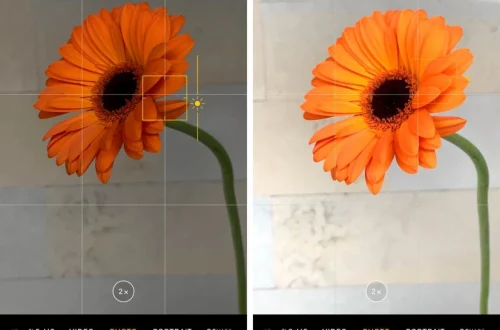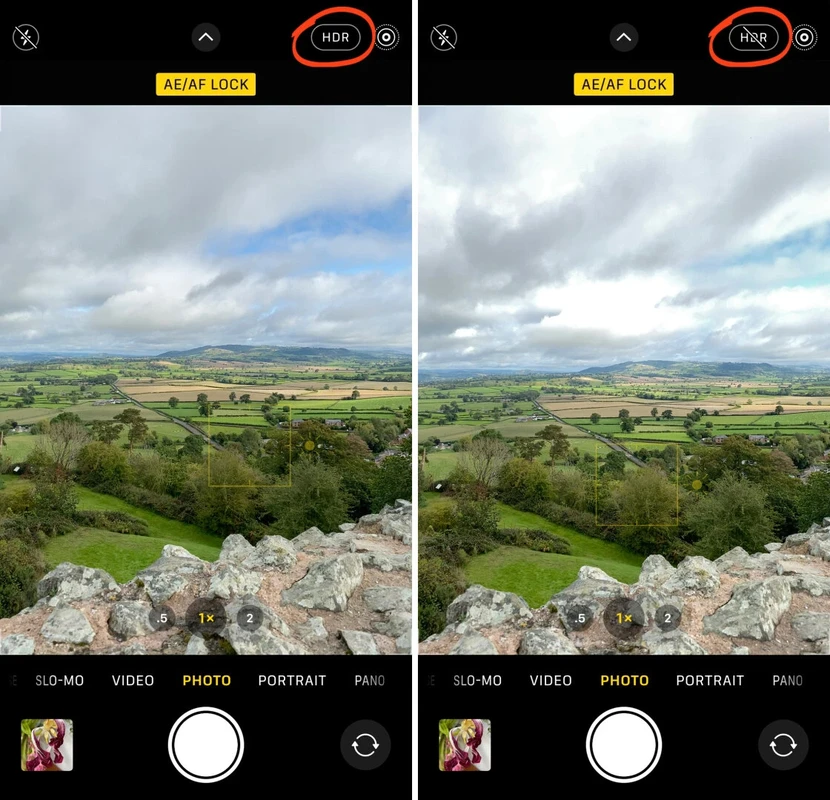
SnapRoamer.com – Manual focus on iPhone allows you to override the device’s automatic algorithms to achieve precise sharpness, especially in macro photography or low-contrast scenes. You can achieve this using the native ‘AE/AF Lock’ feature or by utilizing professional third-party apps like Halide or ProCamera for granular control via focus sliders and peaking.
“The goal is creative intent. You’re no longer letting algorithms guess what you want. You’re telling your iPhone exactly how to behave — just like a DSLR.” (iphotography.com)
Mastering the Focus Pull: Cinematic Manual Control
Focus pulling in iPhone video involves transitioning the focal plane from one subject to another. To do this professionally, use a third-party app like ProCamera or Halide that supports manual focus sliders or gestures, allowing you to smoothly shift focus between foreground and background elements during a single continuous shot.
Transitioning focus in video
Achieving a cinematic look requires more than just a static sharp image; it requires the ability to direct the viewer’s eye through motion. While Apple’s built-in camera app is optimized for simplicity and makes many decisions for the user regarding exposure and focus, it lacks the granular transition tools required for professional focus pulling. Practitioners often find that relying on automatic focus during a shot results in “hunting,” where the lens rapidly shifts back and forth, breaking the immersion of the scene.
Using gestures for smooth pulls
To move beyond basic shots, creators utilize specific manual controls provided by specialized software. For example, ProCamera v11.4 introduced advanced manual focus capabilities that allow for much tighter control over the focal plane. Using the ProCamera Manual Focus Gesture, you can lock focus by tapping and holding the blue focus reticle, then swipe up or down to adjust distance. For even finer adjustments, a left or right swipe provides the precision necessary for subtle transitions. This method prevents the sudden, jarring shifts common in automated systems.
- ProCamera Gesture: Tap and hold blue reticle > Swipe up/down (distance) > Swipe left/right (fine adjustment).
- Halide Mark II: Provides high-level manual control for professional-grade precision.
- Continuous Capture: Maintaining a steady hand is vital, as even a 1-second exposure can be compromised by movement.
A common failure mode occurs when a user attempts a focus pull too quickly, causing the lens mechanism to struggle to keep up with the requested change in focal length. This results in a blurred transition rather than a smooth glide. Slow, deliberate movements are essential for a professional result.
Why Manual Focus Fails: A Troubleshooting Guide
Even with manual intent, several technical factors can prevent an image from reaching peak sharpness. Understanding these failure modes is the difference between a professional shot and a wasted capture.
One frequent issue is incorrect focus, where the background is accidentally brought into focus instead of the intended subject. This often happens when the user taps the background area in the native app instead of the foreground subject. Another critical pitfall is the blurred subject caused by a sudden change in distance. In macro photography, if you move the iPhone even a few millimeters after setting the focus, the subject will immediately fall out of the focal plane.
Camera shake is another significant factor, especially in low-light situations where the camera may use slower shutter speeds. If the device moves while the shutter is active, the resulting image will suffer from motion blur. Furthermore, manual control can lead to under or over-exposure if the user fails to account for the scene’s dynamic range. Unlike the native app, which balances light automatically, manual mode requires constant monitoring of the exposure levels to ensure the subject isn’t lost in shadow or blown out by highlights.
The Macro Physics: Achieving Sharpness at 2cm
To achieve macro focus on an iPhone, you must utilize the Ultra Wide lens and manage the distance carefully. Modern iPhones are engineered for macro control as close as 2cm, but you must ensure the ‘Macro Icon’ (flower symbol) is active to prevent the lens from hunting for focus.
The physics of macro photography requires the lens to operate at a very specific, extremely short distance. According to industry resources like Moment, the hardware is specifically engineered to allow focus as close as 2cm away, providing a precise focus range with low vignetting. However, the margin for error is incredibly slim. If you are at 2cm and move to 3cm, you have likely exited the area of sharpest focus.
Shortcut: To ensure macro mode is active, look for the Flower Icon on the screen and ensure it is highlighted. If the icon is not present or active, the iPhone may attempt to use the main lens, which cannot focus at such close proximity.
A counterintuitive reality of macro photography is that more light does not always mean a better macro shot. While light is necessary, excessive brightness can cause the camera to decrease the depth of field even further, making the “sweet spot” of focus almost impossible to hit without a tripod. If you find the focus is constantly “hunting,” try increasing the light or using a manual focus app to lock the distance.
Native Controls vs. Professional Third-Party Apps
The choice between using the built-in iOS camera and a specialized application depends entirely on the level of creative control required for the specific project.
Apple’s native camera app is optimized for simplicity, producing bright, balanced photos that are ready for social media. It uses a “Tap to Focus” method where a yellow square indicates the focus point. To lock this, you must use the AE/AF Lock technique: touch and hold the focus area until the lock icon appears. This is excellent for quick snapshots but lacks professional depth.
In contrast, professional apps like Halide Mark II, ProCamera, and Camera M offer granular, DSLR-style controls. These apps allow for features like focus peaking and manual exposure compensation that the native app hides from the user. Below is a comparison of the most prominent options available for iPhone users.
| App Name | Primary Focus Tool | Best Use Case | Key Feature |
|---|---|---|---|
| Halide Mark II | Manual Focus Slider | Professional Photography | Advanced Focus Peaking |
| ProCamera | Gestural Control | Cinematic Video | Manual Focus Gestures |
| Camera+ 2 | Manual Focus Slider | General Manual Control | DSLR-style Interface |
| Camera M | Magnifier & Peaking | Extreme Detail/Macro | 4x Magnifier |
| Manual Camera | Manual Focus, ISO, WB | Full Manual Control | Granular ISO/WB |
While third-party apps provide superior control, they can be more resource-intensive. Industry analysts note that using manual modes, especially when shooting in RAW formats, can drain the battery faster due to the extended processing required for each frame.
The Pro Approach: Focus Peaking and Magnifiers
Professional workflows rely on visual confirmation. Apps like Camera M include a 4x magnifier, which allows the user to zoom in on a specific area of the sensor to ensure the focus is tack-sharp before taking the shot. This is particularly useful for subjects with very low contrast, where the human eye might struggle to judge sharpness on a small mobile screen.
Hardware Synergy: Using the Camera Control Button
Recent hardware iterations have introduced physical touchpoints to bridge the gap between mobile and dedicated camera hardware. On newer iPhone models, the Camera Control button provides a new way to interact with manual settings.
By using a Camera Control Double-Press, users can open an overlay of settings including exposure and focus. This allows for tactile adjustments without obscuring the screen with finger swipes. This physical interaction mimics the experience of a traditional camera dial, providing a more intuitive way to “feel” the adjustments being made. However, users should be aware that accidental presses can trigger a change in settings mid-shot, so precision in the double-press motion is required to avoid unintended focus shifts.
Advanced Visual Aids: Peaking and Magnification
For those moving into serious manual photography, visual aids are non-negotiable. focus peaking is a technique used in apps like Halide and Camera M to highlight the exact edges of objects that are in sharp focus. This is typically represented by colored highlights (often green or white) that dance along the edges of the subject in the viewfinder.
Without peaking, a user is essentially “flying blind,” relying solely on the visual clarity of the screen. This is dangerous in low-contrast environments, such as a subject against a gray wall, where the difference between “nearly sharp” and “perfectly sharp” is nearly invisible to the naked eye. Utilizing a 4x magnifier in conjunction with focus peaking allows for a level of precision that approaches what is possible with a full-frame DSLR. For example, in the Manual Camera – Focus, ISO, WB app, users can combine these tools to ensure that every technical aspect—from the white balance to the exact focal plane—is perfectly calibrated before the shutter is even pressed.
FAQ
How do I lock focus on my iPhone?
To lock focus using the native app, use the AE/AF lock feature. You must touch and hold the specific area on your screen where you want the focus to remain. Continue holding until the “AE/AF Lock” notification appears on the display, indicating the focus and exposure are now fixed.
Why is my macro photo blurry?
Blurry macro shots are usually caused by two factors: changing the distance between the iPhone and the subject after focusing, or camera shake. Because macro photography has an extremely shallow depth of field, moving even a tiny amount will move the subject out of focus. Additionally, low light can cause shake if the shutter speed is too slow.
What is focus peaking?
Focus peaking is a visual aid found in professional apps like Halide. It works by highlighting the sharpest edges in your viewfinder with colored lines or highlights. This allows you to see exactly which parts of your image are in focus, which is essential when you cannot rely on the camera’s automatic systems.