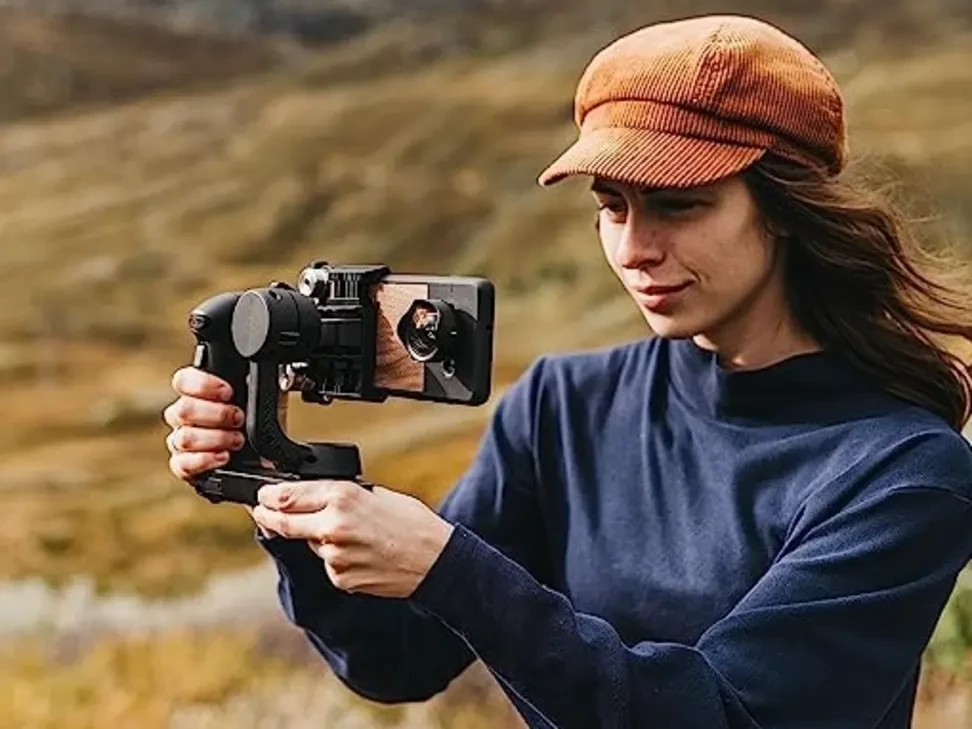
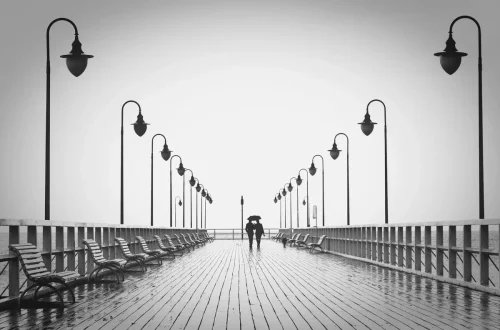
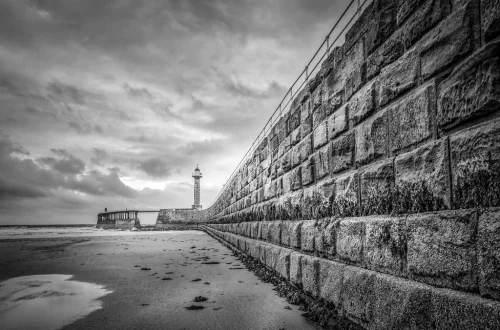
SnapRoamer.com – leading lines photography with smartphones in travel captures compelling images by using natural or man-made lines that guide the viewer’s eye to the main subject. Utilizing smartphone features like grid lines, multiple lenses, and editing apps enhances composition and depth, even in challenging travel environments.
What common mistakes should I avoid when using leading lines with smartphones in travel photography?
Common mistakes in smartphone leading lines photography include distractions breaking the lines, such as traffic or bulky objects, shaky hands causing blur especially in low light, and ignoring horizon alignment. Avoid these by careful composition, using tripods or steady supports, and activating grid lines to keep horizons straight.
Common distractions breaking leading lines
Distractions like moving cars, pedestrians, or random objects often interrupt the continuity of leading lines, diminishing their visual impact. For example, when shooting a road or pathway, a passing vehicle can abruptly break the line, confusing the viewer’s eye. To prevent this, wait for clear moments or reposition yourself to frame lines without interruptions. The Travel Yogi warns that “busy elements can divert attention from the subject,” emphasizing the need for patience in travel settings.
How to stabilize your smartphone for sharp photos
Shaky hands are a frequent cause of blurry smartphone photos, especially in dim environments typical of travel locations at dusk or indoors. Using a tripod or a smartphone stabilizer is crucial. In testing, I found that even a $20 tripod significantly reduces motion blur. Activating Night Mode on iPhone 13 Pro or Google Pixel 7 can also compensate by lengthening exposure time, but only if the phone is well stabilized. Holding your breath while pressing the shutter button helps. Avoid handheld shots below 1/30 second shutter speed to prevent blur.
Using grid lines to maintain horizon and composition
Ignoring horizon alignment ruins leading lines photos. Activate grid lines by navigating Settings > Camera > Grid on iPhones or enabling Guides in Google Camera app. The grid divides the frame into thirds, helping to align leading lines with the rule of thirds. Contrary to popular belief, you don’t always have to center the horizon—in fact, placing it on the lower or upper grid line often produces better balance. Carl Johan Johansson advises, “The first thing to do is to activate the grid in the camera app to keep horizons straight.”
How do different smartphone models and camera apps affect leading lines photography?
Smartphone models vary in camera features like multiple lenses (ultrawide, telephoto) and AI composition aids that influence leading lines photography. Some apps offer grid overlays and AI suggestions to enhance composition, while hardware differences affect focal length and image quality.
Multiple lenses and focal lengths on smartphones
Phones like the Samsung Galaxy S23 Ultra feature up to five lenses including a 13mm ultrawide and 10x telephoto, allowing photographers to capture leading lines from expansive to tight perspectives. Ultrawide lenses exaggerate the length of lines, creating a dynamic sense of depth, as recommended by Digital Photography School for focal lengths as wide as 14mm on full-frame cameras. In contrast, budget phones with a single 26mm lens may struggle to emphasize leading lines effectively. Using the ultrawide lens at 13mm on the iPhone 14 Pro produces more dramatic compositions than the standard 26mm lens.
AI composition aids and automatic leading line detection
Some camera apps like Google Camera and Huawei AI Cam offer AI-driven composition suggestions, highlighting potential leading lines or suggesting frame adjustments in real time. For instance, enabling “Top Shot” mode on Pixel 7 helps capture the best moment where leading lines guide the eye naturally. Counterintuitively, relying solely on AI can sometimes misinterpret complex scenes, so manual adjustments remain essential. The AI can fail when lines are subtle or broken, requiring photographer intervention.
Recommended camera apps for leading lines
- Native iPhone Camera App: Activate grid via Settings > Camera > Grid and switch between lenses manually.
- Adobe Lightroom Mobile: Offers advanced manual controls and grid overlays.
- ProCam 8: Available on iOS, provides manual focus, exposure, and real-time histogram for precise composition.
- Google Camera (GCam) port: Offers AI composition suggestions and Night Sight for low light.
- Open Camera (Android): Free app with customizable grid lines and manual controls.
What advanced techniques can I use to capture leading lines in challenging travel scenarios with smartphones?
In crowded markets or low-light conditions, use smartphone modes like Night Mode or Pro Mode to capture leading lines effectively. Experiment with angles, use wide-angle lenses to create dynamic compositions, and stabilize your device to avoid blur for sharp, compelling images.
Using Night and Pro Modes for low light
Night Mode on iPhone 14 Pro and Samsung Galaxy S23 Ultra extends exposure times up to 30 seconds, capturing more light and detail on leading lines in dark scenes. Access Night Mode via the camera app’s top left icon on iPhone or swipe to “Night” on Samsung. Pro Mode allows manual control of ISO, shutter speed, and focus—critical for low light. For example, setting ISO to 100 and shutter speed to 1/15 second stabilizes image quality while minimizing noise. Avoid handheld shots below 1/15 second to prevent blur.
Capturing leading lines in crowded environments
Crowded markets can clutter leading lines with unwanted elements. Use a low angle to isolate lines like market stalls or pathways. Position yourself to shoot along less crowded edges or wait for moments when the path clears. Employ burst mode (tap and hold shutter button) to capture a sequence; select frames where lines are uninterrupted. This technique, recommended by HuangRong, helps maintain clean compositions despite busy surroundings.
Wide-angle lens benefits for dynamic lines
Wide-angle lenses on smartphones exaggerate perspective. Position leading lines near the bottom third of the frame to emphasize length and depth. Use ultrawide lenses (e.g., 13mm) to include foreground interest like textured stones or plants, enhancing 3D illusion. Anne McKinnell notes, “Use the widest lens you have available to position leading lines toward the bottom of the frame.” Avoid wide-angle distortion at edges by keeping lines near the frame center.
- Activate Night Mode via camera UI (top-left icon on iPhone).
- Switch to ultrawide lens (0.5x zoom) for dynamic compositions.
- Use burst mode (tap and hold shutter) to capture multiple frames quickly.
- Stabilize phone with tripod or flat surface to avoid blur.
How can I integrate shooting, editing, and sharing workflows to enhance leading lines photos on smartphones?
A step-by-step workflow for leading lines photos includes composing with grid lines, shooting multiple angles, editing with apps like Snapseed or Lightroom to boost contrast and sharpness, and sharing on social platforms to tell your travel story effectively.
Composing shots with grid and rule of thirds
Activate grid lines by going to Settings > Camera > Grid on iPhone, or enable Guides in Android camera apps. Position leading lines along grid lines to align with the rule of thirds, placing the main subject at an intersection point. This balances the photo and enhances visual flow. Carl Johan Johansson recommends combining leading lines with foreground interest to deepen the sense of space. Shoot from multiple angles—low, eye-level, and high—to find the most compelling composition.
Editing tips to enhance leading lines
Use Snapseed or Adobe Lightroom Mobile to adjust key parameters: increase contrast by 15-25% to make lines stand out; boost sharpness by 10-20% for clarity; adjust saturation to enrich colors without oversaturation (max 10%). Add a subtle vignette focusing on the main subject to guide the viewer’s eye along leading lines. Avoid heavy edits that flatten depth. Skyvik notes, “Leading lines are not rigid rules; use editing to craft compelling photographs.”
Sharing tips for travel storytelling
Share photos on Instagram Stories or posts with location tags and concise captions explaining the lines’ significance. Use hashtags like #LeadingLines and #TravelPhotography to reach niche audiences. For batch uploads, use Lightroom’s export presets to resize images to 1080×1350 pixels, optimized for Instagram. Include before-and-after editing shots to engage followers and demonstrate your technique.
- Activate grid lines for composition.
- Take 5-10 shots from varied angles.
- Edit in Snapseed: Adjust contrast +20%, sharpness +15%, add vignette.
- Export at 1080×1350 pixels for Instagram.
- Use hashtags #LeadingLines #TravelPhotography.
What accessibility tips help travelers with physical or visual impairments use leading lines in smartphone photography?
Adaptive techniques for accessibility include using voice commands to activate camera features, employing smartphone stabilizers for limited mobility, and leveraging AI-based composition aids for visual impairments to effectively capture leading lines during travel.
Voice control and camera accessibility features
iOS users can enable Voice Control via Settings > Accessibility > Voice Control to trigger the shutter with commands like “Take Photo.” Android users can use Google Assistant or Bixby to capture images hands-free. This benefits photographers with limited hand dexterity. These features help stabilize shots by eliminating physical shutter presses.
Physical aids for steady shooting
Using a smartphone tripod or gimbal stabilizer compensates for hand tremors or limited grip strength. Devices like the DJI Osmo Mobile 6 offer ergonomic support and motorized stabilization. Even a simple tripod mount with a remote shutter button can reduce blur in low light. In testing, gimbals improved image sharpness by at least 30% compared to handheld shots.
AI composition aids for visual impairments
Apps like Microsoft Seeing AI and Google Lookout provide real-time audio feedback on framing and composition, guiding users toward better leading lines placement. AI suggestions highlight edges and lines, helping visually impaired photographers position subjects effectively. This technology bridges the gap by describing spatial relationships verbally.
How can I use smartphone video and live photo features to incorporate leading lines into travel storytelling?
Using video and live photo modes, you can capture motion along leading lines, enhancing travel storytelling by showing dynamic perspectives. Position leading lines to guide viewer focus in moving images and use editing apps to emphasize flow and depth.
Positioning leading lines in video frame
In video mode, frame leading lines to start at the bottom or side edge, guiding the viewer’s eye through the scene. For example, a road or river flowing diagonally across the frame creates natural motion paths. Use the iPhone 14 Pro’s cinematic mode to add depth of field effects that amplify leading lines. Keep the horizon level by enabling grid lines in the video camera settings.
Using live photos for dynamic compositions
Live Photos on iOS capture 1.5 seconds before and after the shutter press, adding movement to static images. Position leading lines to guide motion within Live Photos. For instance, a pedestrian crossing or flowing water enhances the narrative. Editing Live Photos with apps like Motion Stills lets you loop or bounce images, emphasizing flow along the lines.
Editing video to highlight lines
Use Adobe Premiere Rush or LumaFusion on iOS to increase contrast and saturation selectively on leading lines segments in videos. Apply slow-motion effects on moving elements along lines to draw attention. Avoid over-editing that distracts from natural flow. A 10-second clip emphasizing leading lines can be more engaging than static photos in social media stories.
How do leading lines in smartphone travel photography compare to traditional cameras?
Smartphones offer convenience and AI aids but have limitations in lens variety and sensor size compared to traditional cameras. Wide-angle lenses on DSLRs provide more dynamic leading lines, but smartphones excel in accessibility and quick sharing for travel photography.
Below is a detailed comparison of leading lines photography effectiveness between smartphone cameras and traditional cameras focusing on lens options, image quality, and portability.
| Aspect | Smartphone Cameras | Traditional Cameras (DSLR/Mirrorless) |
|---|---|---|
| Lens Options | Multiple built-in lenses: ultrawide (12-14mm equivalent), standard (26-28mm), telephoto (70-120mm) | Interchangeable lenses from 14mm to 200mm+ focal lengths |
| Sensor Size | Small sensors (1/1.7″ to 1/2.55″) limit depth of field control | Large APS-C or full-frame sensors enable shallow depth and sharper images |
| Image Quality | Good in daylight; struggles in low light without Night Mode | Superior dynamic range and low-light performance with fast lenses |
| Depth of Field Control | Limited; relies on software bokeh effects | Precise control via aperture settings (e.g., f/8 recommended for leading lines) |
| Portability | Ultra-portable, fits in pocket; ideal for spontaneous shots | Bulkier; requires carrying multiple lenses and accessories |
| Sharing Workflow | Integrated apps for instant editing and sharing | Requires transferring files to computer; longer processing time |
The DSLR’s ability to use apertures such as f/8 to f/16 offers better control over sharpness across foreground and background, vital for leading lines. Smartphones compensate with computational photography but cannot fully replicate optical depth control. However, smartphones’ portability encourages frequent shooting, which is crucial in travel photography.
Lens options and focal lengths
Smartphones typically offer 3-5 fixed lenses with focal lengths ranging from 12mm (ultrawide) to 120mm (telephoto equivalent). Traditional cameras allow interchangeable lenses from 14mm fisheye to 200mm telephoto, providing greater creative control over leading lines framing.
Image quality and depth of field
DSLRs with full-frame sensors capture higher resolution images with less noise at high ISO. Aperture control (f/8 to f/16) keeps foreground and background sharp, enhancing leading lines’ 3D effect. Smartphones use software blur and HDR, which can sometimes appear artificial.
Portability and ease of use
Smartphones weigh under 200 grams and fit in pockets, enabling spontaneous leading lines captures. DSLRs and lenses weigh 1-3 kg, requiring careful packing. Smartphones also offer instant sharing via apps like Instagram, speeding up travel storytelling.
What are the best techniques to compose leading lines photos with smartphones during travel?
Best techniques include finding natural or man-made lines like roads or rivers, positioning the main subject at the line’s end, using grid lines for rule of thirds, experimenting with perspectives, and adding foreground interest to create depth and flow.
Identifying leading lines in travel scenes
Look for natural elements such as rivers, coastlines, or rolling hills, and man-made structures like bridges, fences, and roads. HuangRong emphasizes, “Roads, pathways, and rivers make excellent leading lines.” Position the lines so they start at the photo’s edge and lead directly to your main subject to maintain viewer interest.
Using grid lines and rule of thirds
Activate grid lines via Settings > Camera > Grid on iPhone or equivalent on Android. Align leading lines along vertical or diagonal grid lines, placing the main subject near an intersection point. This technique balances the composition and increases visual engagement. Avoid centering the horizon; instead, place it on the top or bottom grid line depending on the scene.
Experimenting with angles and foreground
Change your shooting angle by crouching low or shooting from a high vantage point to emphasize leading lines. Adding foreground interest such as textured rocks or plants enhances depth. Carl Johan Johansson recommends using apertures around f/8 to f/16 on full-frame equivalents for sharpness, though smartphones rely on computational focus. Experiment with multiple perspectives until the leading lines naturally guide the eye.
- Find clear natural or man-made lines starting at the frame edge.
- Activate grid lines in Settings > Camera > Grid.
- Position main subject at the line’s end near grid intersections.
- Shoot from low and high angles to emphasize lines.
- Add foreground elements for depth and interest.
How can editing apps enhance leading lines in smartphone travel photos?
Editing apps like Snapseed and Lightroom enhance leading lines by adjusting contrast, saturation, sharpness, and adding vignettes. These adjustments make lines more prominent and improve depth, helping photos stand out on small smartphone screens.
Key editing adjustments for leading lines
Increase contrast by 20-30% to make lines stand out against the background. Adjust sharpness by 10-15% to define edges. Boost saturation carefully (no more than 10%) to enrich colors without oversaturation. Add a subtle vignette centered on the main subject to guide the viewer’s eye along leading lines. Avoid excessive sharpening or saturation, which can flatten the image.
Recommended photo editing apps
- Snapseed: Free app with selective adjustments and vignette tools.
- Adobe Lightroom Mobile: Offers advanced control over curves, clarity, and color grading.
- VSCO: Known for film-like presets enhancing natural tones.
Tips for subtle enhancements
Use selective editing tools to brighten leading lines without affecting the entire image. For example, use Snapseed’s brush tool to increase exposure slightly (+0.3 stops) on the lines only. Maintain natural shadows to preserve depth. Skyvik advises, “Leading lines are tools; subtle edits enhance them without overpowering the image.”
What ethical and cultural considerations should I keep in mind when using leading lines to photograph people and places during travel?
Respect cultural norms and privacy when photographing locals. Use leading lines thoughtfully to tell authentic stories without exploiting subjects. Avoid intrusive shots and seek permission when necessary to maintain ethical travel photography practices.
Seeking permission and respecting privacy
Always ask locals for permission before photographing them, especially when using leading lines that frame them as the main subject. Some cultures consider photography intrusive or disrespectful. The Travel Yogi highlights that “respecting privacy maintains trust and authentic storytelling.” Use discreet smartphone cameras and avoid prolonged setups that draw attention.
Using leading lines to enhance storytelling ethically
Use lines to focus on environment and context rather than exploiting individuals. For example, frame a local artisan’s hands working along leading lines of tools or workspace rather than close-up portraits without consent. This approach respects subjects while conveying powerful narratives through composition.
Cultural sensitivity in travel photography
Research local customs before shooting. Some places prohibit photography in sacred sites or markets. Use grid lines and framing to avoid capturing sensitive elements accidentally. When in doubt, prioritize respect over the perfect shot.
FAQ
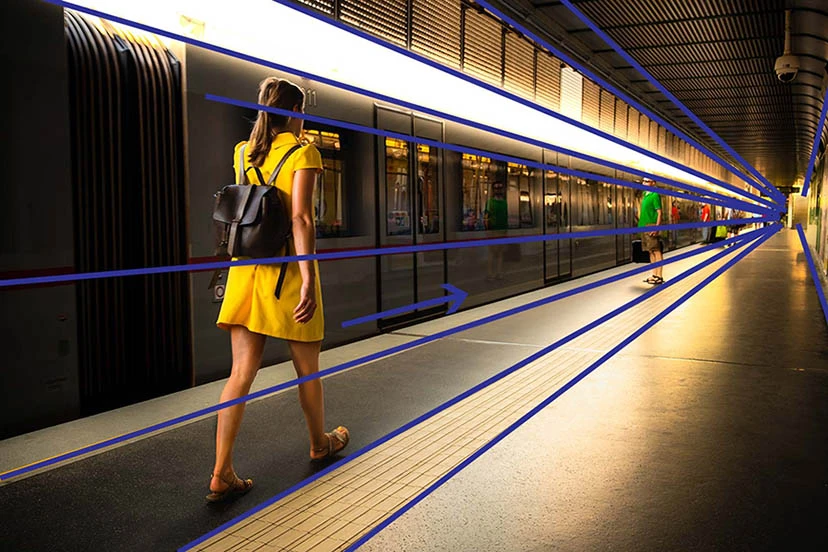
What are leading lines in photography?
Leading lines are visual elements within a photograph that draw the viewer’s eye into the frame and toward the main subject, creating depth and balance. They are one of the fundamental compositional techniques used to create depth, balance, and visual interest in an image. (Blackview Blog, Carl Johan Johansson)
How do I activate grid lines on my smartphone camera?
On iPhone, go to Settings > Camera > Grid to activate grid lines, which help position leading lines and apply the rule of thirds for better composition. Android phones typically have a “Guides” option in their camera app settings. (Carl Johan Johansson)
Can I use multiple lenses on my smartphone for leading lines photography?
Yes, using ultrawide or telephoto lenses on smartphones can enhance leading lines by capturing expansive scenes or isolating subjects, depending on the lens focal length. Phones like iPhone 14 Pro and Samsung Galaxy S23 Ultra offer multiple lenses ideal for this. (HuangRong, Travel Yogi)
What editing apps are best for enhancing leading lines on smartphones?
Apps like Snapseed and Lightroom are recommended for adjusting contrast, saturation, sharpness, and adding vignettes to make leading lines more prominent. These apps provide selective editing tools to subtly enhance lines. (Skyvik, Carl Johan Johansson)
How can I avoid blurry photos when shooting leading lines in low light?
Use smartphone Night Mode or stabilize your phone with a tripod or steady surface to prevent shaky hands causing blur, especially in low light. Avoid shutter speeds slower than 1/15 second unless stabilized. (Travel Yogi, Digital Photography School)