SnapRoamer.com – Capturing Tokyo’s neon streets on a smartphone requires mastering the balance between extreme light sources and deep shadows. To avoid blown-out signs, use exposure compensation to underexpose slightly, shoot in RAW format for color flexibility, and utilize Night Mode or long exposure techniques to turn moving traffic into cinematic light trails.
Modern smartphone photography is computational. While sensor quality matters, the software processing that occurs after capture often determines the real-world image quality.
The Neon Contrast Cheat Sheet: Mastering Exposure in Shinjuku
To prevent neon signs from blowing out, tap the brightest part of the sign on your screen and slide the exposure compensation slider down. This preserves the saturated colors of the neon while allowing the surrounding alleyway shadows to remain deep and moody, creating a true cyberpunk aesthetic.
Avoiding the ‘Blown-Out’ Sign Trap
A common failure mode in Shinjuku or Shibuya occurs when a photographer swipes up or across on a smartphone screen to increase brightness in low light. This action often leads to irrecoverable bright spots, where the intense light of a neon sign turns into a featureless white blob. Instead of seeking brightness, practitioners recommend focusing on the highlights.
Shortcut: Tap the brightest neon element on the display, then drag the sun icon or slider downward to decrease exposure.
Why RAW is Non-Negotiable for Neon
When dealing with the high-contrast environments of Tokyo’s night streets, shooting in RAW format is highly recommended. Unlike standard JPEGs, RAW files retain significantly more detail, which allows you to lift shadows and recover lost color information during post-processing. This is vital when trying to balance the extreme luminance of a sign against a pitch-black alleyway. Relying solely on computational processing can sometimes flatten the dynamic range, making the scene look artificial rather than cinematic.
The ‘Wet Street’ Technique: Cinematic Reflections in Tokyo Alleys
Using an ultra-wide-angle lens enhances the sense of scale and depth, making the towering neon structures of Tokyo feel more dramatic. This technique is effective because wide-angle lenses help make city skylines feel more expansive.
To create a professional look, apply the Layer Blur with Still Subjects technique. This involves finding a stationary subject—such as a traveler waiting at a crossing or a street performer—and positioning them so that the blurred movement of the crowd or traffic surrounds them. This creates a sense of organized chaos. If the subject is too sharp while the background is also sharp, the image loses its cinematic “layering.” Aim for a composition where the reflection on the wet pavement acts as a secondary light source, doubling the color saturation in your frame.
Mobile Long-Exposure Hacks: Light Trails Without a Tripod
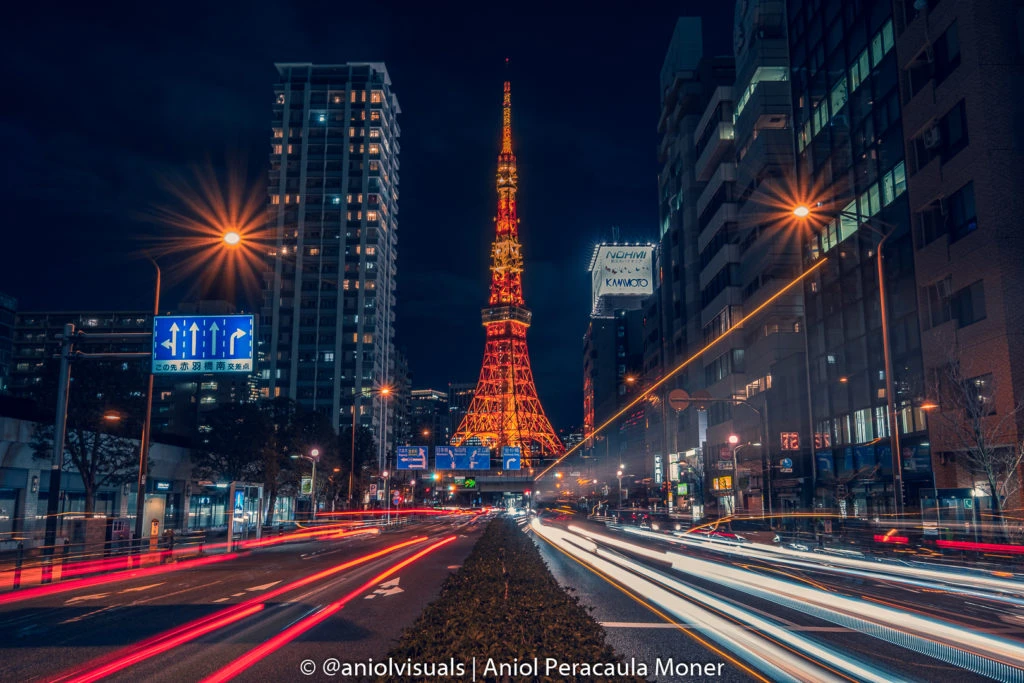
You can simulate professional light trails by using iPhone’s ‘Live Photos’ converted to ‘Long Exposure’ or Android’s dedicated ‘Long Exposure’ mode. For handheld motion blur, aim for a shutter speed between 1/10 and 1/60 of a second to capture the ‘feel’ of movement without total blur.
Capturing the flow of Tokyo’s transit requires managing light over time. While professional setups often use shutter speeds of 15 seconds to minutes for star trails or extreme light painting, smartphone users can achieve impressive results with much less gear.
- The ‘Live Photo’ Long Exposure Trick: On an iPhone, take a Live Photo of a moving vehicle. Open the photo in the Photos app, tap the “Live” button in the top left corner, and select “Long Exposure.” This will mathematically blend the frames to create smooth light trails.
- Handheld Motion Blur: For a more organic look, use a shutter speed between 1/10 and 1/60 of a second. As Brenda Bergreen notes, “Motion blur is as much about feel as it is about numbers.” This setting allows you to capture the energy of a walking crowd without the entire image turning into a smear.
- Traffic Trails in Narrow Alleys: When shooting in tight spaces, even a slight movement can ruin the shot. If you lack a tripod, rest your smartphone against a street sign or a trash bin to stabilize the device for longer durations.
iPhone vs. Android: Choosing Your Cyberpunk Engine
The choice between devices involves different visual signatures. While megapixel count does not decide which brand takes a better photo, the underlying software processing creates distinct results.
| Feature | iPhone Approach | Android Approach |
|---|---|---|
| Color Science | Prioritizes a realistic and consistent look with natural tones. | Often produces more vibrant, saturated images out of the box. |
| Depth Effects | Focuses on smooth, natural-looking background blur. | Offers flexible computational depth effects and sharper subject details. |
| Night Style | Consistent exposure across the frame. | High creative flexibility for experimental lighting. |
iPhone users typically find a more predictable experience, which is helpful when shooting quickly in crowded areas. Android users, however, often find more tools to manipulate the “cyberpunk” look directly through the camera app, such as advanced manual controls for saturation and contrast.
The Crowd-Stealth Protocol: Shooting Shinjuku Without Being Intrusive
Night street photography (Handheld) in high-density areas requires a disciplined approach to avoid disrupting the local atmosphere. A primary technical failure to avoid is camera shake or blurred images caused by physical contact with the device while pressing the shutter button.
To remain inconspicuous, use the volume buttons on the side of your phone to trigger the shutter rather than tapping the screen. This minimizes the physical movement of the phone. If you are attempting a shot of a subject, try to blend into the background by leaning against a wall or standing near a brightly lit vending machine to mask your silhouette.
Technical Troubleshooting: Avoiding the Common Nighttime Failures
Even with the best intentions, nighttime shooting presents several technical hurdles. Addressing these before you hit the shutter is the difference between a professional shot and a wasted memory.
- Grainy/Noisy Images: This is a direct result of using high ISO settings in low light. While a high ISO (such as 6400) might be necessary for Milky Way photography, in a neon environment, you should aim for the lowest ISO possible—ideally ISO 100 or 200—to ensure clean, noise-free images.
- Lack of Stabilization on Secondary Lenses: Some older smartphone models suffer from a lack of image stabilization on the second (telephoto or ultra-wide) lens. If your shots look significantly blurrier when zooming, revert to the main lens.
- Interference with tripod use: If you do use a tripod for long exposures, ensure that optical image stabilization is turned off. Leaving stabilization active while the phone is stationary can actually cause the software to create micro-jitters, resulting in a blurry image.
FAQ
Is high ISO bad for night photography?
While high ISO (like 6400) helps capture light, it can lead to grainy/noisy images. Aim for the lowest ISO possible (e.g., 100) by using longer shutter speeds or more light to maintain image clarity.
Can I take long exposure shots without a tripod on a smartphone?
Yes, by using stabilization techniques like resting your phone against a steady object or using iPhone’s ‘Live Photos’ converted to ‘Long Exposure’ mode to simulate the effect of a long shutter speed.
Why are my neon signs looking white instead of colored?
This is likely overexposure. Use exposure compensation to underexpose the shot, ensuring the sensor captures the saturated color rather than just the light intensity, which causes the “blown-out” white effect.