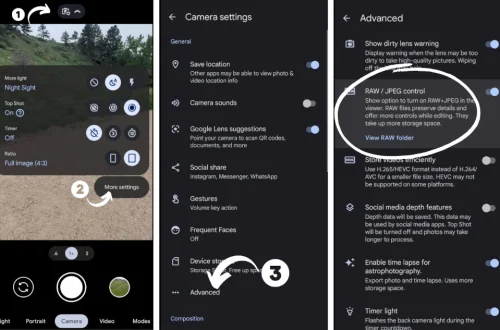
SnapRoamer.com – Adjusting exposure on a smartphone camera is essential for capturing well-lit, sharp photos across diverse lighting environments. Whether using an iPhone’s intuitive AE/AF lock or accessing Android’s Pro Mode for granular ISO and shutter speed control, mastering exposure settings elevates image quality by balancing brightness, noise, and motion blur. This tutorial provides detailed, step-by-step instructions for both auto and manual exposure adjustments, practical tips for stable shooting, and solutions for common exposure challenges on modern smartphones.
smartphone photography increasingly relies on advanced camera sensor technology and software enhancements. However, understanding fundamental exposure controls—ISO, shutter speed, aperture, and exposure compensation—remains critical for overcoming limitations like noise in low light or blown highlights in bright scenes. By locking auto exposure and focus or manually adjusting camera parameters, users gain creative flexibility and improved technical accuracy in their photos.
Understanding Exposure in Smartphone Photography
Exposure determines how much light your smartphone camera sensor captures during a photo. Proper exposure results in balanced brightness, preserving details in shadows and highlights. Overexposure causes washed-out images with loss of detail in bright areas, while underexposure produces dark, noisy photos lacking clarity.
Smartphone cameras use a combination of ISO (sensor sensitivity), shutter speed (duration sensor is exposed), and aperture (lens opening size) to regulate exposure. Most consumer devices default to automatic exposure, adjusting these settings dynamically. However, automatic modes can misinterpret complex lighting, resulting in inconsistent photo quality.
Manual exposure control and AE/AF lock let users override automatic settings, fixing exposure and focus to a desired level. This is especially useful in scenes with mixed lighting, backlight, or low light where the camera’s auto mode might struggle. Adjusting exposure compensation shifts the camera’s brightness target up or down, providing quick tweaks without full manual control.
Adjusting Exposure Using Auto Mode Features on Smartphones
Most smartphone cameras include built-in features to lock exposure and focus or adjust exposure compensation without entering full manual mode, making them accessible for casual users.
1. Locking Exposure and Focus on iPhone Cameras
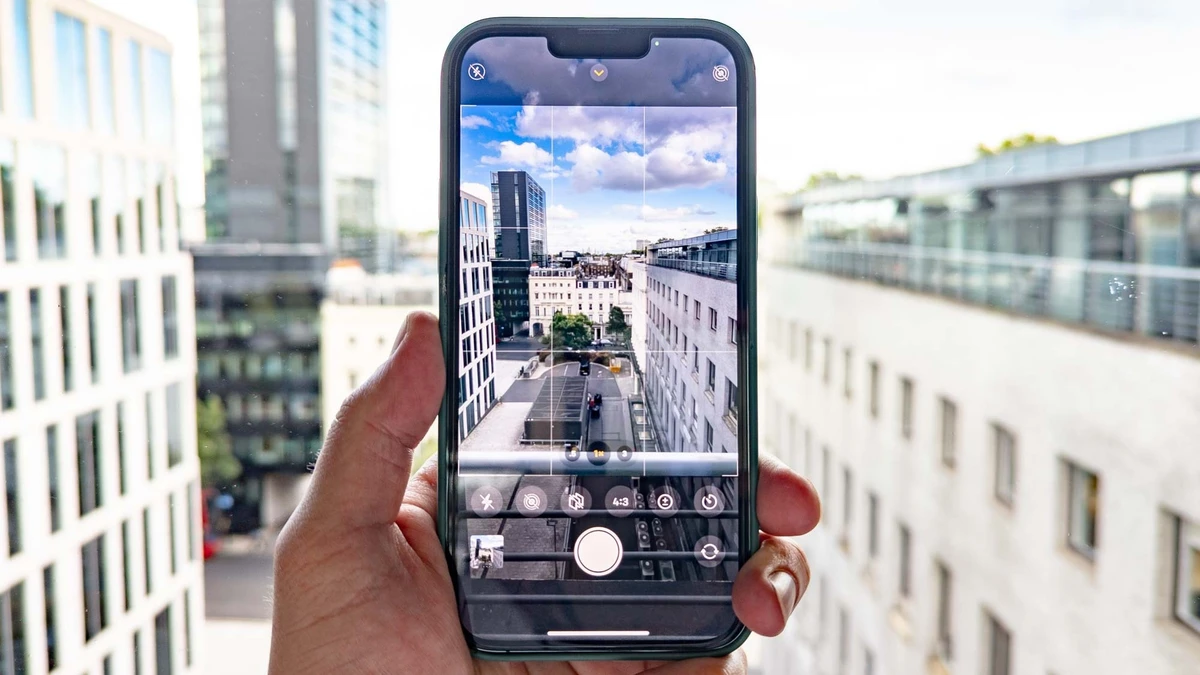
The iPhone camera app allows users to lock Auto Exposure (AE) and Auto Focus (AF) simultaneously, preventing the camera from readjusting during composition.
Steps to lock AE/AF on iPhone:
This method stabilizes exposure in mixed lighting or prevents flickering in videos caused by constant auto adjustments.
2. Locking Exposure and Focus on Android Devices
Android camera apps vary by manufacturer but generally feature similar exposure and focus lock functions.
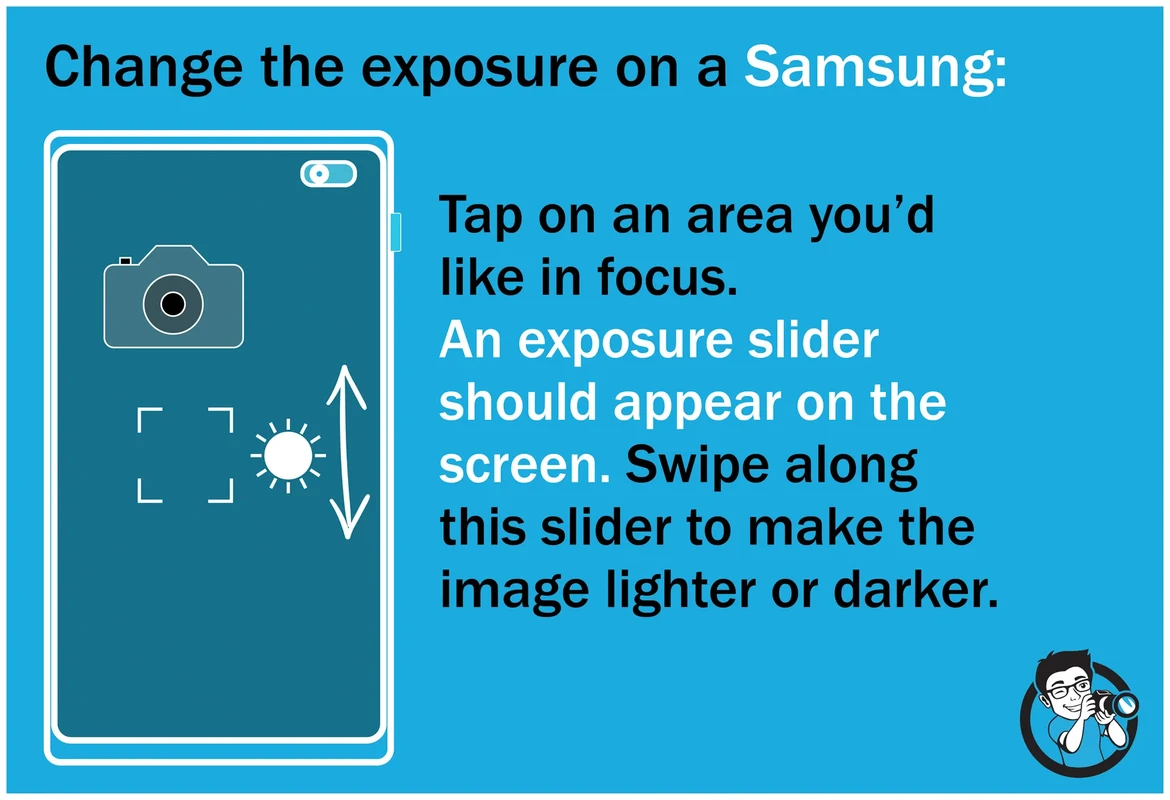
For most Android phones:
Samsung Galaxy phones, for example, display a small AE/AF lock icon when successfully locked. Users can then recompose and shoot without exposure shifting.
3. Using Exposure Compensation in Auto Modes
Exposure compensation allows quick brightness adjustment without full manual control. This is common in both iPhone and Android camera apps.
To use exposure compensation:
Exposure compensation is ideal for quick corrections, such as brightening a dark foreground or preventing sky overexposure.
Manual Exposure Control Using Pro Mode on Smartphones
Pro Mode, also referred to as Manual Mode, unlocks direct control over ISO, shutter speed, and sometimes aperture, enabling precise exposure adjustments beyond automatic settings.
1. Understanding ISO, Shutter Speed, and Aperture
Most smartphones have fixed apertures, but some advanced models (e.g., Samsung Galaxy S21 Ultra) offer variable apertures.
2. Adjusting ISO for Light Sensitivity and Noise
In Pro Mode, ISO is adjustable typically from 50 or 100 up to 3200 or higher.
3. Setting Shutter Speed for Exposure Duration and Motion Control
Shutter speeds vary from milliseconds (e.g., 1/4000s) to several seconds.
4. Using Samsung Galaxy Pro Mode and Other Android Manual Settings
Samsung Galaxy devices with Pro Mode let users adjust ISO, shutter speed, white balance, and focus manually. To activate:
Other Android phones may label manual mode differently but offer similar controls.
Practical Tips for Better Exposure Management on Smartphones
Implementing exposure settings effectively requires attention to shooting technique and environmental factors.
1. Turn Off Flash to Avoid Overexposure and Red Eye
Built-in flashes often produce harsh, uneven lighting, blowing out highlights and causing red eye. Prefer natural or ambient lighting, or use external light sources for better results.
2. Hold Your Phone Steady to Prevent Camera Shake
Longer shutter speeds are prone to motion blur from hand shake. Use a tripod, stabilize your arms against a surface, or employ smartphone stabilizing features to maintain sharpness.
3. Lock Focus and Exposure for Consistency
AE/AF lock prevents the camera from readjusting exposure and focus mid-shot, critical in scenes with changing light or when recomposing after locking.
4. Use Available Light Creatively
Face your subject towards natural light sources like windows or lamps. Briefly repositioning to capture better light can dramatically improve exposure without changing settings.
Common Challenges and Workarounds in Smartphone Exposure
Some smartphones lack full manual controls or have limited exposure adjustment options. Here are alternative methods and solutions:
1. Phones Without Manual Exposure Control
Use AE/AF lock and exposure compensation sliders to approximate manual exposure. Third-party camera apps (e.g., Open Camera for Android) may unlock additional controls.
2. Balancing Exposure in High-Contrast Scenes
Scenes with bright backgrounds and dark subjects challenge auto exposure. Lock exposure on the subject area or use HDR (High Dynamic Range) mode, which combines multiple exposures for balanced results.
3. Low-Light Photography Tips
Raise ISO cautiously, stabilize your phone, and avoid flash to reduce noise and harsh highlights. Use Pro Mode to slow shutter speed while maintaining low ISO when possible.
Common Mistakes to Avoid When Adjusting Exposure
Frequently Asked Questions (FAQ)
How do I lock exposure and focus on an iPhone camera?
Tap and hold the screen area where you want to focus. After a moment, AE/AF lock activates, indicated by a yellow banner. You can then slide the sun icon to adjust exposure manually.
Can I manually adjust ISO and shutter speed on all smartphones?
No. Only phones with Pro or Manual Mode, such as recent Samsung Galaxy models and some Android phones, allow direct ISO and shutter speed control. iPhones do not offer native manual exposure controls but can use third-party apps.
What is the best way to avoid blurry photos in low light?
Use a tripod or stabilize your phone, increase ISO moderately, and avoid slow shutter speeds unless steadied. Lock AE/AF to maintain consistent exposure and focus.
Why does increasing ISO cause grainy photos?
Higher ISO amplifies the camera sensor’s sensitivity but also increases digital noise, resulting in grainy or speckled images.
How does aperture affect smartphone photos?
A wider aperture (lower f-number) lets in more light and creates a shallow depth of field, resulting in blurred backgrounds (bokeh). Most smartphones have fixed apertures, but some models offer variable apertures for creative control.
—
To deepen your understanding of manual exposure controls and smartphone photography techniques, refer to official guides such as Apple’s iPhone Camera Tutorial and expert analysis at Android Authority’s Manual Mode Guide.
Mastering exposure adjustment on your smartphone camera empowers you to capture consistently well-exposed images tailored to your creative vision and lighting environments. Regular practice combining auto lock features with Pro Mode experimentation will enhance your technical skills and photo quality dramatically.