
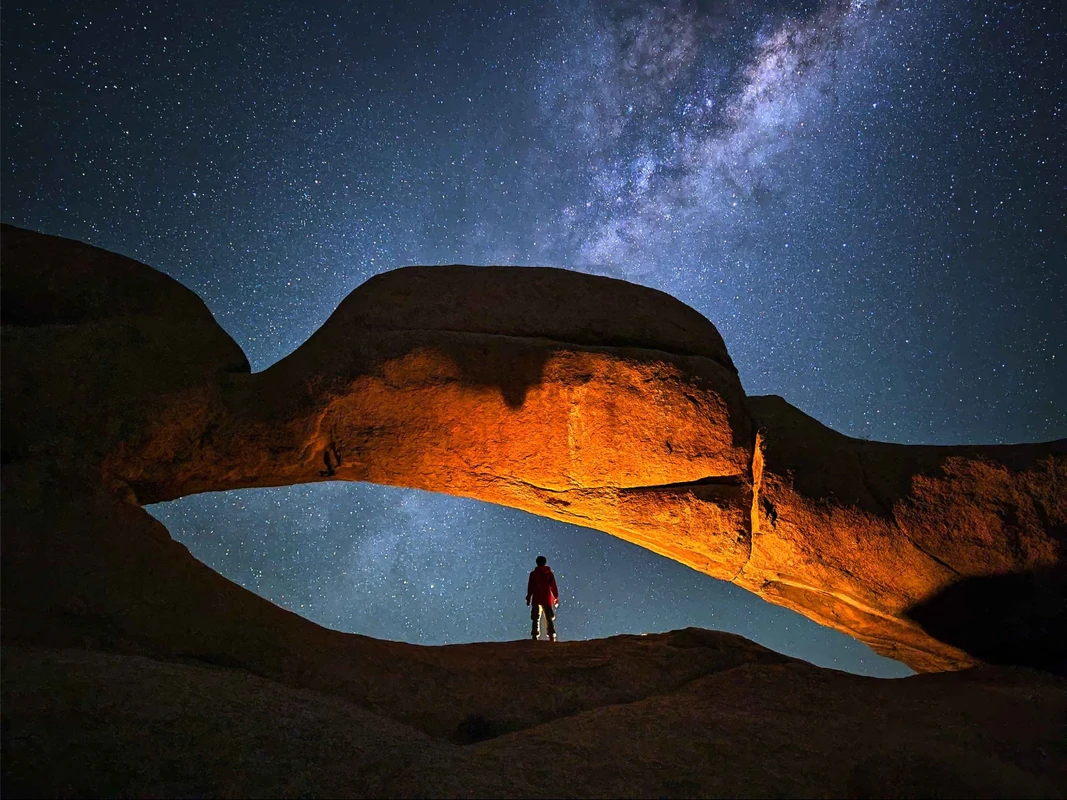
SnapRoamer.com – To capture starry skies with a smartphone, you must bypass automatic modes. Use a tripod to ensure stability, set your shutter speed between 15–25 seconds to prevent star trails, and increase your ISO to a range of 1600–3200. For best results, use manual mode or Pro Mode to control these variables.
Shutter speeds longer than 25 seconds will cause stars to blur into visible trails, ruining the crispness of your night sky shot.
Universal Manual Settings Matrix: Android vs. iOS
For a successful starry sky photo, Android users should navigate to ‘Pro Mode’ or ‘Expert RAW’ to manually adjust ISO (1600-3200) and Shutter Speed (15-25s). iPhone users should use ‘Night Mode’ by tapping the moon icon for max exposure or enable ‘ProRAW’ in Settings to capture uncompressed data for better editing.
Android users can access granular control via “Pro Mode,” while iOS users typically utilize Night Mode configurations or the ProRAW format. Attempting to use standard “Auto” modes will almost certainly result in a black frame or a blurry mess due to the extreme darkness of the environment.
Android Pro Mode Workflow
Android users with high-end devices should look for “Pro Mode” or “Expert RAW” within the camera application menu. This allows for direct manipulation of the sensor’s sensitivity and exposure time. A common failure mode occurs when users attempt to use Google Pixel’s specific astrophotography mode without a tripod; these modes often detect handholding and will refuse to run. Stability is a hard requirement for these automated long-exposure processes.
iPhone Night Mode & ProRAW Workflow
On iOS, users can access enhanced exposure by opening the camera, ensuring Night mode is active, tapping the moon icon, and setting the exposure to “Max.” To gain even more control, navigate to Settings > ProRAW to enable RAW photo capture. This is essential because it captures uncompressed data, providing more flexibility during the post-processing stage. Note that newer models, such as the iPhone 16 with its 48MP main camera, catch significantly more light with less noise than older versions.
| Setting | Recommended Value | Purpose | Risk of Incorrect Setting |
|---|---|---|---|
| Shutter Speed | 15–25 seconds | Collects light over time | Star trails/blur if >25s |
| ISO | 1600–3200 | Increases sensor sensitivity | Heavy grain/noise if too high |
| Aperture | Widest available (e.g., f/2.8) | Maximizes light intake | Narrower apertures cause underexposure |
| Focus | Manual (Infinity) | Ensures stars are sharp | Autofocus failure in low light |
The technical settings listed above aim to balance light intake and motion blur.
The Essential Setup: From Zero Budget to Pro Gear
You cannot handhold a Milky Way photo; it will be blurred every time. Because the shutter must remain open for many seconds, even the slightest tremor from your hands will turn sharp stars into streaks. Professional results depend entirely on mechanical stability.
Select your equipment based on these three tiers:
- Zero Budget: The Railing Method – If you lack a tripod, you can find stability by wedging your phone into a crevice, leaning it against a rock, or securing it to a fence railing. While not ideal, it provides the necessary stillness for a 15-second exposure.
- Beginner: Tripods and Wireless Shutter – A basic smartphone tripod is the minimum recommendation. To avoid the vibration caused by tapping the screen, use a wireless shutter or a Gosky Camera Shutter Wire Control, which costs approximately $9.99.
- Pro: Smartphone-to-Telescope Adapters – For those looking to capture deep-sky objects, using an adapter to mount a smartphone to a telescope allows for much higher magnification.
Planning is also a critical component of the setup. Using an app like Photopills, which is priced at $9.99, allows you to predict where the Milky Way will appear in the sky relative to the horizon.
Mastering the Three Pillars: ISO, Shutter, and Aperture
Control light by balancing three settings: Shutter Speed (set to 15-25 seconds to avoid star trails), ISO (set between 1600 and 3200 for sensitivity), and Aperture (use the widest f-stop available, ideally around f/2.8). This balance maximizes light while minimizing grain and blur.
Increasing ISO increases image noise, resulting in a grainy texture that ruins fine details in the stars. To maintain quality, prioritize a wide aperture first.
If your lens allows, always select the lowest f-stop number, such as f/2.8. This physical opening allows the maximum amount of photons to hit the sensor. Once the aperture is wide and the shutter speed is set to a safe 15–25 second range, use the ISO to fine-tune the brightness. If the image is still too dark, move from 1600 toward 3200, but be prepared to manage the resulting noise during editing.
Solving the Focus Struggle: The Infinity Trick
Smartphone autofocus will not work well in low-light situations. To ensure a sharp image of the stars, you must use manual focus instead of relying on automated algorithms.
To bypass this, you must use the Infinity Focus Trick. Instead of trying to focus on the stars themselves, find a distant, relatively bright object like a distant streetlamp, a mountain peak, or a treetop. Use your phone’s manual focus slider to bring that object into perfect clarity, then lock the focus. This effectively sets the lens to its furthest possible focal point, which is where the stars reside.
Shortcut: Use the manual focus slider in Pro Mode and slowly move it toward the “mountain” icon (infinity) until distant lights stop blooming.
Troubleshooting Failure Modes: Why Your Photos Look Muddy
Several physical factors can degrade image quality even when settings are correct.
Warning: Tapping the shutter button physically can introduce enough vibration to soften the image, even if the phone is on a tripod. Always use a timer or a remote trigger.
Combating Sensor Heat and Thermal Noise
Long exposures generate heat within the smartphone’s processor and sensor. This heat can manifest as “thermal noise,” which looks like colorful speckles in the dark areas of your photo. If you are taking dozens of consecutive shots, the sensor may warm up, increasing graininess. Taking breaks between exposures can help mitigate this.
Eliminating Micro-Vibrations
To prevent movement from wind or traffic, set a 5-second timer for your shutter release. This ensures that the phone has completely settled after your finger leaves the screen before the exposure begins.
Managing Light Pollution and Moon Interference
Moonlight can overpower stars. If you are shooting during a full or half moon, the ambient light will wash out the Milky Way and make the sky look grey rather than black. Talman Madsen suggests planning for nights where the moon is absent to maximize contrast and make the stars “pop”. Additionally, be wary of streetlights; if they are in your frame, they can cause lens flare that obscures the celestial details.
Advanced Workflow: Mobile-Only Image Stacking
For those who do not have access to a computer for post-processing, you can use a technique known as Stacked Image Averaging. This involves taking multiple exposures of the exact same scene and combining them to reduce noise and increase detail.
While professional workflows often involve hundreds of shots, you can achieve significant improvements by collecting multiple frames. For instance, some advanced workflows involve collecting up to 470 exposures for stacking to create a near-noise-free image. On a mobile device, you can use specialized apps to perform this “stacking” directly on your phone. By averaging the light from multiple frames, the random noise is canceled out while the consistent light from the stars is reinforced, resulting in a much cleaner, more professional-looking night sky.
FAQ
Can I use a smartphone for astrophotography without a tripod?
No. Handholding a Milky Way photo will result in blur every time. A tripod is mandatory for long exposures to ensure the sensor remains perfectly still during the 15–25 second window.
Why are my stars appearing as lines instead of dots?
This is caused by a shutter speed that is too long. Because the Earth is rotating, stars will appear to move if the shutter stays open too long. Keep your exposure between 15 and 25 seconds to prevent star trails.
Should I use HDR mode for star photos?
No. HDR is unhelpful for astrophotography. Turning off this feature is recommended because it is designed for daytime dynamic range and will not assist in low-light celestial capture.


