SnapRoamer.com – To capture sharp action shots on an iPhone, prioritize Burst Mode to maximize your chances of hitting the perfect pose and ensure high light levels to force a fast shutter speed. For video, use Action Mode for stabilization and select 4K resolution to maintain maximum detail during high-speed movement.
Burst mode can capture up to 10 photos per second, significantly increasing the probability of freezing a fleeting moment.
The ‘Speed vs. Quality’ Cheat Sheet for Different Sports
For high-speed sports like skateboarding, use a high shutter speed and low ISO to freeze motion. For low-light sports like night football, you must balance a higher ISO with a slightly lower frame rate to prevent excessive grain while maintaining enough shutter speed to avoid blur.
Photographer Karyn Teno notes that to freeze the movement of your subject, you must ensure plenty of light in the scene so that the iPhone’s camera uses a fast shutter speed. This is a critical distinction; low light causes motion blur because the sensor requires more time to collect light, resulting in a slower shutter speed that fails to “stop” the action.
Outdoor High-Speed (Skateboarding/Cycling)
In bright environments, the goal is to maximize shutter speed. You want to avoid the common failure mode where a subject appears as a “smear” across the frame. By utilizing high light levels, the iPhone can achieve shutter speeds as fast as 1/4000 second. This allows for crisp details in high-velocity movements like a skateboarder mid-air.
Low-Light Indoor Sports (Basketball/Night Football)
When shooting in dim gyms or under stadium lights, the physics change. You cannot rely on natural light to force a fast shutter. If you attempt to force a very high shutter speed in low light, you will likely encounter unwanted noise or grain due to a high ISO. Practitioners often find that balancing a slightly higher ISO with a controlled frame rate is the only way to maintain a recognizable subject without extreme digital noise.
| Sport Type | Primary Setting | Key Trade-off |
|---|---|---|
| Skateboarding | High Shutter Speed | Requires high light/sunlight |
| Night Football | Higher ISO | Risk of unwanted grain |
| Basketball | Fast Frame Rate | Reduced low-light performance |
| Cycling | Burst Mode | Large file sizes quickly |
This comparison demonstrates that there is no single “perfect” setting, but rather a tactical adjustment based on the environment.
Mastering Burst Mode: Techniques for Every iPhone Model
Burst Mode maximizes your chances of having at least one shot that captures the moving subject in the perfect pose or position. The iPhone photography School states that “Burst mode will instantly improve your iPhone action photography. You should use it whenever there’s any movement or unpredictability in the scene.”
The method for triggering this mode depends heavily on your hardware generation:
- iPhone 11 and above: In the Camera app, slide the shutter button to the left and hold your finger down to begin the rapid-fire sequence.
- iPhone XS and older: Simply hold down the shutter button to initiate the burst.
- Tactile Shortcut: You can change how you trigger this by going to Settings > Camera > Use Volume Up for Burst to provide a more tactile shutter experience using the physical side buttons.
A common misconception is that Burst Mode is a “fix-all” for blurry photos. If you are shooting in a dark room, even a burst of 10 photos per second will result in 10 blurry photos if the shutter speed is too slow. Always prioritize light before relying on the burst.
The Physics of Motion: Shutter Speed vs. Frame Rate
Motion blur is caused by slow shutter speeds, not frame rate. To achieve cinematic action video, follow the 180-degree rule by setting your shutter speed to double your frame rate (e.g., 1/48 for 24 fps or 1/120 for 60 fps) to maintain natural-looking motion.
Why FPS doesn’t cause blur
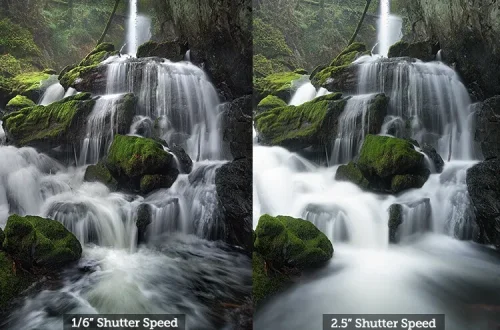
Kevin Lisota explains that “Motion blur is the result of slower shutter speeds. The frame rate (fps) does not cause motion blur.” While a higher frame rate like 60 fps or 120 fps allows for smoother playback or slow-motion effects, the clarity of each individual frame is dictated by how long the shutter remains open. If you shoot at 60 fps but your shutter speed is 1/30 second, every frame will look smeared.
The 180-degree rule for iPhone videographers
For those aiming for a professional look, the 180-degree rule is a vital framework. If you are filming at 24 fps (the industry standard for cinematic video), your shutter speed should ideally be around 1/48 second. When moving to 60 fps for smoother action, aim for 1/120 second. Using 120 fps is excellent for creating a 2.5x slow-motion effect when placed on a 24 fps timeline, making fast movements appear epic and controlled.
Optimizing iPhone Video: Action Mode and Resolution
Since its introduction in 2022 with the iPhone 14 release, Action mode has become a standard for stabilizing handheld footage. Once Action Mode is turned on, you can capture video with better stabilization, effectively mimicking the use of a gimbal.
To access this, go to the Camera app > Video > and tap the white icon of a person running. While this software-based stabilization is powerful, it is best used in conjunction with 4K resolution. Shooting in 4K offers four times the detail of standard 1080p HD. This extra resolution is vital because it gives you the flexibility to crop into a fast-moving subject during post-production without the image falling apart into pixels.
Troubleshooting: Why Your Action Shots are Failing
When action shots fail, it is rarely a hardware malfunction and usually a settings mismatch. Identifying the specific failure mode is the first step to fixing it.
Common Failure Modes:
- Unwanted noise or grain: This occurs when the iPhone compensates for low light by increasing the ISO.
- Unstable footage: This happens during fast-paced shots where software stabilization struggles to keep up with sudden, violent movements.
- File incompatibility: Using High Efficiency (HEIF/HEVC) formats can cause issues when trying to share files with older devices or non-Apple software.
- Missing the perfect moment: This is the result of pressing the shutter button too early or too late without having Burst Mode enabled.
Warning: If you are shooting in high-contrast environments, such as a bright sun behind a subject, your shots may appear as dark silhouettes. To fix this, tap the screen to set focus, then swipe up or down on the yellow box to adjust the exposure manually.
Pro-Level Composition and UI Customization
Beyond technical settings, how you frame the shot determines its professional quality. One effective technique is Active Space Composition. This involves leaving more empty space in front of your moving subject than behind them. This “active space” gives the subject room to move into the frame, preventing them from “hitting” the edge of the photo.
Using Active Space for movement
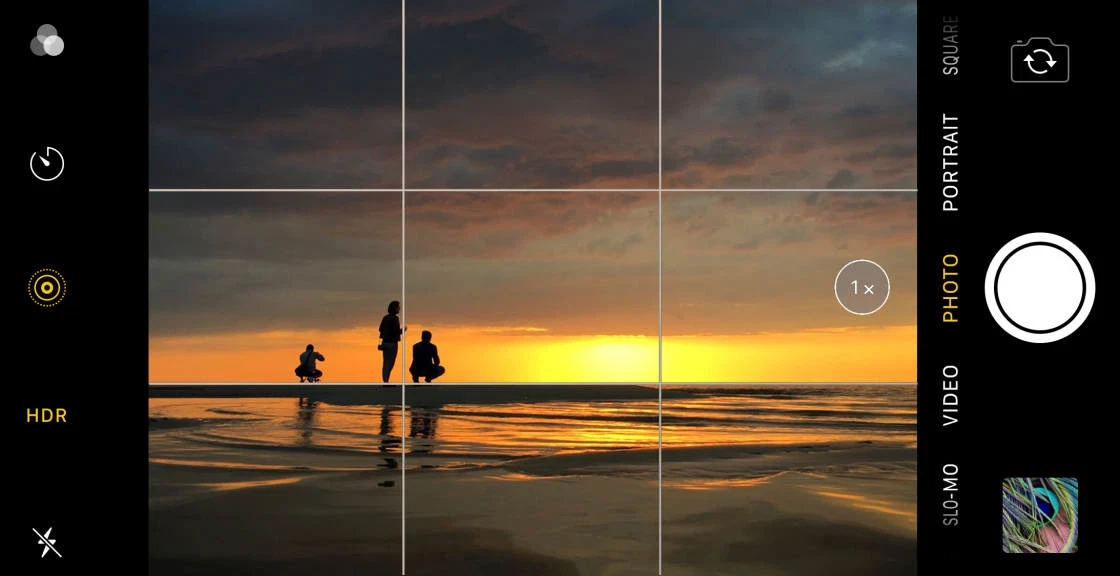
If a cyclist is moving from left to right, ensure the right side of your frame is mostly empty. This creates a sense of direction and momentum. You can assist this composition by enabling the Grid via Settings > Camera > Grid, which helps you maintain level horizons during movement.
Customizing the iPhone 16 Camera Control button
On newer models like the iPhone 16 and 17, the dedicated Camera Control button offers a new way to interact with the UI. By double-pressing the control button, you can quickly toggle between advanced settings such as shutter speed, ISO, focus, and zoom. For action photography, you should prioritize faster shooting by navigating to Camera > Preserved Settings to ensure the device is optimized for rapid-fire capture rather than deep processing delays.
FAQ
How do I stop my iPhone from hunting for focus during action?
Use AE/AF lock by tapping and holding the subject on your screen until “AE/AF LOCK” appears. This prevents the camera from refocusing on the background mid-motion, ensuring your subject remains sharp throughout the action sequence.
Is 4K better than 1080p for sports?
Yes, 4K offers four times the detail of 1080p. This is crucial for sports because it allows you to crop into a fast-moving subject during post-production while still maintaining a high-definition image.
Can I use Burst Mode with the volume button?
Yes, you can enable this by going to Settings > Camera > Use Volume Up for Burst. This provides a more tactile shutter experience, which is often more reliable than tapping the screen during intense movement.