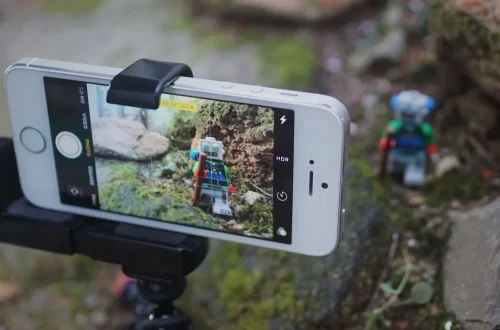
SnapRoamer.com – To focus your iPhone camera, simply tap the specific subject on your screen where you want the most detail. For more control, press and hold the screen until ‘AE/AF Lock’ appears in yellow, which locks both focus and exposure for consistent shots.
According to iphonephotographyschool.com, “But if your subject is in sharp focus, the viewer will be instantly drawn to that part of the scene.” Conversely, “If the main subject is out of focus, the viewer will become confused about where they should be looking.”
Mastering the Basics: Tap to Set Focus
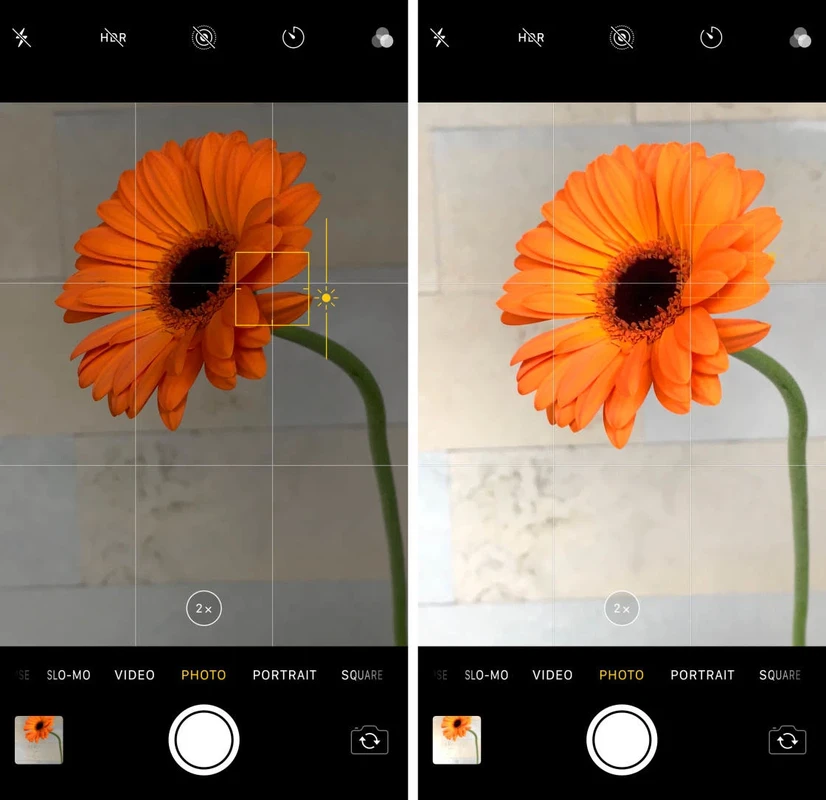
To set focus on an iPhone, open the Camera app, compose your shot, and tap the screen on your intended subject. A yellow Focus Point Indicator will appear, signaling that the camera is prioritizing that area for sharpness.
Understanding the Focus Point Indicator
When you interact with the Camera screen, the software provides immediate visual feedback. A yellow box or square, known as the Focus Point Indicator, appears at the location of your touch. This icon confirms that the lens assembly is adjusting to prioritize that specific coordinate for maximum clarity.
Many users assume that tapping the screen only affects sharpness, but this is a common misconception. Tapping to set focus also sets the exposure level, which dictates how bright or dark the subject appears in the final image. If you tap a bright sky, the camera may darken the entire image to compensate for the light.
The link between focus and exposure
Tapping the screen sets both the focus point and the exposure level. Once the Focus Point Indicator is active, you can fine-tune the brightness by performing a specific gesture:
- Open the Camera app.
- Tap the subject to set the focus point.
- Swipe up or down on the screen to adjust the exposure slider.
One specific failure mode occurs when the camera forgets the focus point immediately after the shutter button is pressed. This means if you are taking a series of shots, you may need to tap the subject for every single frame to maintain consistency.
How to Use AE/AF Lock for Professional Consistency
To lock focus and exposure (AE/AF lock), tap and hold the screen for a few seconds until the ‘AE/AF Lock’ indicator appears in yellow at the top of the screen. This prevents the camera from refocusing if the scene changes.
The AE/AF Lock feature is useful for situations where you want to take several pictures of the same scene. By engaging this lock, you can take as many photos as you want without the camera resetting the focus.
The ‘Recomposing’ Technique
Standard tapping often forces you to keep your phone at a specific distance to maintain focus. However, with AE/AF Lock engaged, you can utilize the “recomposing” technique. This involves locking the focus on your subject, then moving the phone slightly to change the framing without the lens hunting for a new subject. This is essential for professional-looking compositions where the subject might not be perfectly centered.
Pre-focusing for moving subjects using markers
To capture motion effectively, use the pre-focusing method instead of chasing a moving object:
- Identify a stationary marker in the path of the subject, such as a sign-post or a trash can.
- Tap and hold the screen on that marker until the AE/AF Lock indicator appears.
- Wait for the subject to move into that specific area and capture the shot.
This ensures the camera does not attempt to focus on the moving object’s unpredictable edges, which often results in blur.
Why Your iPhone Camera is Refocusing (and How to Fix It)
Software behaviors can cause the camera to override intended settings. Understanding these specific triggers helps maintain control over your shots.
The ‘Hunting’ Effect in Video
In video mode, users often encounter the “hunting” effect, where the lens constantly moves back and forth trying to find the subject. This typically happens when there is movement in the scene, such as people walking in the background. Even if you have tapped a foreground subject, the camera may re-adjust focus to background movement, creating a distracting jitter in your footage.
Avoiding the ‘Too Close’ Trap
The camera cannot focus at all if you get too close to the subject. This occurs because of the physical limitations of the lens. If you find the camera failing to lock onto a small object, you must increase the distance between the lens and the subject or use specialized hardware.
Focus issues frequently occur due to these factors:
- Changing your distance (walking toward or away) after locking the focus, which causes the camera to focus on the wrong part of the scene.
- Subject movement triggering the autofocus sensor to shift away from your intended target.
- Low-light environments where the sensor struggles to identify edges.
Advanced Control: Manual Focus and Third-Party Apps
While the native Apple Camera app is highly capable, it lacks a dedicated manual focus slider. For photographers who require DSLR-like precision, third-party applications provide the granular control necessary for complex lighting or macro work.
| Feature | Tap to Focus | AE/AF Lock |
|---|---|---|
| Focus Persistence | Resets after shutter press | Maintains focus across multiple shots |
| Exposure Control | Sets exposure at tap point | Locks exposure at tap point |
| Best Use Case | Quick, casual snapshots | Consistent lighting and moving subjects |
While tapping is sufficient for casual use, AE/AF Lock allows for greater stability across multiple shots.
Using Camera+ 2 for DSLR-like control
One of the most prominent tools for advanced users is Camera+ 2, which is available for $7.99 USD. This app allows you to bypass the standard automation of the iPhone. To use manual focus in this app, follow this path: Camera+ 2 > manual mode > Focus icon. Once there, you can drag the Manual Focus slider left or right to adjust the focus point from the foreground to the background with extreme precision.
The role of Moment macro lenses
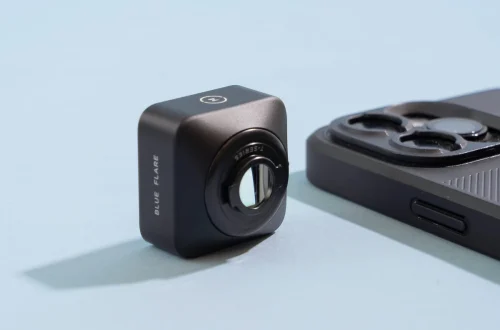
When software limitations are reached, hardware solutions become necessary. For extreme close-ups where the iPhone’s built-in macro capabilities fail due to distance, Moment manufactures specialized macro lenses. These lenses physically allow the camera to achieve sharpness at much closer ranges than the standard lens assembly permits.
The LiDAR Advantage: Focus in Low Light
iPhone focus performance is influenced by specific hardware configurations found in different models.
How LiDAR improves night photography
LiDAR (Light Detection and Ranging) technology changes the fundamental way the camera “sees” depth. Unlike standard cameras that rely on visual contrast to calculate distance, LiDAR sends out laser pulses to map the scene. This allows the camera to build a depth map instantly, even in near-total darkness. This results in significantly faster and more accurate focus acquisition during night photography compared to models relying solely on visual data.
Pro vs Standard model focus speed
The presence of LiDAR means that Pro models can achieve focus in environments where standard models might struggle or “hunt” indefinitely. In low-light scenarios, the Pro model’s ability to use active light sensing provides a level of reliability that is essential for professional-grade mobile photography.
FAQ
Why does my iPhone camera keep refocusing on the background?
This often happens when there is movement in the scene. To prevent this, use the AE/AF Lock by tapping and holding the screen until the yellow indicator appears.
Can I manually adjust exposure after setting focus?
Yes. After tapping to set focus, you can swipe up or down on the screen to adjust the brightness (exposure) of the shot.
What happens if I get too close to my subject?
If you are within the minimum focus distance, the camera may fail to focus entirely. For extreme close-ups, consider a dedicated macro lens like those from Moment.