SnapRoamer.com – To capture perfect action shots on an iPhone, use Burst Mode for stills and high frame rates (60 fps) for video. For photography, slide the shutter button to the left to trigger rapid-fire shots. For video, prioritize 4K resolution and use Action Mode to stabilize movement and prevent motion blur.
Burst Mode first appeared on the iPhone 5 in 2012, revolutionizing how mobile users capture unpredictable movement. Since that release, the ability to capture rapid-fire sequences has become a cornerstone of mobile photography, allowing users to catch the exact millisecond a subject reaches the apex of a jump or a strike.
The Action Decision Matrix: Burst Mode vs. Action Mode vs. High FPS
Choose Burst Mode for freezing a single moment in a still photo (e.g., a jump). Use Action Mode for smooth, gimbal-like video stabilization during heavy movement. Use High Frame Rate video (60 fps) when you intend to create slow-motion effects by slowing down the footage in post-production.
Selecting the wrong capture mode is a common failure mode that results in either unusable motion blur or excessive storage consumption. For instance, attempting to use Burst Mode for a video sequence will only yield a collection of disjointed stills rather than a fluid motion clip. Conversely, using standard 24 fps video for a fast-moving subject often results in “stuttering” motion that lacks the smoothness required for high-speed sports.
When to use Burst Mode
Burst Mode is the primary tool for still photography involving unpredictable movement. On iPhone 11 and newer models, users can trigger this by tapping the shutter button and immediately sliding it to the left in portrait orientation or down in landscape. This allows the device to capture approximately 10 frames per second. This rapid succession is ideal for freezing a single moment, such as a skateboarder mid-air, but practitioners warn that shooting at 10 fps can quickly consume available storage space.
When to use Action Mode
Action Mode is a software-driven stabilization feature designed for video. It mimics the effect of a physical gimbal by compensating for the shakes and bumps of a handheld operator. This is best utilized when the camera itself is moving aggressively alongside the subject, such as during a bike ride or a run.
When to use High Frame Rate Video
For video that requires a “slow-motion” look, high frame rates are mandatory. Recording at 60 fps provides enough temporal data to allow for a 2.5x multiplier effect when slowed down on a standard 24 fps timeline. This creates a smooth, cinematic deceleration rather than a choppy, stuttering playback.
| Mode | Best Use Case | Primary Benefit | Primary Drawback |
|---|---|---|---|
| Burst Mode | Still photos of jumps/sports | Freezes precise moments | High storage consumption |
| Action Mode | Handheld running/biking video | Gimbal-like stabilization | Requires significant light |
| High FPS (60 fps) | Slow-motion video effects | Smooth temporal playback | Larger file sizes than 24/30 fps |
The table above illustrates the trade-offs between temporal resolution and stability. Choosing the right mode depends entirely on whether your final output is a static image or a fluid video clip.
Mastering the Shutter: Freezing Motion and Avoiding Blur
Motion blur occurs when the subject moves across the sensor while the shutter is still open. To prevent this, the camera must use a fast shutter speed to “trap” the subject in a single position. According to Kevin Lisota, “Motion blur is the result of slower shutter speeds. The frame rate (fps) does not cause motion blur.” This distinction is critical: while frame rate affects how many images are captured per second, the shutter speed determines how much each individual image is blurred.
For high-speed sports, achieving a shutter speed of at least 1/120 second is often necessary, though professional-grade results may require speeds as fast as 1/4000 second to completely eliminate any trace of movement. If the shutter remains open too long, the subject will appear as a translucent streak rather than a sharp figure.
The physics of motion blur
The relationship between light and speed is an inescapable constraint. A faster shutter speed requires more light to produce a properly exposed image. If the environment is dim, the iPhone’s software will naturally attempt to compensate by slowing the shutter speed, which directly leads to the motion blur you are trying to avoid.
The 180° Shutter Rule for video
In cinematic videography, the 180° Shutter Rule is a standard used to maintain natural-looking motion. This rule suggests setting the shutter speed to exactly double the frame rate (1 / frame rate x 2). For example, if recording at 24 fps, a shutter speed of 1/48 second provides a cinematic aesthetic. However, for action, many shooters deviate from this rule to favor higher shutter speeds for crisper frames.
- Identify the light levels before the action starts.
- Prioritize shutter speed over ISO to maintain clarity.
- Use wide apertures to allow more light into the sensor, enabling faster shutter speeds.
Low Light Action: The High-Stakes Trade-off
Low light environments present the most significant challenge for action photography. When light levels drop, the iPhone’s camera system faces a mathematical conflict: it needs more light to see, but it needs a fast shutter to freeze motion.
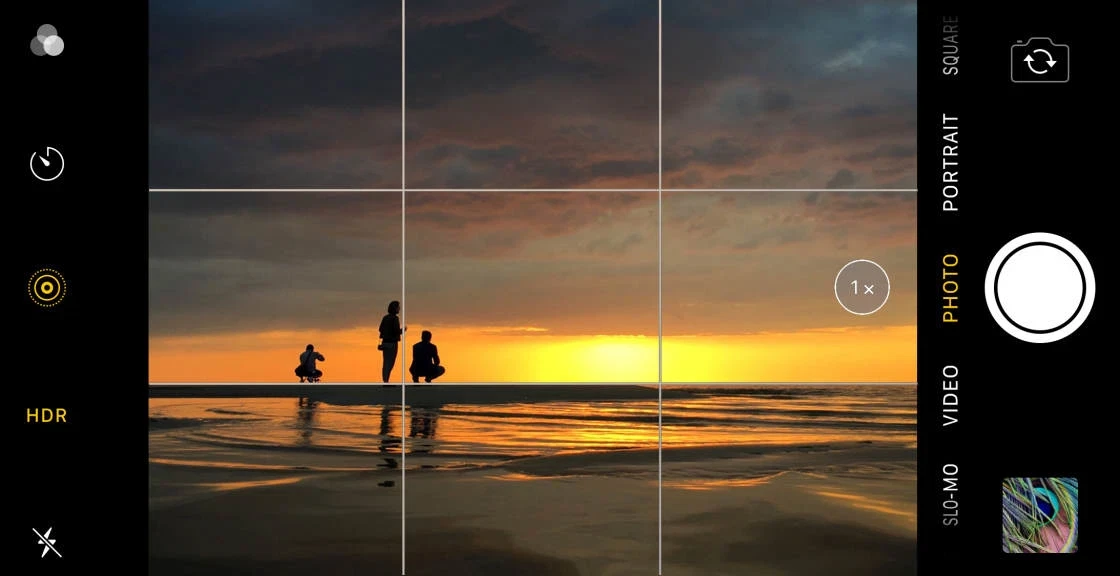
To mitigate this, users should seek out additional light sources. Increasing the light allows the camera to maintain a fast shutter speed without relying on high ISO settings, which introduce grain and digital noise. According to the iPhone Photography School, shooting with a strong light source behind the subject can also create a silhouette, which helps emphasize the subject’s shape and pose even when fine details are lost to low light.
Advanced Focus: Using AE/AF Lock for Rapid Subjects
A common frustration in action shots is “focus hunting,” where the camera loses the subject and refocuses on the background. This happens because the iPhone’s autofocus system is constantly trying to find the sharpest edge in the frame. If a subject moves rapidly toward the lens, the camera may struggle to track the movement in real-time.
Shortcut: To prevent this, use the AE/AF Lock. Tap and hold on your subject in the camera viewfinder until you see the “AE/AF LOCK” indicator appear in the yellow box. This locks both the exposure and the focus to that specific point.
Once locked, you can manually adjust the brightness by swiping up or down on the screen. This ensures that even if the subject moves slightly, the camera will not attempt to re-calculate the focus or exposure mid-action, which can lead to inconsistent burst quality.
Pro-Level Settings: 4K, ProRAW, and Lens Selection
For users with higher-end iPhone models, the choice of resolution and file format can significantly impact the final quality of action shots. While higher settings provide more data, they come with specific technical costs.
| Setting | Benefit | Primary Drawback |
|---|---|---|
| 4K Resolution | Four times the detail of 1080p | Massive file sizes |
| ProRAW | Maximum post-processing flexibility | Extremely high storage usage |
| Telephoto (120mm) | Closer subject framing | Lower light performance |
The 48MP ProRAW storage penalty
Capturing action in 48MP ProRAW provides incredible detail, which is useful if you need to crop into a shot after the fact. However, the storage penalty is extreme. When shooting bursts at high resolutions, you can exhaust your device’s storage in minutes. This makes ProRAW a specialized tool rather than a default setting for all action scenarios.
Ultra-wide vs. Telephoto for action
Lens selection changes the perspective of the action. An ultra-wide lens (approximately 13mm) is excellent for capturing the scale of an environment, such as a mountain biker in a vast landscape. However, a telephoto lens (up to 120mm) is superior for isolating a subject and creating a more professional, compressed look. Be aware that telephoto lenses typically have smaller apertures, meaning they perform worse in low light compared to the main or ultra-wide lenses.
The Burst Culling Workflow: From 100 Frames to 1 Perfect Shot
Capturing a burst of 100 frames is only half the battle; the real work begins with “culling”—the process of selecting the best frames. Because Apple’s Burst Mode captures so many images, your library can quickly become cluttered with near-identical shots.
To manage this efficiently, follow this workflow:
- Open the Burst in the Photos app.
- Tap “Select” to enter the culling mode.
- Tap the circle in the lower-right corner of only the frames that are perfectly sharp and well-composed.
- Tap “Done” and select “Save [X] as New Burst” or “Keep Only Selected.”
This method allows you to discard the 95% of frames that are blurry or poorly timed, leaving you with a single, high-impact image without losing the original sequence if you change your mind later.
FAQ
How do I take a burst photo on iPhone?
For iPhone 11 and newer, tap the shutter button and immediately slide it to the left (in portrait) or down (in landscape) to capture rapid-fire shots. This allows you to capture a sequence of images in a single continuous motion.
Why are my action shots blurry?
Blur is caused by slow shutter speeds. In low light, the iPhone automatically slows the shutter to allow more light in, which causes motion blur. To fix this, use more light or ensure your subject is in a well-lit area to allow for faster shutter speeds.
Does 4K video use more storage than 1080p?
Yes, 4K offers four times the detail of 1080p, which significantly increases file sizes, especially when combined with high frame rates like 60 fps. Plan your storage capacity accordingly when shooting high-resolution action video.