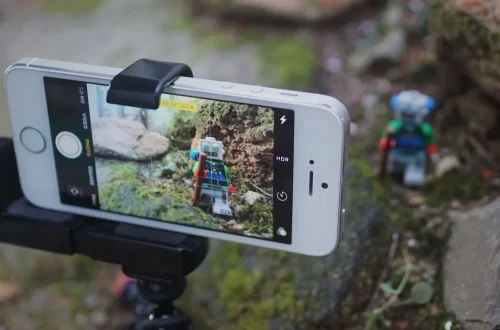
SnapRoamer.com – To make your iPhone camera focus, tap the specific subject on your screen to set the focus point. For more control, touch and hold the area until ‘AE/AF Lock’ appears, which prevents the camera from refocusing if the scene changes or if you move the device.
The iPhone camera automatically sets focus and exposure using face detection to balance light across multiple subjects, according to Apple Support. This automation allows for rapid shooting, but manual overrides are often necessary for professional-grade precision.
Troubleshooting: Why your iPhone camera won’t focus
If your iPhone isn’t focusing, first clean the lenses to remove smudges. Check if you are too close to the subject (exceeding the minimum focus distance), ensure there is sufficient lighting for the autofocus sensor, and verify that you aren’t accidentally triggering a lens switch by tapping too close to the edge of the frame.
Physical obstructions and lens smudges
Fingerprint oils on the glass can interfere with the sensors. According to hc1111, tapping the focus area near the frame edge can cause the camera to switch lenses, which moves the desired focus area to another part of the frame.
The ‘Minimum Distance’ trap
One counterintuitive reality of mobile photography is that moving closer to a subject can actually make it impossible to take a sharp photo. Every lens has a physical limit. If you attempt to capture a detail that is too close, the hardware simply cannot converge the light. This is particularly prevalent on the iPhone 15 when users attempt macro-style shots without the proper hardware or distance.
Low-light autofocus hunting
In environments with minimal illumination, the autofocus sensor struggles to identify contrast. This results in “hunting,” where the lens elements move back and forth searching for a sharp edge. When this occurs, increasing the light source or using the AE/AF Lock method to stabilize exposure can sometimes assist the sensor in finding its mark.
- Dirty Lenses: Use a microfiber cloth to clear smudges.
- Distance Errors: Ensure you are not exceeding the minimum focus distance.
- Lighting: Provide more contrast for the sensor to detect.
- Lens Switching: Keep taps centered to avoid accidental Ultra Wide or Telephoto transitions.
Mastering Tap-to-Focus and AE/AF Lock
Tap once on your subject to set the focus and exposure point. To lock these settings so they don’t change when you move the camera, touch and hold the focus area until the ‘AE/AF Lock’ notification appears on your screen.
Tapping the screen sets both the focus point and the exposure level. This technique allows you to override the automatic system by instructing the software to prioritize a specific coordinate for sharpness and light.
How to use the exposure slider
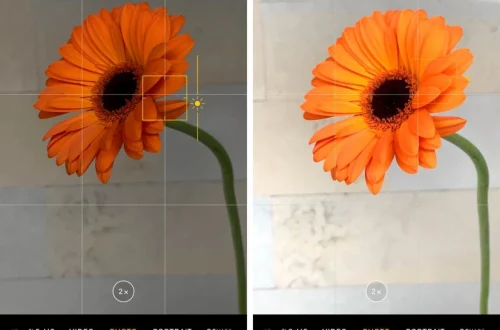
Once you have tapped the screen, you will see a yellow box appear. Next to this box, an Adjust Exposure button (represented by a sun icon) allows you to manually drag the brightness up or down. This is vital for high-contrast scenes where the automatic settings fail to balance the light correctly.
Shortcut: Tap the subject, then slide the sun icon up or down to adjust brightness.
Avoiding the ‘Focus Jump’ when recomposing
A frequent mistake occurs when users lock focus and then move the device. If you move the camera forwards or backwards after locking AE/AF, the camera will end up focusing on the wrong part of the scene, such as the area in front of or behind your intended subject. To avoid this, set your distance and lock the focus before you finalize your framing.
Macro Photography: Focus for close-up details
Macro control on the latest iPhone devices allows users to capture detailed, sharp, up-close images. This capability is supported by specialized hardware and software triggers that enable the lens to operate at extremely short distances.
For users with Pro models, the transition is often seamless. You can get as close as 2cm to a subject to capture intricate textures. However, hardware limitations exist for standard models. The iPhone 15 (non-Pro) lacks dedicated macro focus hardware, meaning it cannot achieve the same extreme proximity as its Pro counterparts.
- Macro Mode: Look for the on-screen flower icon to toggle automatic macro switching.
- Pro Distance: Utilize the 2cm minimum focus distance for extreme detail.
- Non-Pro Workaround: For standard iPhone 15 users, maintain a distance of approximately 12 inches.
- Digital Enhancement: Use the Edit > Crop tool to bring the subject closer after the shot is taken.
If you are using a standard iPhone 15, trying to get within 2cm will result in a blurry image. The recommended workflow for these models is to shoot from about 12 inches away and then use the Edit > Crop tool to bring the subject closer in post-processing.
Portrait Mode: Achieving DSLR-style depth of field
portrait mode creates a shallow depth of field to accentuate your subject and blur the background of your shot—creating a similar effect to a DSLR camera. This mode relies on depth mapping to distinguish between the foreground subject and the background environment.
To use this effectively, you must respect the distance constraints of the sensor. The subject should be positioned between 2 feet and 8 feet away from the lens. If the subject is too close, the software may fail to recognize the edges, leading to a “cut-out” look where the hair or ears appear unnaturally blurred or sharp. Conversely, if the subject is beyond 8 feet, the background blur effect will diminish significantly.
Advanced Focus: Hardware and Software Optimization
Achieving higher precision involves using built-in tools like the grid. You can activate this by navigating to Settings > Camera > Grid to assist in maintaining a straight horizon.
| Feature | Best Use Case | Key Distance/Constraint |
|---|---|---|
| Macro Mode | Extreme close-ups (textures, insects) | 2cm (Pro models) |
| Portrait Mode | People and pets with background blur | 2 to 8 feet |
| Standard Tap-to-Focus | General everyday photography | Variable |
| AE/AF Lock | Moving subjects or changing light | Fixed distance required |
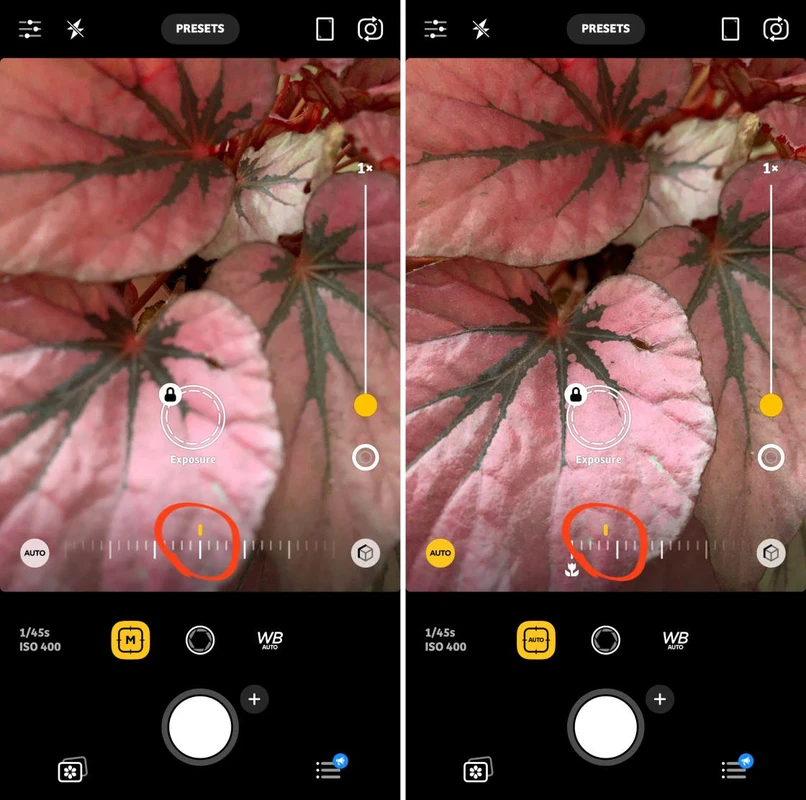
While the native camera app is highly capable, some photographers prefer the granular control offered by third-party software. The Moment Pro Camera App, for example, provides more direct access to manual focus parameters that can be useful when the standard iOS interface feels too restrictive.
Using Gridlines for Compositional Focus
The gridlines are also useful for making sure your images are straight. When combined with tap-to-focus, the grid helps you ensure that the point of sharpness is not only clear but also aesthetically placed within the frame.
Third-party apps for manual control
manual focus is a useful backup option when the tap-to-focus technique isn’t focusing precisely enough. Using a slider, you can move through different parts of the scene until the subject is perfectly sharp.
FAQ
Why does my iPhone camera switch lenses when I tap to focus?
According to hc1111, this happens when you tap the focus area near the edge of the frame, causing the camera to switch lenses and move the focus point to another part of the frame. This can also occur if the subject triggers a switch to the Ultra Wide or telephoto lens.
Can the standard iPhone 15 do macro photography?
The standard iPhone 15 lacks dedicated macro hardware. For close-ups, it is recommended to shoot from about 12 inches away and then use the Edit > Crop tool to bring the subject closer.
How do I lock focus for video?
Use the AE/AF lock technique by touching and holding the screen during video recording. This prevents “focus breathing” or the camera hunting for focus while you move the device, ensuring a professional, steady look.