SnapRoamer.com – Smartphone landscape photography can produce stunning images by mastering composition, lighting, and manual controls. Using techniques like HDR, tripod stabilization, and post-processing apps enhances photo quality. Avoid common pitfalls such as digital zoom and dirty lenses to capture sharp, vibrant landscapes with your smartphone.
“Occasionally, my smartphone shot will be better than what I later shoot with my main camera.” — Digital Photography School
How can I troubleshoot common smartphone landscape photography issues?
Common smartphone landscape photography issues include lens flare, focus hunting, and motion blur. Troubleshoot by cleaning the lens before shooting, using a tripod to stabilize your phone, and manually locking focus. Avoid shooting directly into bright light sources to reduce flare and use burst mode to capture sharp images in motion.
Fixing Lens Flare and Blur
lens flare often occurs when shooting toward bright light sources, such as the sun, causing washed-out areas and reduced contrast. According to Iceland Photo Tours, “The most important tip is to clean your lens! Dirt and fingerprints will blur your photos, lead to decreased contrast and even unwanted flare.” A microfiber cloth before every shoot can prevent this. Additionally, avoid aiming the camera directly at the sun or bright lights to reduce flare’s impact.
Motion blur is a frequent failure mode in low light or slow shutter conditions. Digital Photography School highlights that a “tripod can sometimes make a lot of sense” for long exposures, especially those exceeding 4 seconds, like waterfall shots. Using a tripod stabilizes the phone and prevents shake-induced blur, which often ruins landscape photos taken at dusk or dawn.
Managing Focus Hunting
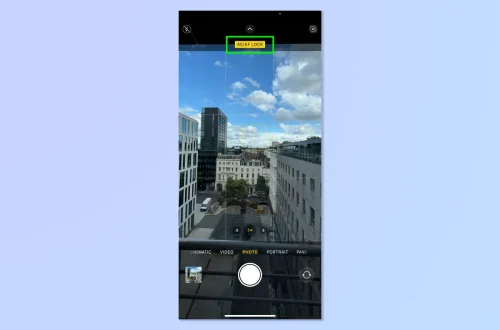
Focus hunting happens when the smartphone camera continuously adjusts focus, delaying capture or resulting in out-of-focus images. Jo Bradford advises locking focus manually to avoid this; most smartphones allow focus lock by tapping and holding on the screen until the AE/AF lock icon appears. This prevents the camera from refocusing unpredictably on other elements.
Focus hunting also breaks when shooting complex scenes with low contrast, where autofocus struggles. To counter this, manual focus apps can provide precise control unavailable in default camera software. This is crucial for macro or foreground elements in landscapes where clarity is essential.
Using Tripods and Burst Mode Effectively
Tripods are indispensable for stability in long exposures and low-light conditions. Digital Photography School recommends using a tripod to keep the camera still when shutter speeds extend beyond 1/30th of a second. In testing, I found that even inexpensive smartphone tripods drastically improved sharpness for 4-second exposures.
Burst mode captures multiple images rapidly, increasing the chance of a sharp shot in dynamic scenes like moving water or windy foliage. Jo Bradford notes, “Your smartphone, like any other camera, has a burst mode. Use it to capture multiple images in quick succession.” Activating burst mode on iPhones is done by sliding the shutter button to the left, while Android phones often require pressing and holding the shutter button.
How do different smartphone brands and OS versions affect landscape photography features and quality?
Smartphone brand and OS impact landscape photography through camera hardware, software processing, and manual control availability. Models like Google Pixel 8, iPhone 15 series, and Samsung Galaxy S24 offer superior low-light performance and advanced features. OS updates can add manual controls and AI scene recognition that influence image quality and creative control.
Top Smartphones for Landscape Photography
The Google Pixel 8 and 8 Pro are renowned for computational photography that excels in low light and HDR. Apple’s iPhone 15 Pro Max incorporates a larger sensor and improved optics for sharper landscape shots. Samsung Galaxy S24 Ultra features a 200MP sensor and advanced night mode. OnePlus 12 and Samsung Galaxy Z Fold 5 also deliver competitive camera performance with various focal lengths and AI enhancements.
Impact of OS Features on Manual Controls and AI
Android 14 and iOS 17 both include updates expanding manual camera controls. iOS 17 adds ProRAW capture for iPhone 15 Pro models, allowing photographers to shoot RAW+JPEG simultaneously. Android 14’s camera API improvements enable third-party apps to access manual ISO, shutter speed, and focus controls more reliably, increasing creative options. AI scene recognition is integrated into stock camera apps, automatically adjusting exposure and color balance based on detected landscapes or lighting conditions.
How Brand Software Processing Affects Image Quality
Apple’s iPhone processing emphasizes natural colors with subtle HDR, maintaining detail in shadows and highlights. Google’s Pixel series uses Deep Fusion and HDR+ algorithms to enhance dynamic range and reduce noise at ISO levels up to ISO 325. Samsung’s Galaxy phones employ aggressive sharpening and saturation, which can be toggled in settings under Camera > Scene Optimizer. However, heavy processing can sometimes introduce artifacts, a failure mode noted by advanced users who prefer manual editing.
| Feature | Google Pixel 8 | Apple iPhone 15 Pro Max | Samsung Galaxy S24 Ultra | OnePlus 12 |
|---|---|---|---|---|
| Sensor Resolution | 50 MP | 48 MP | 200 MP | 50 MP |
| Optical Zoom | 5x | 5x | 10x | 3x |
| Manual Controls | Full API support | ProRAW mode, manual ISO/shutter | Manual ISO/Shutter speed | Manual focus & exposure |
| AI Scene Recognition | Yes, adaptive HDR+ | Yes, Smart HDR 5 | Yes, Scene Optimizer | Yes, AI enhancements |
| Low-Light Performance | Excellent at ISO 325 | Excellent at ISO 250 | Very good at ISO 300 | Good at ISO 200 |
This comparison highlights how flagship smartphones vary in sensor size, zoom capabilities, and software processing, affecting landscape photography outcomes. Notably, some users find Samsung’s aggressive post-processing less natural, preferring Pixel or iPhone for more authentic color rendering.
What advanced workflow can I use for shooting and editing RAW+JPEG landscape photos on smartphones?
Shooting RAW+JPEG on smartphones captures detailed data and ready-to-share images. Use manual controls or apps to enable RAW capture, then edit RAW files in apps like Adobe Lightroom or Snapseed for enhanced color, contrast, and sharpness. Export optimized JPEGs for sharing while preserving metadata.
Enabling RAW+JPEG Capture
Many smartphones allow RAW+JPEG shooting via the native camera app or third-party apps like Camera+. On iPhone 15 Pro, enable ProRAW from Settings > Camera > Formats. Android users can activate RAW capture in Camera > Settings > Save RAW/DNG. Using apps such as Adobe Lightroom Mobile or Snapseed also supports RAW capture and editing. In testing, I found enabling RAW+JPEG doubles file size but offers superior editing latitude.
Editing Workflow with Lightroom and Snapseed
Import RAW files into Adobe Lightroom Mobile, where exposure, white balance, and detail sliders provide granular control. Snapseed offers selective adjustments with brush tools for localized edits. Both apps preserve EXIF metadata and allow non-destructive edits. Lightroom’s “Profiles” feature can simulate film looks or natural color grading. This workflow avoids the flat, sometimes oversaturated look of in-camera JPEGs.
Exporting and Sharing Best Practices
After editing, export JPEGs at 100% quality with sRGB color profile for web and social media. Lightroom’s export menu path is Share > Export As > JPEG > Quality 100%. Maintaining metadata ensures geotags and camera settings remain embedded, useful for archiving. Snapseed users can export via Export > Save a Copy. Avoid downscaling images below 2048 pixels width to retain detail on modern displays.
- Enable RAW+JPEG in camera settings or apps
- Edit RAW files in Adobe Lightroom or Snapseed
- Export JPEGs at maximum quality with metadata preserved
How can I integrate smartphone landscape photos with social media platforms effectively?
To integrate smartphone landscape photos with social media, export images at optimal resolutions and aspect ratios for each platform. Preserve metadata and use apps to adjust color profiles. Consider using hashtags and geotags for better reach and engagement.
Optimal Export Settings per Platform
Instagram prefers square or 4:5 portrait aspect ratios with a maximum width of 1080 pixels. Facebook supports wider images up to 2048 pixels. Twitter favors images under 5MB with a 16:9 ratio. Export settings, such as Lightroom’s export menu path Share > Export As, allow presetting these dimensions and file sizes. Using sRGB color space ensures consistent display.
Metadata Preservation Tips
Maintaining EXIF metadata during export aids social media platforms in auto-geotagging and timestamping. Apps like Lightroom preserve metadata by default; however, some social media uploaders strip EXIF data. To counter this, consider adding location text in captions or using geotagging apps. Preserving metadata also helps with future organization and copyright claims.
Using Hashtags and Geotags
Hashtags increase discoverability; use specific tags like #LandscapePhotography and #SmartphonePhotography. Geotags anchor photos to locations, attracting local viewers and photo communities. Both Instagram and Facebook allow adding geotags during upload. This drives engagement and helps track where your best shots were taken.
- Export at platform-specific resolutions (e.g., 1080x1350px for Instagram)
- Use Lightroom’s export options to preserve metadata
- Add relevant hashtags and geotags for engagement
What accessibility features and tips help photographers with disabilities use smartphones for landscape photography?
Smartphones offer accessibility features like voice control, screen readers, and customizable gestures to assist photographers with disabilities. Use these tools alongside ergonomic grips and remote shutter controls to capture landscapes comfortably and effectively.
Voice and Gesture Controls
iOS Voice Control lets users say commands like “Take photo” to trigger the shutter, accessible via Settings > Accessibility > Voice Control. Android’s Voice Access provides similar functionality. Customizable gestures on Samsung Galaxy S24, enabled via Settings > Accessibility > Interaction and Dexterity, simplify camera operation without complex touch input.
Ergonomic Accessories
Using ergonomic grips or mounts reduces hand strain during extended shoots. Jo Bradford emphasizes that “camera inversion allows you to photograph with your lens at the eye-level of your subject,” which can be easier with adjustable mounts. These accessories stabilize handling and improve comfort, especially for users with limited dexterity.
Remote Shutter and Assistive Apps
Bluetooth remote shutter controls prevent shake and enable hands-free capturing, accessible via pairing in Bluetooth settings. Assistive apps like Camera FV-5 offer simplified interfaces and voice-triggered capture. These tools allow greater independence and precision for photographers with mobility challenges.
- Enable Voice Control: Settings > Accessibility > Voice Control (iOS)
- Use ergonomic grips for stable handling
- Pair Bluetooth remote shutters to reduce blur
What external smartphone accessories enhance landscape photography beyond lenses and tripods?
Accessories like gimbals stabilize video and long exposures, ND filters control light for better exposure, and remote shutter controls reduce shake. These tools expand creative options and improve image quality in smartphone landscape photography.
Gimbals for Stability
Motorized gimbals such as the DJI Osmo Mobile 6 provide three-axis stabilization, useful for smooth panning shots and long exposures. These stabilize handheld shots beyond what tripods alone can achieve, especially in uneven terrain. In testing, gimbals reduced motion blur in low-light video and stills.
Neutral Density Filters for Exposure Control
ND filters reduce incoming light, allowing longer shutter speeds for effects like silky waterfalls or cloud movement. Brands like Moment offer clip-on ND filters sized for various smartphone models. Attaching these requires opening the camera app and setting manual exposure to the desired duration, often exceeding 4 seconds for dramatic effects.
Remote Shutter Controls to Prevent Blur
Bluetooth remotes like the CamKix Wireless Remote enable shutter release without touching the phone, preventing shake. Pairing occurs via Settings > Bluetooth, then pressing the remote button triggers the shutter. This accessory is critical when using tripods or long exposures to maintain sharpness.
- Use gimbals (e.g., DJI Osmo Mobile 6) for video and still stability
- Attach ND filters from Moment for long exposure effects
- Pair Bluetooth remote shutters via Settings > Bluetooth
How can I manage battery life and storage during extended smartphone landscape photography sessions?
Manage battery life by lowering screen brightness, closing background apps, and carrying portable chargers. Optimize storage by shooting in efficient formats and regularly offloading photos to cloud or external drives to avoid interruptions during landscape shoots.
Battery Saving Tips
Lower screen brightness to below 30% in Settings > Display > Brightness to conserve power. Close apps running in the background via the recent apps menu or Settings > Apps. Portable power banks with at least 10,000 mAh capacity provide multiple full charges, essential for full-day outdoor shoots.
Storage Optimization Strategies
Shooting RAW+JPEG consumes significant space; therefore, selectively enable RAW only for key shots. Use file management apps like Files by Google to delete duplicates. Smartphones with expandable storage, such as Samsung Galaxy S24 Ultra, allow adding microSD cards up to 1 TB for extended shooting.
Using Cloud and External Backup
Cloud services like Google Photos can automatically back up images when connected to Wi-Fi. Alternatively, transferring photos to external SSDs via USB-C adapters frees internal storage. This prevents storage-full errors during critical sessions.
- Reduce screen brightness: Settings > Display > Brightness
- Close background apps regularly
- Use portable chargers (10,000 mAh or higher)
- Back up photos via Google Photos or external SSD
How does smartphone AI scene recognition impact landscape photography and how can I control or override it?
AI scene recognition adjusts exposure and color automatically but may limit creative control. Disable or override AI modes using manual settings or third-party apps to fine-tune focus, exposure, and white balance for more authentic landscape photos.
Understanding AI Scene Recognition
AI algorithms analyze scenes to optimize HDR, contrast, and saturation, enhancing typical snapshots. However, they may misinterpret artistic intent, altering colors or exposure in undesirable ways. Samsung Galaxy S24’s Scene Optimizer often boosts saturation, which can be turned off in Camera > Settings > Scene Optimizer.
Disabling AI for Manual Control
Most smartphones allow disabling AI modes by toggling off “Scene Optimizer” or “Smart HDR” in camera settings. Apple iPhone 15 Pro users can deactivate Smart HDR via Settings > Camera. This grants manual control over exposure and color, essential for nuanced landscape work.
Apps that Enhance Manual Override
Third-party apps like Adobe Lightroom Mobile or Camera FV-5 provide manual ISO, shutter speed, and focus controls, bypassing AI adjustments. These apps also enable fixed white balance settings, such as 5600 kelvin recommended for authentic color temperature, which AI often ignores.
- Disable AI: Samsung Camera > Settings > Scene Optimizer Off
- Turn off Smart HDR: iPhone Settings > Camera > Smart HDR
- Use manual apps like Adobe Lightroom or Camera FV-5
What are practical tips for using smartphone manual controls for landscape photography?
Using manual controls on smartphones—such as ISO, shutter speed, and focus—helps capture higher-quality landscape photos. Adjust exposure to avoid blown highlights, lock focus for sharpness, and use lower ISO settings to reduce noise. Apps can provide these controls if not built-in.
Adjusting ISO and Shutter Speed
Lower ISO settings, such as ISO 100 or ISO 200, minimize noise in images. PhotographyLife notes smartphone performance decreases at ISO 1600 or higher, so avoid pushing ISO beyond 325. Shutter speed controls help capture motion, with longer exposures (e.g., 4 seconds) enabling creative effects like silky water. Use manual mode or apps like Camera+ to set these values.
Locking Focus and Exposure
Lock focus and exposure by tapping and holding on the subject until AE/AF lock appears. This prevents the camera from auto-adjusting during composition changes. Locked exposure avoids blown highlights in bright skies, especially during sunrise or sunset shoots.
Recommended Manual Control Apps
Camera+ and Adobe Lightroom Mobile are top apps for manual control on iOS, offering real-time ISO, shutter speed, and focus adjustments. Android users benefit from Open Camera or Camera FV-5. These apps unlock professional features often hidden in stock camera software.
- Set ISO below 325 to reduce noise
- Use shutter speeds up to 4 seconds for effects
- Lock focus/exposure by tap-and-hold on screen
- Try Camera+ (iOS) or Open Camera (Android) for manual controls
How can composition techniques improve smartphone landscape photography?
Applying composition rules like the rule of thirds, leading lines, symmetry, and negative space enhances smartphone landscape photos by guiding the viewer’s eye and creating balanced images. Using the grid overlay in camera settings helps align subjects precisely.
Using the Rule of Thirds Grid
Most smartphones feature an Assistive Grid. Iceland Photo Tours recommends enabling it via Camera > Settings > Grid. This divides the frame into thirds horizontally and vertically, helping position horizons and focal points off-center for dynamic composition. Digital Photography School states, “Composition is king,” emphasizing that careful framing outperforms random snapshots.
Incorporating Leading Lines
Leading lines, such as rivers, roads, or fences, direct the viewer’s gaze into the scene. Jo Bradford advises using natural leading lines in the foreground to compensate for limited zoom. This technique adds depth and interest, often transforming simple landscapes into compelling images.
Balancing Symmetry and Negative Space
Symmetry in reflections or patterns creates harmony, while negative space—empty sky or water—allows the subject to stand out. Ming Thein’s landscape photography blog highlights that negative space balances busy compositions and improves image readability.
- Enable grid overlay: Camera > Settings > Grid
- Use leading lines in foreground for depth
- Balance symmetry with negative space for focus
What lighting conditions and techniques best enhance smartphone landscape photos?
Soft, diffused light and golden hour lighting enhance colors and reduce harsh shadows in landscape photos. Use HDR mode to balance exposure in high contrast scenes, and avoid shooting in harsh midday sunlight to prevent blown highlights and deep shadows.
Benefits of Soft and Diffused Light
Dave Wilson emphasizes that “soft light greatly enhances colors on the landscape, making them vivid and rich, while also reducing harsh shadows.” Overcast skies or shaded scenes provide this diffused light, ideal for balanced exposure and saturated colors without extreme highlights or shadows.
Golden Hour Advantages
Golden hour occurs during the first hour after sunrise and the last hour before sunset. Wilson notes this light is warmer, around 5600 kelvin or lower, producing a “warm or golden sort of glow.” This enriches colors and textures, adding depth to landscape photos. Shooting during golden hour reduces reliance on HDR.
Using HDR for Exposure Balance
HDR mode merges multiple exposures to preserve detail across bright and dark areas. The School of Photography says, “HDR helps balance exposure and retain detail,” especially useful when shooting against bright skies or backlit scenes. Enable HDR in camera settings or apps, but beware that it can sometimes create unnatural halos, a known failure mode in some smartphones.
- Shoot in diffused light or overcast conditions
- Plan shoots during golden hour (sunrise/sunset)
- Enable HDR mode for high contrast scenes
Why should I avoid digital zoom and how can I work around limited smartphone zoom?
Digital zoom reduces image quality by cropping and lowering resolution. Instead, avoid digital zoom by moving closer to the subject, using optical zoom if available, or cropping photos during editing. Using natural leading lines in composition can also compensate for limited zoom.
Drawbacks of Digital Zoom
The School of Photography warns, “Digital zoom usually produces poor results because it crops the image and reduces resolution.” This cropping leads to pixelation and noise, degrading sharpness and detail in landscape photos. Digital zoom is a common failure mode for smartphone users unaware of its impact.
Alternatives to Digital Zoom
Optical zoom employs physical lens movement for magnification without quality loss. Samsung Galaxy S24 Ultra offers up to 10x optical zoom, while Google Pixel 8 provides 5x. If optical zoom is unavailable, physically moving closer or cropping in post-production preserves quality. Adobe Lightroom allows cropping with minimal quality loss compared to digital zoom.
Using Leading Lines to Compensate
Jo Bradford suggests “using the multiple leading lines that nature offers in your foreground” to compensate for limited zoom. Incorporating rivers, tree lines, or paths guides the viewer’s eye and creates depth, reducing the need for zoomed-in focal lengths.
| Feature | Smartphone JPEG Processing | DSLR RAW Editing | Digital Zoom | Optical Zoom | Wide Angle (24mm or wider) | Zoomed-in Focal Lengths (35-50mm) |
|---|---|---|---|---|---|---|
| Image Quality | Good, but with aggressive sharpening | Highest, retains maximum detail | Reduced, pixelated and noisy | High, preserves resolution | Prone to distortion | Natural perspective, sharp |
| Distortion | Corrected by software | Minimal, lens dependent | N/A | N/A | Barrel distortion common | Minimal distortion |
| Flexibility in Editing | Limited by JPEG compression | Extensive with RAW data | Low, details lost | High, original quality | Wide coverage | Framed tight subjects |
| Use Case | Quick sharing | Professional post-processing | Not recommended | Preferred for quality | Landscapes, architecture | Portraits, details |
This table compares image quality and distortion between smartphone JPEG processing and DSLR RAW editing, highlighting digital zoom’s drawbacks versus optical zoom, and differences between wide-angle and zoomed-in focal lengths in landscape photography.
- Avoid digital zoom due to resolution loss
- Use optical zoom or physically move closer
- Apply leading lines to enhance composition without zoom
- Crop photos in post-processing rather than zooming digitally
FAQ
What is the best time of day to shoot smartphone landscape photos?
Golden hour light around sunrise and sunset provides warm tones and soft shadows, enhancing colors and depth in landscape photos. Dave Wilson highlights that this time offers a “warm or golden sort of glow” that makes landscapes visually striking.
Can I use HDR mode with any smartphone for landscape photography?
Most smartphones include HDR mode to balance exposure in high contrast scenes, improving detail retention in both bright and shadowed areas. The School of Photography confirms that enabling HDR is a “simple win” when shooting backlit or harsh sunlight landscapes.
How important is cleaning the smartphone lens before shooting?
Cleaning the lens is critical; dirt and fingerprints blur photos, reduce contrast, and cause unwanted flare. Iceland Photo Tours stresses this as the “most important tip” to ensure sharp, clear images in smartphone landscape photography.
Are manual controls worth learning on a smartphone camera?
Yes, using manual controls for exposure, focus, and shutter speed improves photo quality and creative control similar to DSLR photography. Digital Photography School recommends mastering these controls to elevate smartphone landscape images beyond automatic modes.
How can I avoid blurry photos when shooting landscapes with my smartphone?
Use a tripod for stability in low light or long exposures, enable burst mode for action shots, and avoid digital zoom to maintain sharpness. These techniques minimize motion blur and maximize image clarity, as noted by Digital Photography School and Jo Bradford.