SnapRoamer.com – Smartphone shooting modes provide powerful tools to elevate your photography by optimizing camera settings for varied conditions and creative effects. Mastering modes such as HDR, manual (Pro) mode, burst, and portrait enables precise control over exposure, focus, and image quality to capture compelling photos in diverse scenarios. This tutorial delivers detailed, step-by-step guidance on effectively using these modes, including device-specific features, practical tips, and troubleshooting advice to help photographers at all levels enhance their mobile photography skills.
Understanding how to leverage each camera mode will allow you to expand beyond basic snapshots, achieve professional-looking results, and make the most of your smartphone’s hardware and software capabilities.
Understanding Essential Smartphone Camera Modes
Modern smartphones come equipped with a range of shooting modes designed to optimize image capture for specific environments or subjects. Familiarity with these modes improves your ability to select the right setting quickly and enhances photo outcomes.
Auto mode prioritizes convenience by automatically adjusting ISO, shutter speed, white balance, and focus. It suits everyday photography where quick, reliable shots are needed without manual intervention. While less flexible, it remains the go-to for beginners or fast-paced conditions.
HDR mode captures multiple exposures in rapid succession and combines them to balance highlights and shadows. This is especially useful in scenes with stark contrasts, such as landscapes featuring bright skies and dark foregrounds. It reduces blown-out highlights and deep shadows, revealing more detail throughout the image.
Manual mode grants control over crucial settings including ISO (sensor sensitivity), shutter speed (exposure time), and white balance (color temperature). Adjusting these parameters allows for fine-tuning of exposure, motion blur, and color accuracy. Understanding how to balance ISO and shutter speed is fundamental; lower ISO reduces noise, while shutter speed influences sharpness and motion capture.
Burst mode rapidly captures a sequence of photos, ideal for fast-moving subjects such as sports, wildlife, or children. Later, you can select the best shot or create action sequences. This mode minimizes missed moments and motion blur.
Portrait mode uses depth data or software algorithms to blur the background (bokeh effect), emphasizing the subject. It mimics DSLR-style shallow depth of field, enhancing portraits by isolating faces and reducing distracting backgrounds. Many phones allow adjustment of blur intensity post-shot.
Designed for low-light photography, night mode extends exposure times and uses multi-frame stacking to brighten images while minimizing noise. It’s essential for capturing detailed photos in dim environments without a flash.
Some smartphones include modes tailored for unique scenarios like underwater photography, applying protective color corrections, or creative filters such as sepia and monochrome. Timelapse mode accelerates time in videos, capturing changes over a period.
Leveraging Device-Specific Camera Features
Different smartphone brands incorporate proprietary camera technologies and modes that enhance shooting versatility. Understanding these features enables better use of your device’s strengths.
iPhones feature Live Photos, which capture short video clips before and after the shutter, adding motion and context. The ProRAW format combines RAW image data with Apple’s computational photography, offering extensive post-processing flexibility. QuickTake allows instant video recording without switching modes. Recent models include macro zoom for close-up shots with fine detail.
Many Android phones offer Motion Photos, similar to Live Photos, and support exposure compensation to brighten or darken images without manual ISO/shutter adjustments. Tap to focus lets users quickly set focal points and exposure on screen, essential for creative control.
Pixel devices utilize HDR+ for enhanced dynamic range and noise reduction. They offer manual adjustments for ISO, shutter speed, and white balance within the camera app. The timer and flash settings are highly customizable to optimize shot timing and lighting.
This device includes a physical Mode Dial to switch between modes quickly, including manual, video, and custom modes. Users can assign favorite shooting modes for rapid access, facilitating workflow efficiency during different shoots.
Step-by-Step Guide to Using Smartphone Shooting Modes
This section breaks down actionable instructions for selecting and using key camera modes effectively across scenarios.
- Open your camera app and locate HDR mode or toggle.
- Compose a scene with high contrast (e.g., sunset, backlit subject).
- Enable HDR—some smartphones auto-apply it.
- Hold the device steady; the camera will capture multiple exposures and merge them.
- Review the image for balanced detail in shadows and highlights.
- If available, adjust HDR strength in settings for subtle or strong effects.
- Enter Pro or Manual mode in your camera app.
- Set ISO to a low value (e.g., 100–200) to reduce noise in bright conditions.
- Adjust shutter speed to control exposure length—faster speeds freeze motion, slower speeds create blur effects.
- Modify white balance to match lighting (e.g., tungsten, daylight) for accurate color.
- Use the histogram or exposure meter if available to avoid over/underexposure.
- Take test shots, adjusting settings incrementally until desired exposure and sharpness are achieved.
- Activate burst mode by long-pressing the shutter button or selecting the burst option.
- Aim at subjects with rapid movement (sports, pets).
- Hold your phone steady or pan smoothly to follow motion.
- After shooting, review the sequence to pick the sharpest frames.
- Share or edit your selected photos.
- Switch to Portrait mode on your camera.
- Position your subject 3–8 feet from the background for best bokeh effect.
- Tap to focus on the subject’s face.
- Adjust blur intensity if your device allows.
- Use natural or diffused lighting to enhance facial features.
- Capture multiple shots to ensure sharp focus.
- Select Night Mode from your camera options.
- Stabilize your phone with a tripod or steady surface.
- Frame the scene; longer exposure times will be indicated on-screen.
- Avoid moving subjects or camera shake during capture.
- Review images for clarity and adjust exposure compensation if necessary.
- Experiment with combining Night Mode and manual ISO/shutter settings for custom control.
- Access filters via the camera app or post-processing menu.
- Choose from polarizing, sepia, monochrome, or creative effects to match mood.
- For underwater photography, activate the dedicated mode to optimize color and sharpness.
- Use timelapse mode for capturing sequences of motion over time, adjusting frame intervals as needed.
Advanced Tips for Optimizing Smartphone Photography
Enable gridlines in camera settings to apply the rule of thirds, aligning key elements along intersections for balanced and engaging photos.
Tap the screen to focus, then drag exposure sliders where available to brighten or darken the scene without changing ISO/shutter manually.
Experiment with shooting in HDR or manual mode while applying filters to reduce post-editing time and achieve desired aesthetics in-camera.
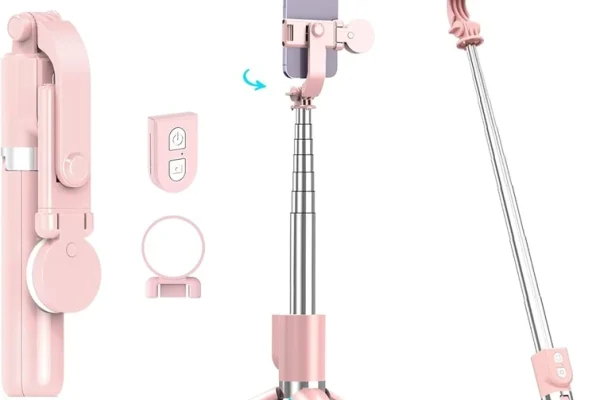
Use tripods or smartphone gimbals to reduce shake during long exposures or burst shots, ensuring crisp images.
Shooting in RAW preserves maximum image data for detailed post-processing, available on many flagship smartphones such as iPhones and Pixels.
Troubleshooting Common Smartphone Photography Issues
Ensure sufficient lighting and steady hand or use stabilization accessories. Increase shutter speed in manual mode to freeze motion.
Lower HDR strength or disable if scenes lack sufficient contrast. Use manual exposure compensation for fine control.
Increase subject-to-background distance and ensure adequate lighting. Clean camera lens and avoid cluttered backgrounds.
Stabilize the phone to prevent shake. Increase ISO cautiously to brighten image but monitor noise levels. Use external lighting if possible.
Start with automatic exposure, then incrementally adjust ISO and shutter speed in small steps, reviewing results after each change.
Recommended Accessories to Enhance Smartphone Photography
Post-Processing and Editing Essentials

Using apps compatible with RAW/ProRAW files like Adobe Lightroom Mobile or Snapseed enables advanced editing, including exposure adjustments, color grading, and noise reduction. Shooting in RAW preserves detail and dynamic range, critical for professional-level edits.
Frequently Asked Questions About Smartphone Camera Modes

What is the difference between HDR mode and manual mode on smartphones?
HDR mode automatically combines multiple exposures to balance shadows and highlights, ideal for high contrast scenes. Manual mode allows users to adjust ISO, shutter speed, and white balance themselves for granular exposure control, useful in challenging lighting or creative scenarios.
When should I use burst mode on my smartphone?
Use burst mode for fast-moving subjects like sports, wildlife, or children to capture multiple frames quickly, increasing chances of a sharp, well-timed shot.
How does portrait mode create a blurred background effect?
Portrait mode uses depth sensors or computational algorithms to separate the subject from the background, applying a bokeh blur to simulate shallow depth of field found in professional cameras.
Can I use manual mode on all smartphones?
Most modern smartphones offer some form of manual or Pro mode, though feature availability and control granularity vary by device and manufacturer.
Is shooting in RAW better than JPEG on smartphones?
RAW captures uncompressed image data, providing greater flexibility for editing exposure, color, and detail without quality loss, whereas JPEG applies compression and processing that limits post-editing options.
Smartphone camera modes empower photographers to tailor their approach to diverse subjects and lighting conditions, elevating mobile photography beyond casual snapshots. Mastering these modes and combining them with practical accessories and post-processing techniques will unlock creative potential and professional-quality images. For further insights on leveraging smartphone camera modes for landscape photography, consult this comprehensive guide from Iceland Photo Tours. For detailed explanations on manual mode usage, see Android Authority’s expert tutorial.
Enhance your photography by experimenting with these modes regularly, adapting techniques to your shooting environment and subject matter. Continuous practice and exploration remain key to fully harnessing the evolving capabilities of smartphone cameras in 2026 and beyond.